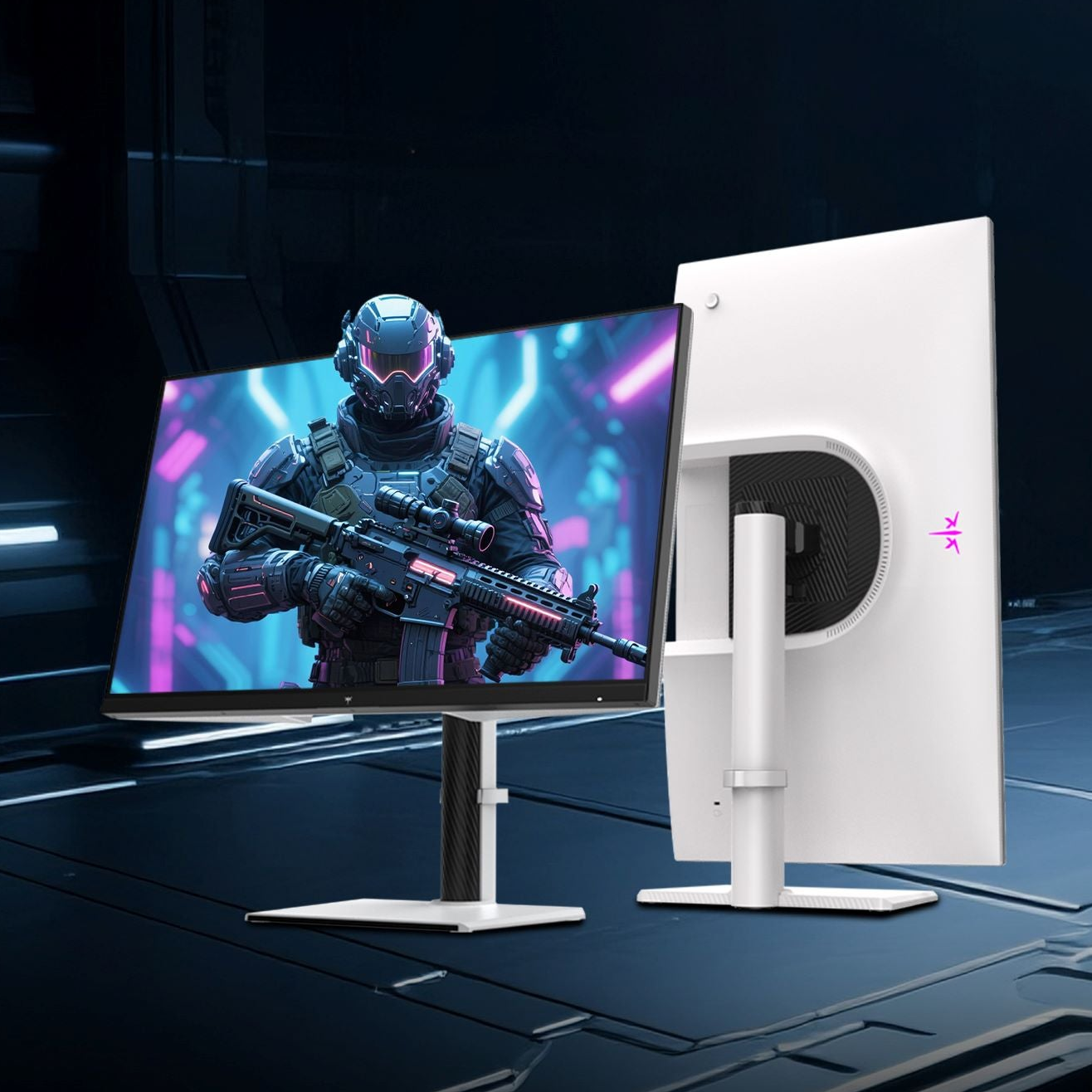




Hybrid teams are standardizing monitor resolutions because shared content has to stay readable for everyone, not just the person presenting. A common resolution baseline reduces tiny text, cropped windows, scaling surprises, and room-display mismatches.
Is your finance dashboard crystal clear on your 4K desk monitor but unreadable the moment you share it with teammates on laptops and meeting-room screens? Standardizing around a few proven resolution targets can make shared spreadsheets, slides, whiteboards, and app demos easier to read without forcing presenters to rebuild every window before a call. Here is how to choose the right baseline while protecting both productivity and clarity.
The Real Problem Is Not Resolution Alone
Screen sharing turns a personal monitor into a group communication surface. That changes the success metric. On your own desk, a 27-inch QHD or 4K display may feel excellent because you sit close, use operating-system scaling, and control the window size. In a meeting, that same content may be compressed into a video tile, projected onto a room display, or viewed on a 13-inch laptop.
A practical display standard gives teams a shared expectation for what “readable” means. Resolution defines pixel count, but pixel count is only part of the experience. Pixel density, screen size, aspect ratio, video-conferencing compression, and app scaling all shape what participants actually see.
In real hybrid workspaces, the most common failure is not a bad monitor. It is a mismatch between the presenter’s workspace and the audience’s viewing environment. A product manager on a 32-inch 4K display may share a full desktop with a roadmap, chat, browser tabs, and a design file open at once. The remote teammate sees a dense miniature. The in-room display shows the same thing from 12 ft away. Nobody wants to interrupt, so decisions slow down.

Why 16:9 Has Become the Compatibility Default
The strongest reason teams keep returning to 1920 x 1080, 2560 x 1440, and 3840 x 2160 is that they preserve the same 16:9 shape. That matters because most video calls, meeting-room displays, presentation decks, and conferencing layouts are designed around widescreen content.
Video-conferencing background guidance commonly points teams toward a 16:9 format, and conferencing software can crop or reframe visuals depending on camera, device, and layout behavior. That same reality applies to shared work: if your team standardizes around 16:9 screens, there is less aspect-ratio conflict when content moves from laptop to monitor to conference-room display.
The practical hierarchy looks like this:

Resolution |
Best Team Use |
Strength |
Trade-Off |
1920 x 1080 |
General meetings, sales calls, support demos |
Very compatible and easy to read when shared |
Less workspace for heavy multitasking |
2560 x 1440 |
Daily productivity, coding, dashboards, analysis |
More room with strong readability on 27-inch displays |
Shared full-screen content can look small unless windows are managed |
3840 x 2160 |
Design, data rooms, large meeting displays, split sources |
Excellent detail and room-display flexibility |
Often needs scaling and careful sharing habits |
For many office teams, 27-inch QHD is the performance-value sweet spot. It gives users more workspace than Full HD without the scaling discipline required by 4K. For conference rooms and shared displays, 4K becomes more compelling because it can preserve more detail when multiple inputs or layouts appear at once.

Standardization Makes Meetings Faster
Hybrid teams already deal with participation friction. Hybrid-meeting guidance notes that unequal participation, technical issues, fatigue, and disengagement can undermine meetings, and that technical issues should be tested before meetings to reduce delays. Resolution mismatches are one of those small technical problems that repeatedly steal attention.
A standard monitor profile lets IT and team leads define predictable defaults. A design team might use 27-inch QHD monitors at desks, 4K displays in review rooms, and a rule that presenters share one app window instead of a full desktop. A finance team might standardize on 32-inch 4K for analysts but require dashboards to be presented in a 1920 x 1080 browser window during weekly reviews.
The result is not just cleaner video. It is better meeting behavior. People stop asking presenters to zoom in every five minutes. Facilitators spend less time troubleshooting. Remote participants can evaluate the actual work instead of interpreting a blurry grid.
Full-Screen Sharing Is Often the Wrong Default
A high-resolution monitor is a productivity asset until it becomes a tiny broadcast canvas. A user forum discussion about major meeting platforms captured a familiar issue: a user with a high-resolution monitor wanted the software to automatically lower resolution during screen sharing, but the accepted answer said there was no built-in automatic option and recommended sharing a specific window or resizing the app instead. The key lesson is that sharing only the application window often beats sharing an entire desktop.
There is a caveat. Some pop-ups, menus, tooltips, and separate dialog windows may not appear correctly when sharing only one app window. For training sessions or software demos, presenters should test the exact workflow before the meeting. If the demo relies on menus and modal windows, full-screen sharing may still be safer, but the desktop should be cleaned up and set to a readable layout first.
A simple rule works well: use the highest native resolution for personal work, but share the smallest practical canvas that contains the task. For example, instead of sharing a full 2560 x 1440 desktop, place the spreadsheet in one 1920 x 1080-sized window, zoom the sheet to 125%, and share that window. Viewers get readable rows and columns, while the presenter keeps notes and chat private on another screen.

The Room Display Changes the Math
Meeting rooms punish weak resolution planning. A desk monitor is viewed from roughly arm’s length; a room display may be viewed from across the table. When two or more sources appear on one screen, the available pixels are divided among them. That is why 4K room displays are not just a luxury spec for hybrid collaboration.

Hybrid room guidance treats additional in-room displays as useful for slides, gallery view, captions, remote presenters, and content overflow. In practice, that means the display has to support both human presence and shared work. If the room has one screen, shared content and people compete for space. If the room has two screens, one can show participants while the other keeps content readable.
For a small huddle room, a 4K display can make shared docs and dashboards legible without oversizing the hardware. For a larger room, the screen also needs enough physical size so the extra pixels matter from the back seats. Resolution, screen size, and viewing distance have to be selected together.
Pros and Cons of Resolution Standardization
The upside is strong. Standardized resolutions reduce setup time, make support easier, improve readability, and simplify purchasing. They also create fairer hybrid meetings because remote participants are less likely to be handed unreadable visuals. Hybrid collaboration guidance emphasizes standardized access to hardware and software so employees avoid compatibility issues, and monitor resolution fits directly into that principle.
The downside is that one standard can under-serve specialized roles. Designers, video editors, engineers, analysts, and competitive gamers may need higher resolution, wider aspect ratios, higher refresh rates, or color-accurate panels. A strict Full HD-only policy may save money but cost focus and performance. A strict 4K-only policy may raise costs and create scaling problems for users who mostly share simple documents and slides.
The better approach is a controlled standard, not a single-spec mandate. Give general productivity users a baseline, power users a justified upgrade path, and meeting rooms a separate display standard optimized for shared visibility.
How to Choose a Practical Team Standard
Start with the meeting output, not the monitor catalog. If your team mostly shares slides, documents, and browser apps, 1920 x 1080 remains the safest compatibility floor. If people spend the day comparing documents, coding, writing, and managing dashboards, 27-inch QHD gives a better personal workspace while remaining manageable for shared windows. If the team reviews complex visuals, large spreadsheets, creative work, or multiple sources in rooms, 4K belongs in the standard.
An older but still useful layout principle is to optimize for the audience’s common resolution while still supporting other sizes; layouts should not be fixed to one monitor because real window sizes vary. That idea translates cleanly to hybrid meetings. Optimize the team’s hardware around common sharing scenarios, then make sure edge cases still work.
A practical procurement policy might define Full HD as the minimum for basic workstations, QHD as the default for 27-inch productivity monitors, and 4K as the room-display and specialist-workflow tier. Pair that with USB-C where possible, because a one-cable setup reduces dock confusion and makes hybrid desks easier to support.
The Human Standard Matters Too
Resolution standards only work when meeting habits match them. Hybrid meeting best practices consistently point toward remote-first behavior, clear facilitation, better audio, and shared digital visuals. Visual equity suffers when in-room teams rely on whiteboards or displays that remote attendees cannot clearly see, so teams should use shared digital visuals instead of physical-only collaboration surfaces.
That is where monitor standards become empowering rather than restrictive. A strong setup lets a remote analyst read the same chart as the conference-room team. It lets a presenter move from desk to room without rebuilding their layout. It lets IT troubleshoot based on known targets instead of endless device combinations.
For daily execution, ask presenters to use native monitor resolution, keep OS scaling consistent, share windows rather than full desktops when possible, and test high-detail content before important meetings. For dual-monitor users, matching size and resolution helps reduce visual inconsistency, and matching size and resolution is especially useful when presenters move content between screens during a call.
FAQ
Is 1080p Still Good Enough for Hybrid Teams?
Yes, especially for general meetings, sales conversations, support calls, and document walkthroughs. It is not the most spacious personal workspace, but it is highly compatible and usually readable when shared.
Should Every Team Move to 4K?
No. 4K is excellent for meeting-room displays, creative review, large spreadsheets, and multi-source sharing, but it can create tiny interface elements without scaling. Many teams get better value from QHD at the desk and 4K in shared rooms.
Are Ultrawide Monitors Bad for Screen Sharing?
Not bad, but they require discipline. A 21:9 or wider desktop can look cramped when squeezed into a standard meeting window. Ultrawide users should usually share a single 16:9 app window for meetings.
Hybrid teams standardize monitor resolutions because compatibility is now part of performance. The winning setup is simple: QHD for focused productivity, 4K where shared detail matters, and disciplined 16:9 sharing habits so every participant can actually see the work.