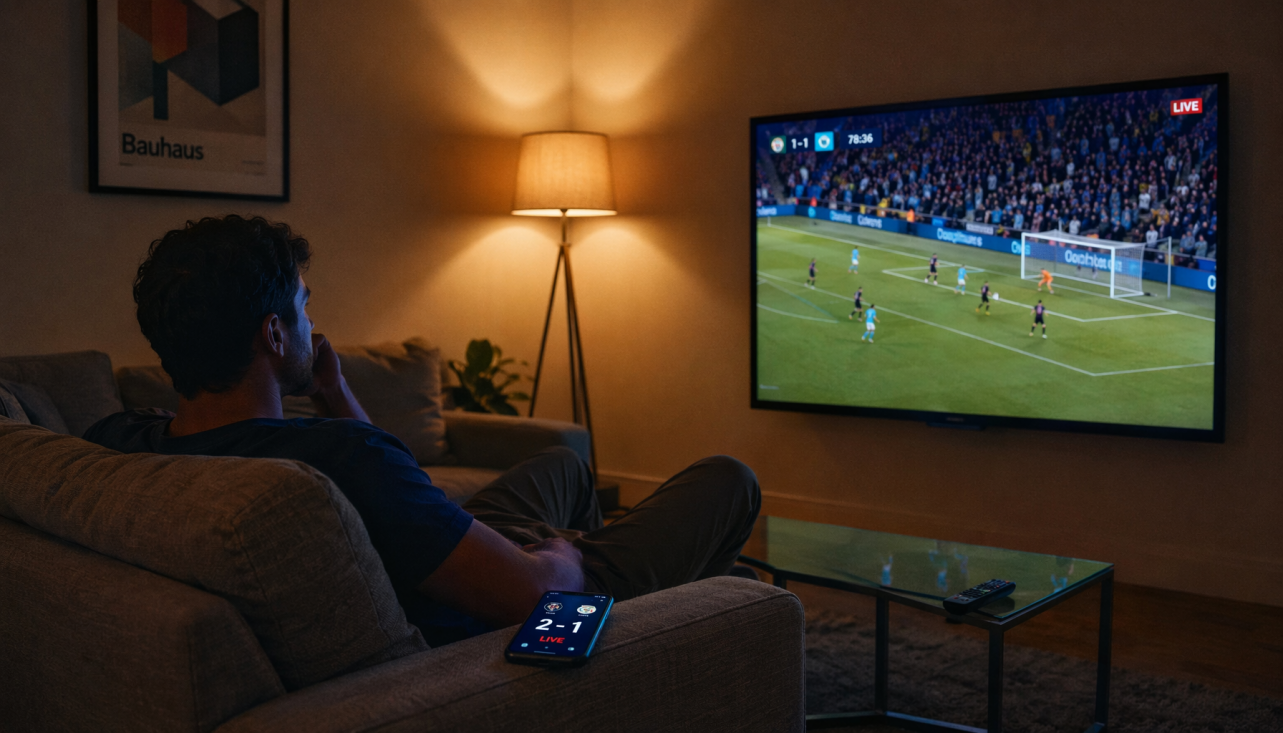
Black bars usually appear because the game, cutscene, console, or scaling setting is outputting a narrower aspect ratio than your ultrawide panel. In many cases, those bars are intentional because they preserve correct image geometry instead of stretching the game world sideways.
Did your new 34-inch ultrawide make the desktop feel huge, only for your favorite game to launch with empty space on both sides? A clean setup check can quickly tell you whether the issue is game support, resolution, GPU scaling, or a deliberate competitive limit. You’ll know when to fix it, when to accept it, and when black bars are actually the better visual choice.
The Core Cause: Aspect Ratio Mismatch

An aspect ratio is the relationship between screen width and height, such as 16:9, 21:9, or 32:9. A standard 16:9 image fits a regular widescreen monitor, but a 21:9 ultrawide has more horizontal space, so a 16:9 game image cannot fill the whole panel without stretching, cropping, or adding side bars. The same principle applies across less common formats: a 15:9 screen is about 1.66:1, sitting between 16:9 and ultrawide formats, which shows how small ratio differences can change the way content fits a display 15:9 screen.
For a practical example, take a 3440 x 1440 ultrawide monitor. If a game runs at 2560 x 1440, the height matches perfectly, but the width is short by 880 pixels. That leaves 440 pixels of unused space on the left and 440 pixels on the right, which is exactly the kind of centered 16:9 image discussed by users trying to run true unstretched 16:9 on a 3440 x 1440 ultrawide.
Black Bars Are Often the Correct Rendering Choice
Black bars can feel like wasted screen, but they are often the most accurate way to show the image. If a 16:9 game is forced across a 21:9 screen, circular icons can become oval, character faces can look wider, menus can feel wrong, and aiming can feel inconsistent. In fast games, that distortion is more distracting than a clean centered image.
The tradeoff is simple. Filling the panel gives you more surface area, but only if the game actually renders a wider field of view or properly expands the scene. Preserving aspect ratio gives you less filled screen area, but it keeps the image faithful. For shooters, fighting games, retro titles, and games with fixed UI layouts, correct proportions are usually worth more than edge-to-edge coverage.
Why Some Games Support Ultrawide and Others Do Not

Modern PC games often support 21:9, but support is not universal. Some older, indie, console-first, or competitive titles are built around 16:9. Others support ultrawide gameplay but show cutscenes, menus, loading screens, or pre-rendered videos in 16:9. That is why a game may look perfect during live gameplay and then suddenly show black bars during a cinematic.
Ultrawide gaming resources commonly describe 21:9 as the main ultrawide gaming format, with 32:9 super ultrawide acting more like two standard screens side by side ultrawide gaming monitors. That extra width can make racing, flight, cockpit, adventure, and open-world games feel more natural, but only when the engine, HUD, and camera system are designed to use it.
Competitive games add another layer. Some developers limit ultrawide support because wider views can expose more side information than a 16:9 player sees. In that case, black bars are not a monitor defect; they are a rules decision. Ultrawide ownership notes make the same practical point: some games use 16:9 cutscenes, some stretch, and some competitive titles restrict aspect ratio to avoid field-of-view advantages.
Cutscenes, Menus, and HUDs Can Behave Differently
A game is not one single video signal from start to finish. The 3D world, HUD, subtitle layer, inventory screen, menu, and cutscene system may each be handled differently. That is why you can get full ultrawide gameplay with black-barred cinematics, or a correct world view with a stretched minimap.
This is especially common when cutscenes are pre-rendered at 16:9. The game cannot simply “show more” on the sides because those pixels were never produced. Stretching the video would distort actors, vehicles, UI prompts, and text. Keeping side bars is the cleanest result.
Check Resolution Before Blaming the Game
The first setup check is the simplest: make sure the operating system and the game are using the monitor’s native resolution. A 3440 x 1440 monitor should generally run at 3440 x 1440 on the desktop and in supported games. A 5120 x 1440 super ultrawide should be fed a 5120 x 1440 signal when the GPU, cable, and port can handle it.
If you accidentally run a lower 16:9 resolution such as 2560 x 1440 on a 3440 x 1440 panel, the monitor or GPU must decide what to do with the missing width. It can center the image with bars, scale while preserving the ratio, or stretch the image. Centering with bars looks smaller, but stretching damages geometry.
There is also a performance reason users sometimes lower resolution. A 3440 x 1440 ultrawide renders nearly 5 million pixels, while 2560 x 1440 renders about 3.7 million. That is roughly one-third more GPU work, which is why ultrawide buying advice often warns that wider displays need stronger graphics hardware.
GPU Scaling and Monitor Scaling Matter

If the game supports only 16:9, your scaling setting determines whether it appears centered, stretched, or proportionally enlarged. GPU driver software and many monitor on-screen menus include scaling options such as no scaling, aspect ratio, preserve aspect ratio, center, or full panel.
A long-running monitor forum recommendation is to use driver-side no scaling when you want the source image to stay at its original size, with black borders appearing wherever the monitor has extra space. Fixed aspect-ratio scaling is the other useful choice because it enlarges the image as much as possible without changing its shape.
Monitor-side scaling can complicate this. Some displays ignore or reinterpret the GPU’s signal and apply their own scaling behavior. If the driver looks correct but the image is still stretched, open the monitor’s physical on-screen display and look for aspect, original, 1:1, full, or auto scaling modes.
Fullscreen, Borderless, and Custom Resolutions
Fullscreen exclusive mode can behave differently from borderless fullscreen. Borderless often lets the operating system keep the desktop at native ultrawide resolution while the game renders inside it, which can avoid some scaling conflicts. Fullscreen mode may hand more control to the game or driver, so one title may behave perfectly while another refuses the same layout.
The forum example is useful because the user wanted 2560 x 1440 centered on a 3440 x 1440 ultrawide without stretching. The solved path involved creating a custom 2560 x 1440 mode in GPU driver software and preserving aspect ratio, though the thread also notes quirks with refresh rate, timing mode, Alt+Tab behavior, and cable bandwidth.
That is the kind of fix worth trying when a game does not expose the resolution you want. For high-refresh ultrawides, a higher-bandwidth display connection is often the better bet because bandwidth limits can stop certain resolution and refresh-rate combinations from appearing.
When Black Bars Signal a Real Problem
Black bars are not always intentional. If a game has a 21:9 option selected and still leaves narrow side gaps, the cause may be a game bug, an outdated driver, an unusual desktop resolution, or a monitor mode that is reporting the wrong active area. Forum discussions around a popular team shooter described small left and right gaps on 21:9 displays even when the game was expected to use true ultrawide support, which suggests that not every black-bar case is simply user error.
The way to separate a bug from a setting issue is to test three scenes: the desktop, a supported ultrawide game, and the problem game. If the desktop fills the panel at native resolution and another ultrawide-aware game fills it correctly, your monitor is probably fine. If every source shows bars, the issue is more likely resolution, scaling, cable bandwidth, or a monitor OSD setting.
Practical Fix Path

Start by setting the desktop to the monitor’s native resolution, then set the game to the same resolution if it offers it. Choose the correct aspect ratio in the game’s video menu, such as 21:9 for a 3440 x 1440 display. If performance drops, lower demanding graphics settings before dropping to a 16:9 resolution, because resolution changes are where many scaling problems begin.
Next, check the scaling mode in your GPU software. Use preserve aspect ratio, aspect scaling, or no scaling when you want correct geometry. Avoid full-panel scaling unless you are certain the game is rendering a true ultrawide image. Then check the monitor’s own OSD for aspect or original modes, especially if driver settings appear to have no effect.
For unsupported games, decide what matters more: clean proportions or full coverage. A centered 16:9 image with bars is the right answer for competitive play, fixed-camera games, retro games, and any title where stretching makes UI or aiming feel wrong. For cinematic single-player games with proven ultrawide support, native 21:9 is the better target.
Pros and Cons of Accepting Black Bars
Choice |
Best For |
Benefit |
Tradeoff |
Keep black bars |
16:9-locked games, cutscenes, esports, retro titles |
Correct proportions and predictable UI |
Unused screen space |
Stretch to fill |
Casual use where distortion is acceptable |
Full panel coverage |
Wider faces, distorted HUD, inconsistent feel |
Native ultrawide |
Supported PC games and simulators |
More immersion and wider view |
Higher GPU load and possible UI edge issues |
Custom centered resolution |
Players who want true 16:9 on ultrawide |
Sharp, unstretched image |
Setup can be driver- and cable-dependent |
Should You Buy Ultrawide If Some Games Show Bars?
Yes, if your priority is immersion, productivity, and supported PC games. Ultrawide monitors are excellent for racing, simulation, open-world exploration, video timelines, spreadsheets, and side-by-side work. Setup resources also emphasize the broader workspace benefit, with 21:9 giving a wider canvas and 32:9 acting closer to a seamless dual-monitor replacement expanded horizontal workspace.
Be more cautious if your main library is competitive FPS games, console games, older games, or streaming video services that often deliver 16:9 content. In those cases, a 27-inch 2560 x 1440 16:9 monitor may feel more consistent. The ultrawide advantage is real, but it is strongest when the software is built to use the extra width.
FAQ
Are black bars bad for the monitor?
No. Black bars are just unused display area or black pixels. They do not mean the panel is damaged, and they are not a sign that your ultrawide is defective.
Why do movies sometimes still have bars on an ultrawide?
Movies, streaming apps, trailers, and cutscenes can be delivered in different aspect ratios. A 21:9 screen helps with some cinematic formats, but 16:9 video will still show side bars unless it is cropped or stretched.
Why does my game fill the screen but look wrong?
That usually means the image is being stretched instead of rendered natively. Check round HUD elements, character portraits, text boxes, and the minimap. If circles look oval, switch to native ultrawide support or aspect-preserved scaling.
Is 32:9 more likely to show black bars than 21:9?
Often, yes. A 32:9 display is much wider, so unsupported 16:9 or 21:9 content leaves more unused space. It is powerful for simulation and productivity, but compatibility matters even more.
Black bars on an ultrawide are not automatically a failure. The best display setup is the one that preserves geometry, keeps input feel consistent, and uses the full panel only when the game can render that width properly. Fill the screen when support is real; keep the bars when accuracy wins.