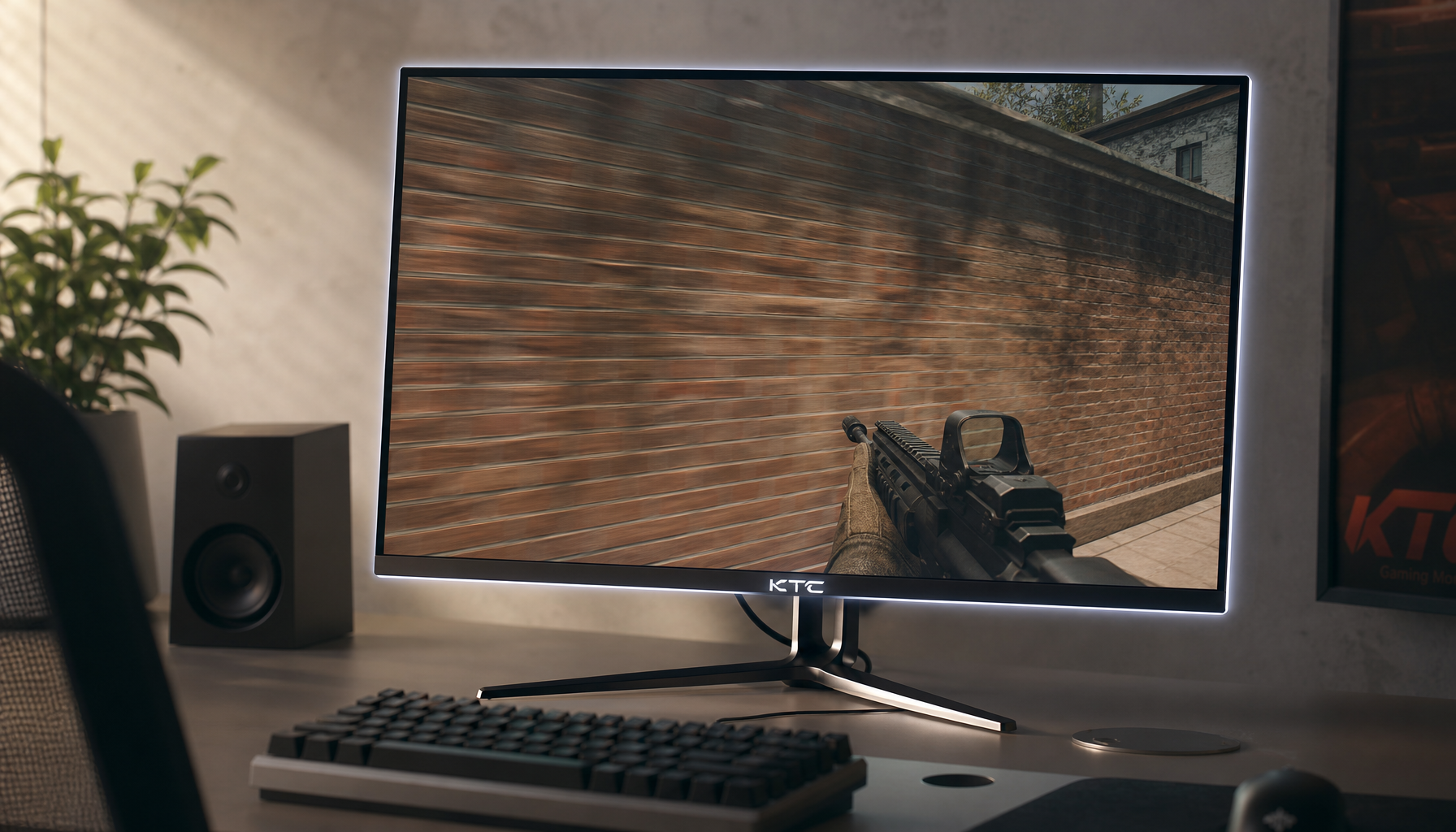
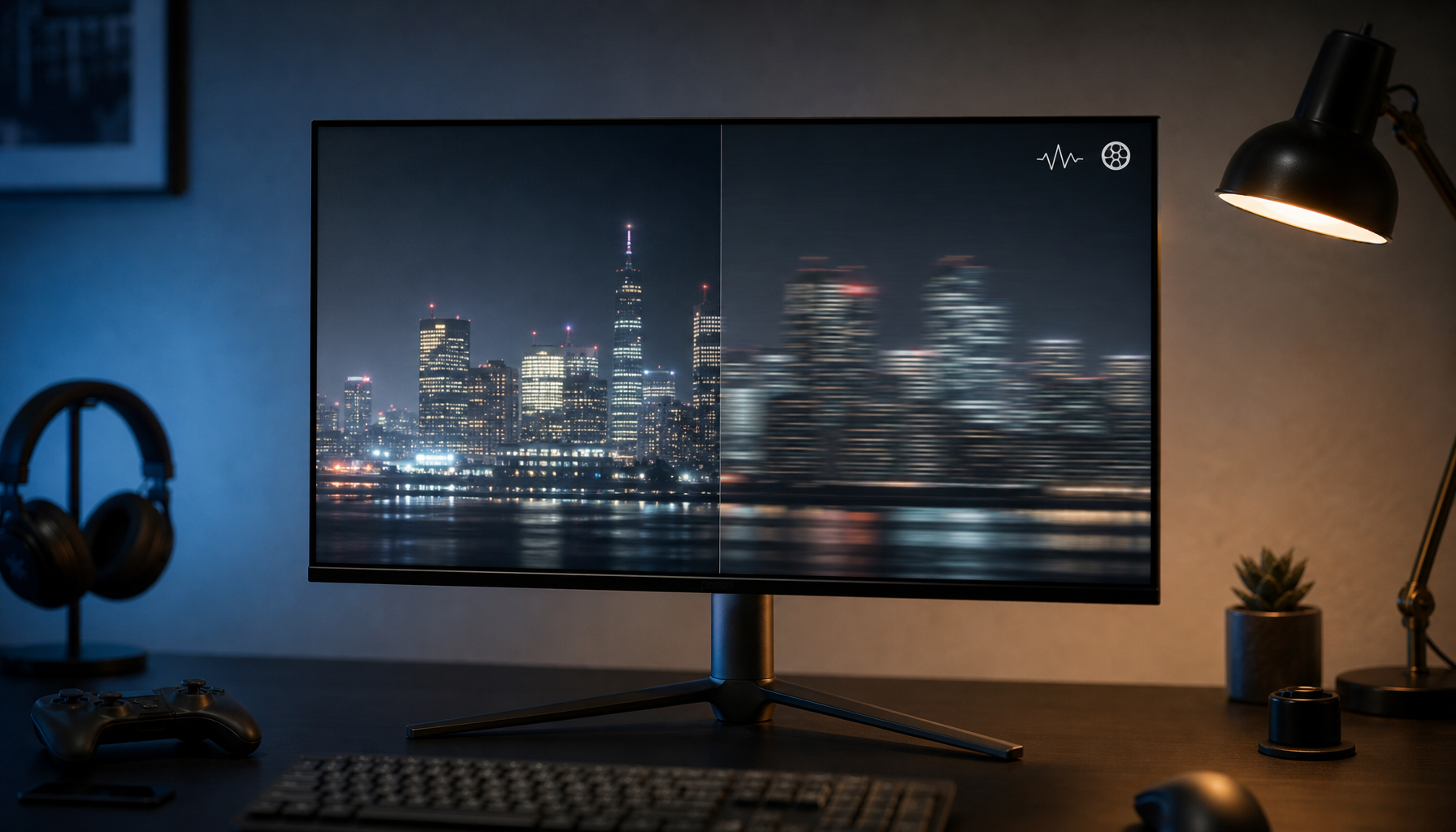
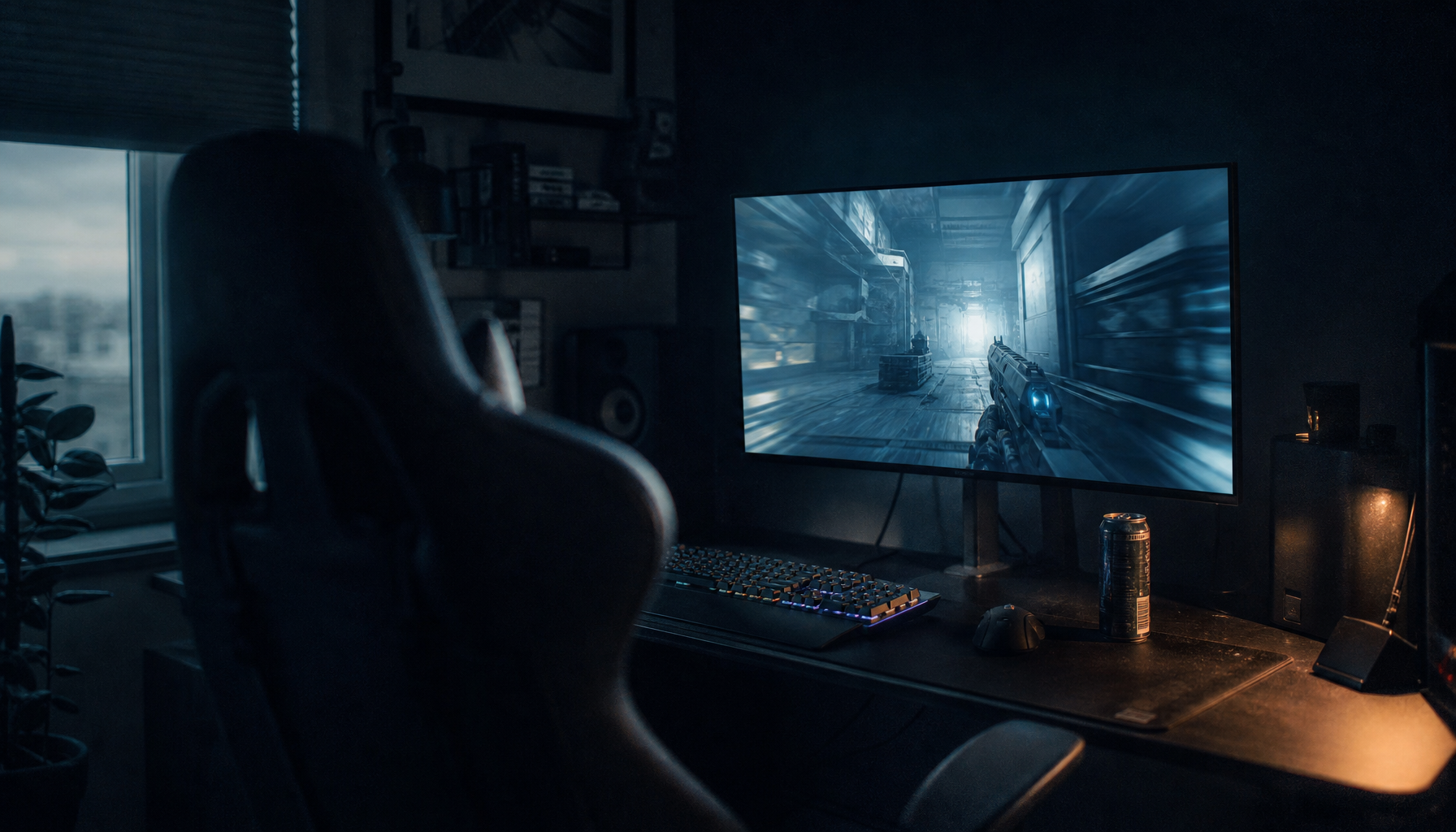
Content mastered at higher brightness can make local dimming look more dramatic, but it also makes halos, crushed shadows, and dimming lag easier to notice when the monitor’s zones, native contrast, and tone mapping cannot keep up.
Does your Mini-LED monitor look stunning in one HDR game, then suddenly show glowing subtitles, gray blacks, or missing shadow detail in the next movie? The practical win is testable: by matching HDR mode, local dimming strength, and room lighting to how bright the content was mastered, you can get stronger highlight impact without turning every dark scene into a blooming stress test. You’ll understand what mastering brightness changes, why some displays handle it better, and which settings to use for gaming, movies, office work, and portable screens.
Why Mastering Brightness Matters
Content mastering brightness is the brightness target used when HDR video, a game, or a creative project is graded. In practical terms, it tells your display, “This highlight was designed to reach this level,” even if your monitor cannot reproduce it exactly. Professional HDR workflows commonly use 1,000-nit mastering as a core reference, and some delivery guidance requires a professional HDR monitor with at least 1,000 nits peak luminance.
Local dimming is the monitor’s attempt to match that creative intent using backlight zones. Instead of lighting the whole LCD panel evenly, a Mini-LED or full-array local dimming display brightens zones behind highlights and darkens zones behind shadows. That is why local dimming zones matter: smaller, more numerous zones can isolate bright objects more precisely, while larger or fewer zones tend to spill light into nearby dark areas.
The important connection is simple. A 1,000-nit highlight in a dark scene asks the backlight to create a steep brightness jump over a small area. If that highlight sits inside one large dimming zone, the zone must brighten enough for the highlight, but everything else inside that zone rises too. That is blooming.

The Local Dimming Chain: Content, Tone Mapping, Zones, Panel Contrast
Local dimming effectiveness is not a single spec. It is a chain. Content mastering brightness sets the demand, tone mapping decides how much of that demand your display will attempt, the dimming algorithm assigns brightness to zones, and the LCD panel’s native contrast determines how much unwanted light leaks through.
A monitor with hundreds or thousands of Mini-LED zones has a real advantage because full-array local dimming can control smaller screen areas than edge-lit systems. But zone count is not a magic shield. A 27-inch 4K Mini-LED monitor with 576 zones can show obvious HDR gains, while a higher-zone model can reduce blooming further, yet native panel contrast still changes the result. The KTC buying guidance notes that HVA panels with much higher native contrast can hide halos better than lower-contrast IPS panels, even when the IPS model has fast response and wide viewing angles.
Here is the field-test version: a bright sword, muzzle flash, cursor, or subtitle on a black background is harder than a large sunrise. The sunrise may occupy many zones and look controlled. The tiny white subtitle forces a small number of zones to brighten sharply against black, so blooming becomes easier to see.

Content Situation |
What Local Dimming Must Do |
Common Result |
Dark movie with small bright subtitles |
Hold black low while brightening narrow text zones |
Visible halos if zones are large or aggressive |
HDR game with bright HUD elements |
Keep static UI readable without lifting the whole scene |
Blooming, dim trails, or distracting contrast shifts |
Bright outdoor HDR scene |
Maintain high average brightness and highlight detail |
Less obvious blooming, more tone-mapping stress |
SDR office desktop |
Keep white windows and text uniform |
Local dimming can look unstable or uneven |
Higher Mastering Brightness Can Improve Impact
When the content and display are well matched, higher mastering brightness gives local dimming more room to work. A Mini-LED display can make lamps, sparks, chrome reflections, magic effects, and sunlit clouds pop while keeping nearby shadows deeper. This is the experience HDR buyers are chasing: not a brighter whole screen, but brighter highlights against convincing darkness.
That is why HDR content should usually use local dimming on a capable Mini-LED monitor. One Mini-LED settings resource recommends Local Dimming On for HDR because it enables the intended contrast between bright highlights and deep blacks. In hands-on tuning, this is most obvious in dark sci-fi games, night races, and cinematic cutscenes where OLED-like black levels are the goal but LCD brightness is still needed for specular highlights.
The upside is especially strong in gaming monitors because HDR highlights often carry gameplay readability. A glowing enemy outline, muzzle flash, or sun glare can feel more spatially convincing when the monitor can drive that region hard without washing out the entire scene. For a portable smart screen or office display with basic edge dimming, the same signal may look less controlled because the hardware cannot isolate highlights finely enough.
Higher Mastering Brightness Can Also Expose Weaknesses
The downside appears when a monitor is asked to reproduce brightness it cannot physically control. If content was mastered for a 1,000-nit, 2,000-nit, or 4,000-nit reference and your monitor has lower peak brightness, limited full-screen brightness, fewer zones, or weak black levels, tone mapping must compress the image. That compression can preserve highlight brightness at the cost of shadow detail, or protect shadows while making highlights look dull.
HDR10 metadata can describe the whole program, while dynamic HDR formats provide more scene-aware guidance, but the final image still depends on the display’s hardware and processing. Production guidance for dynamic HDR emphasizes preserving creative intent through metadata, yet a consumer monitor still has to translate that master into its own zone layout, brightness ceiling, and panel contrast.
This is where two monitors with the same “HDR 1000” label can look different. One may hold a torch in a cave with textured rock walls still visible. Another may make the torch bright but smear a gray halo across the cave, or dim the torch so aggressively that the scene loses punch. The brightness target did not fail; the display ran out of precise control.
Why Brightness Makes Blooming More Visible
Blooming is the halo that appears when a bright object lights up a local dimming zone larger than the object itself. Higher mastered highlights increase the contrast between the bright object and the surrounding black area, so the halo becomes easier to notice. A white mouse cursor on a black desktop is a worst-case test because the cursor is tiny, bright, and high contrast.

LCD panels cannot completely block backlight leakage, which is why black parts of an image can appear gray without local dimming. Local dimming helps by lowering the backlight in dark areas, but when a bright object and black background share a zone, the panel must rely on native contrast to hide the spill. Higher native contrast means less visible leakage.
For office productivity, this is why local dimming can feel worse even though it is technically improving contrast. Spreadsheets, code editors, white browser windows, and dark-mode UI elements contain sharp static edges. The display keeps chasing those edges, and the result can look like uneven brightness rather than cinematic depth.
The Best Settings Depend on Content Type
For HDR games and movies, start with the monitor’s most accurate HDR mode, enable local dimming, and avoid maxing every enhancement blindly. A strong dimming setting can deepen blacks, but it may also increase halos or crush near-black detail. A balanced HDR recommendation of a slightly reduced local dimming value and halo control below maximum reflects a useful principle: the most aggressive setting is not always the most accurate setting.
For SDR office use, local dimming is often better reduced or disabled. Some monitor guidance recommends Local Dimming Off and Brightness Uniformity On for SDR office, web, and desktop use, which matches what many display reviewers and monitor owners observe in real work. A uniform white document or browser window benefits more from stable luminance than from dramatic black depth.

For desktop HDR, confirm that the operating system is not fighting the monitor. General HDR setup guidance covers display settings and notes that laptop HDR brightness behavior can change depending on display type and power state. If the screen looks washed out, too dim, or unstable, check HDR calibration, GPU drivers, monitor firmware, adaptive brightness, and energy-saving modes before blaming the content.
Pros and Cons of Brighter Mastered Content on Local Dimming Displays
Brighter HDR masters can make high-quality Mini-LED monitors look more immersive, especially when the content contains controlled highlights against dark backgrounds. You get deeper perceived contrast, more dimensional lighting, and better separation between bright effects and shadowed areas. For gaming, that can make environments easier to read and more cinematic at the same time.
The tradeoff is that brighter masters increase the workload on every weak point in the chain. Low zone counts create larger halos. Slow algorithms can leave light trails behind moving objects. Lower native contrast makes black areas lift more visibly. Limited sustained brightness can make long bright scenes tone-map down or look less consistent than short highlight bursts.
The practical judgment is value-oriented: buy the local dimming system for the content you actually use. A full-array Mini-LED monitor with hundreds of zones is worth prioritizing for HDR gaming and movies. For all-day office work, a high-quality SDR mode, brightness uniformity, and comfortable text rendering may matter more than peak brightness claims.
Simple Calibration Workflow That Works
Set up separate presets instead of forcing one mode to do everything. Use SDR with local dimming off or low for desktop work. Use HDR with local dimming on for games and video. If your monitor offers multiple local dimming levels, use a bright HDR scene, a dark subtitle scene, and a near-black game area to compare settings. The best choice is the one that keeps highlight impact while preserving shadow texture.
A simple test is enough. Open a dark scene with a small bright object, then switch local dimming from low to medium to high. If high makes blacks deeper but removes detail in dark clothing, caves, or night skies, step down. If low keeps details but makes the whole scene flat, step up. For competitive play, also watch input feel, because more aggressive processing can sometimes conflict with the responsiveness high-refresh players expect.

Room lighting matters too. In a bright office, ambient light hides some black-level improvements, so aggressive local dimming may not deliver much visible benefit. In a dark room, the same setting may look powerful but reveal halos. That is why a single “best HDR setting” rarely works across every desk, game, movie, and portable setup.
FAQ
Is higher mastering brightness always better for local dimming?
No. Higher mastering brightness gives capable Mini-LED monitors more highlight impact, but it also exposes blooming, black crush, and tone-mapping limits. A well-mastered 1,000-nit title can look cleaner than a more extreme master on a monitor that cannot control small bright areas precisely.
Should I leave local dimming on all the time?
For HDR games and movies, usually yes on a strong full-array Mini-LED display. For SDR office work, often no. Static desktop elements, white windows, and dark-mode text can make local dimming look uneven, so a separate productivity preset is the cleaner choice.
Does more brightness matter more than more zones?
Neither wins alone. Brightness creates HDR impact, while zones control where that brightness goes. A bright monitor with too few zones can bloom heavily, while a high-zone monitor with weak sustained brightness may lose impact in demanding HDR scenes.
Mastering brightness sets the challenge; local dimming decides how gracefully your display answers it. For the most reliable experience, treat HDR as a matched system: content brightness, tone mapping, zone count, panel contrast, room lighting, and presets all need to work together.