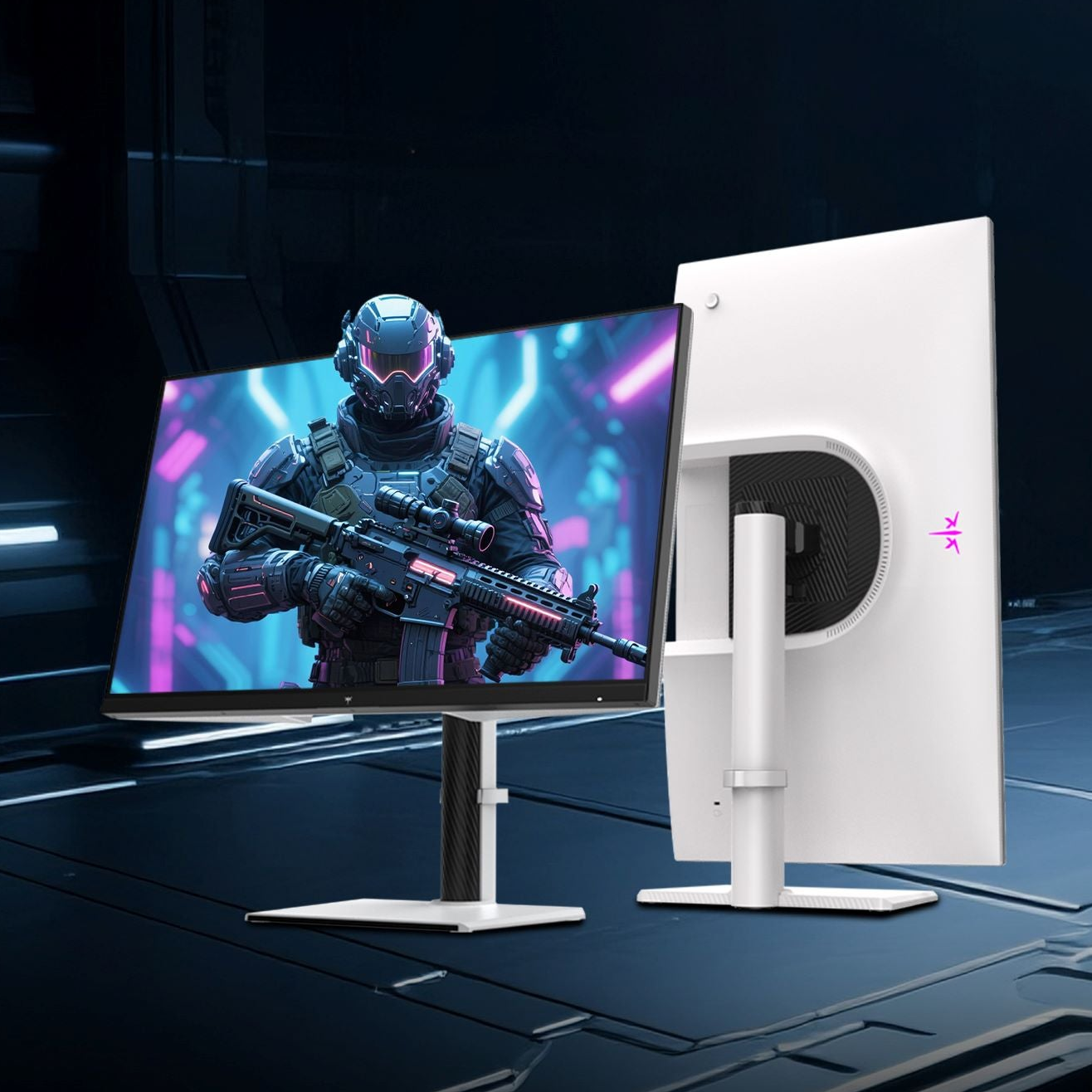
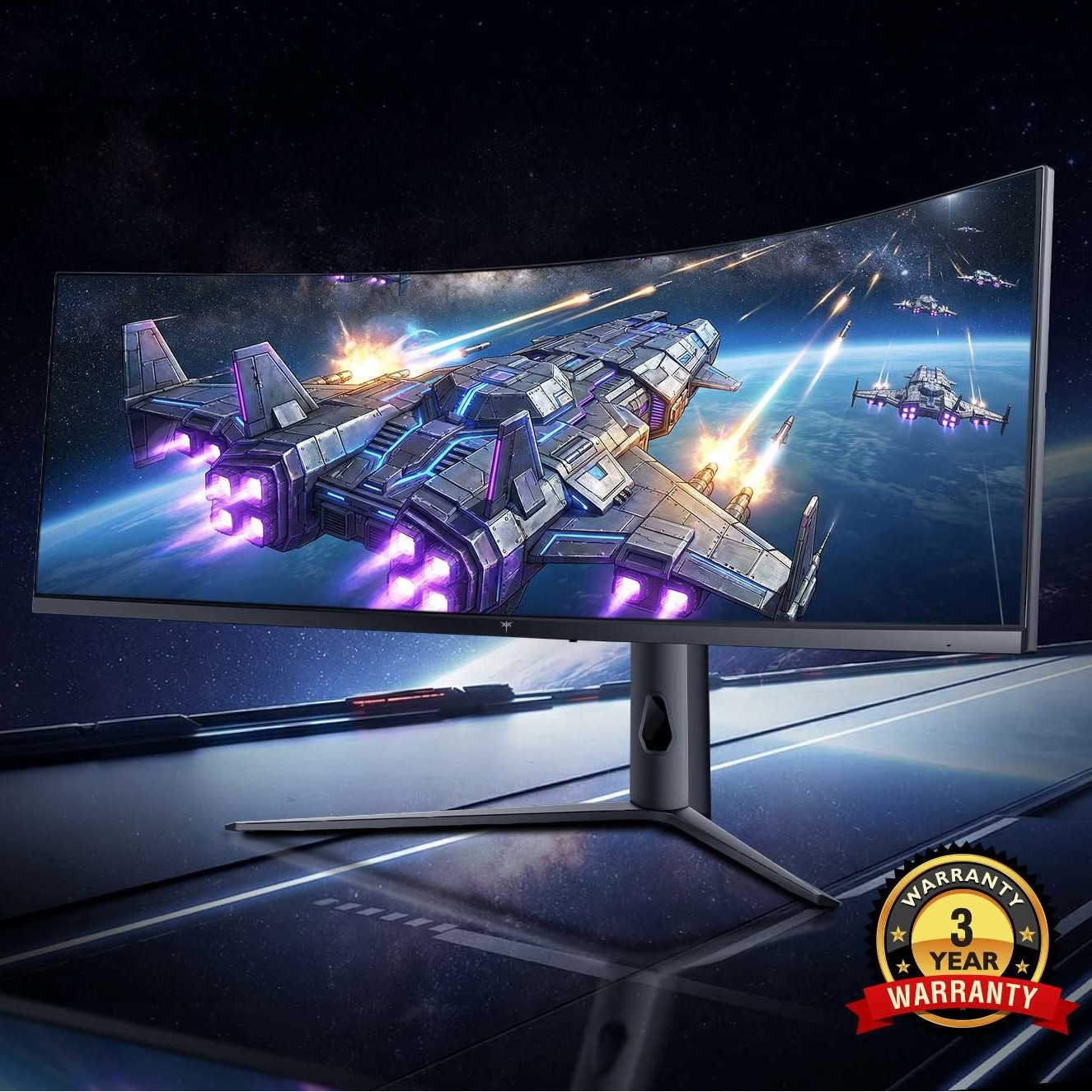



Built-in KVM monitors are more convenient because they turn the display into the desk hub: fewer boxes, fewer cables, and faster everyday movement between a work laptop and personal PC.
Tired of crawling behind your desk just to move a keyboard and mouse from one computer to another? With the right monitor and cable, your laptop can connect through one lead while your keyboard, mouse, speakers, and screen stay ready at the display. Here is how built-in KVM convenience works, where it beats an external switch, and when a separate KVM is still the smarter tool.
What a Built-In KVM Actually Does
A KVM switch lets one keyboard, video display, and mouse control more than one computer, and a built-in monitor KVM places that switching inside the monitor instead of in a separate desktop box one keyboard, video display, and mouse. In practice, your keyboard and mouse plug into the monitor, then each computer connects to the monitor through video and USB paths.
For a common hybrid desk, that means a work laptop might use USB-C, while a gaming or creator desktop uses a video cable plus a USB upstream cable. Once configured, selecting the monitor input can also move keyboard and mouse control to the matching computer.
Why Built-In KVM Feels More Convenient
It Removes a Box From the Desk
The most obvious win is physical simplicity. A separate KVM adds another device, another power path in some cases, more short cables, and another point of failure. A monitor with built-in KVM consolidates that into the display, which is already the center of the setup.
One hands-on account describes the practical reason well: a standalone KVM could solve cable swapping, but it also adds hardware to a small desk, while a KVM monitor keeps the same basic function inside the screen. If your desk is 48 inches wide and already holds a monitor arm, speakers, a laptop stand, and a headset dock, removing even one switch box can make the whole station easier to clean and easier to use.
USB-C Turns the Monitor Into a Dock-Like Hub

The best built-in KVM experience usually happens when one computer is a USB-C laptop. USB-C with video and data support can carry the display signal and peripheral traffic through one cable, so the laptop does not need separate display and accessory cables. Some monitors also add laptop charging from the same connection.
That is the value-oriented sweet spot: arrive at the desk, plug in one cable, and your laptop gains the large screen, keyboard, mouse, and other monitor-connected accessories. For office productivity, coding, trading dashboards, content review, and mixed work/personal routines, this changes the routine from setting up the desk to starting work.

It Reduces Daily Friction for Two-Computer Workflows
Built-in KVM is most compelling when the workflow is simple and repeated: one laptop, one desktop, one monitor, one keyboard, and one mouse. Monitor KVMs are built around exactly that convenience, letting users control multiple computers through one shared set of peripherals without constantly changing devices.
A practical example is a work laptop by day and gaming PC at night. You leave the gaming PC connected through its high-refresh display path, connect the work laptop through USB-C, and keep your keyboard and mouse plugged into the monitor. The desk stays consistent, and the computer changes behind the scenes.

Built-In KVM vs. External KVM: The Real Comparison
External KVM switches are not worse; they are more specialized. Built-in monitor KVMs are more convenient when the goal is a clean desk and two-device switching. External KVMs are more capable when the goal is scale, port variety, dedicated controls, or complex display routing.

Decision Point |
Built-In Monitor KVM |
External KVM Switch |
Best fit |
One monitor, two computers, simple peripherals |
Multiple computers, multiple displays, many USB devices |
Desk clutter |
Lowest, because switching lives in the monitor |
Higher, because a separate box and cables are added |
Switching controls |
Often OSD menu, monitor joystick, software, or limited hotkeys |
Often physical button, hotkey, remote, or advanced controls |
USB ports |
Usually enough for keyboard and mouse |
Often more ports and broader accessory support |
Scalability |
Commonly two computers |
Often two to four consumer systems, with larger pro options |
Gaming setup |
Good when video stays native to the monitor |
Better when exact refresh-rate, display-recognition, and multi-monitor support are needed |
A testing-focused overview notes that KVM monitors remove the need to buy and cable a separate external KVM device, but it also highlights common user complaints around switch function, USB hub behavior, and awkward controls. That matches real desk experience: convenience is excellent when the monitor’s implementation is smooth, but frustrating when switching is buried three menu levels deep.
Where External KVM Switches Still Win
More Computers and More Displays
If you need three or more computers, an external KVM usually becomes the practical choice. Dedicated KVM systems can scale user count and server count, as well as access method, including multi-user and remote-access environments. That is far beyond what most monitor-based KVMs are built to handle.
For a creator with a gaming PC, editing workstation, test bench, and work laptop, the monitor KVM stops being elegant. You need predictable routing, enough upstream ports, and probably dual-monitor or triple-monitor support. At that point, the external KVM is not clutter; it is infrastructure.
Faster, More Direct Switching
Many external KVMs give you a physical button or hotkey. Some monitor KVMs require on-screen menu navigation, and KTC’s setup guidance notes that built-in KVM switching may take around 3 to 8 seconds, while external switches with physical controls can be nearly instant.
That timing matters if you switch 20 times a day. It matters less if you switch once after work. A built-in KVM is best when it reduces setup friction; an external KVM is better when switching itself is a high-frequency action.
More Demanding Gaming and USB Accessories
For gaming, the key is preserving the display path you paid for. Gaming KVM guidance warns buyers not to trust vague “4K support” language and instead verify exact resolution and refresh-rate combinations, multi-monitor behavior, USB performance, and display recognition.
A built-in monitor KVM usually does not add meaningful video lag because the display signal goes directly to the monitor, but the shared USB hub can still become a constraint. If you use an 8,000 Hz mouse, webcam, external SSD, capture device, and RGB keyboard through the same monitor hub, USB bandwidth and device handshakes can become the weak link. For competitive play, plug the primary mouse directly into the gaming PC and let the monitor KVM handle lower-stakes productivity devices.
What to Check Before Buying a Monitor With Built-In KVM
Confirm the USB-C Capabilities, Not Just the Port Shape
USB-C is a connector, not a guarantee. KTC notes that a one-cable setup depends on DisplayPort Alternate Mode for video, USB data support for peripherals, and Power Delivery if you expect laptop charging. A charging-only cable can leave you with power but no picture.
For a practical check, read the laptop specs, the monitor manual, and the cable rating together. If your monitor offers 65W Power Delivery, that may be fine for many slim office laptops; if you run a high-performance gaming laptop under load, expect to keep the factory power brick connected.
Look for Easy Switching Controls
A built-in KVM is only convenient if switching feels quick. Usability analysis specifically calls out complaints around no KVM hotkeys, inconvenient monitor controls, too few ports, and complicated setup. That is why the control method deserves as much attention as panel specs.
A monitor with a joystick, software utility, assignable shortcut, or automatic input behavior will feel much better than one that forces repeated button presses. If the spec sheet talks about KVM but the manual shows a maze of menus, treat that as a real usability cost.
Count Your Peripherals Honestly
A simple keyboard and mouse are easy. A webcam, microphone, stream deck, audio interface, external drive, wireless receiver, and RGB software stack are not the same problem. A monitor KVM needs video inputs, USB upstream connections, and USB downstream ports for peripherals.
If the monitor has only two downstream USB-A ports, it may be perfect for keyboard and mouse sharing but poor as a full desk hub. If your daily work includes video calls, file transfers, and gaming peripherals, check port count, USB speed, and whether the monitor supports the devices you actually use.
The Practical Verdict
Built-in KVM features are more convenient than external KVM switches when your setup is centered on one monitor and two computers. They reduce cable swapping, save desk space, support cleaner USB-C laptop docking, and keep the desk feeling intentional rather than patched together. Monitor-based switching can even support side-by-side computer use through Picture-by-Picture and software-assisted control.
Choose a built-in KVM monitor if your priority is a clean, reliable hybrid desk with one keyboard, one mouse, and one main display. Choose an external KVM if you need three or more computers, multiple monitors, instant physical switching, advanced USB support, or a gaming setup where every refresh-rate and device-recognition detail must be controlled. The best display setup is not the one with the most boxes; it is the one that disappears when you sit down and lets the screen do its job.