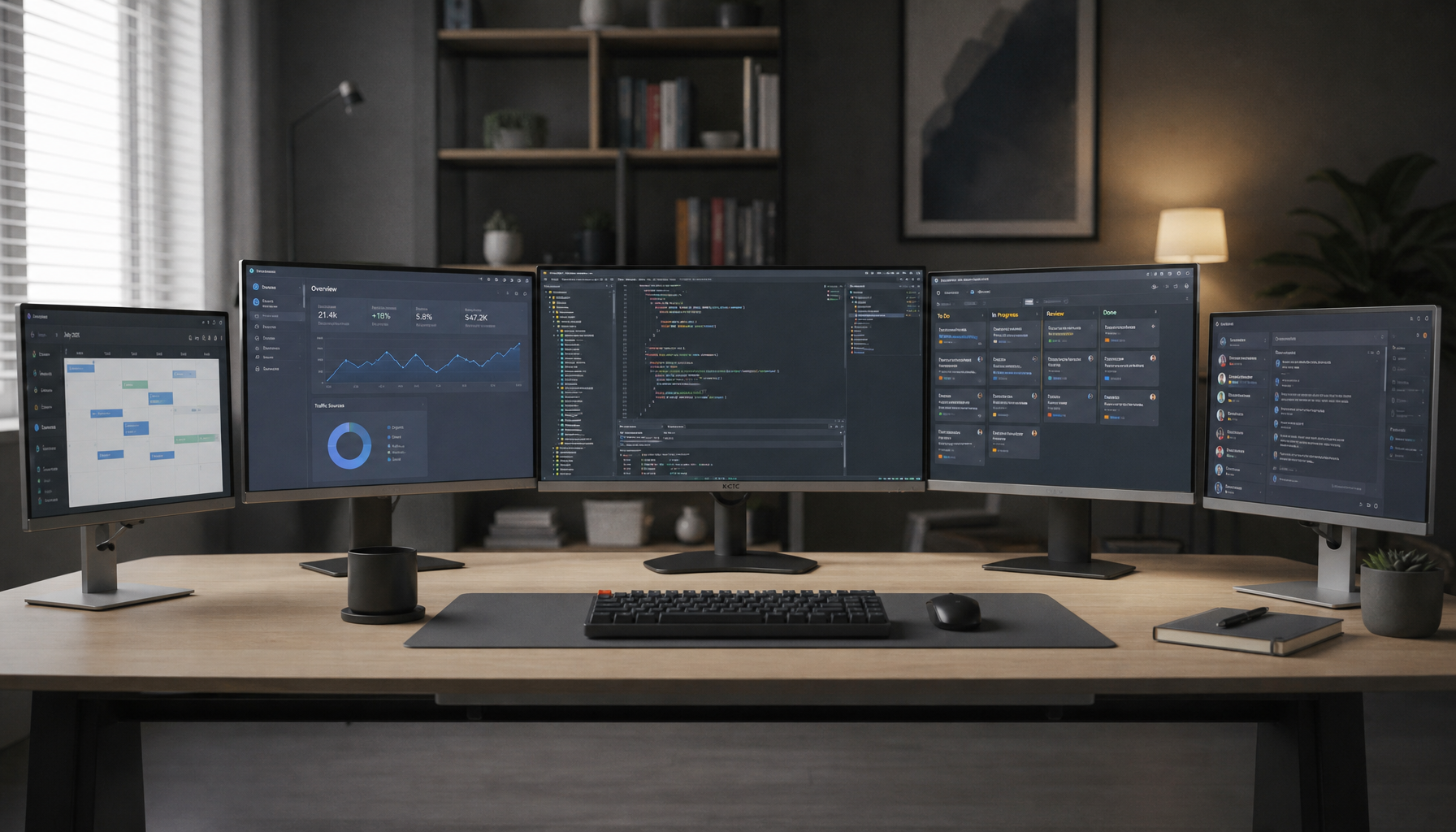
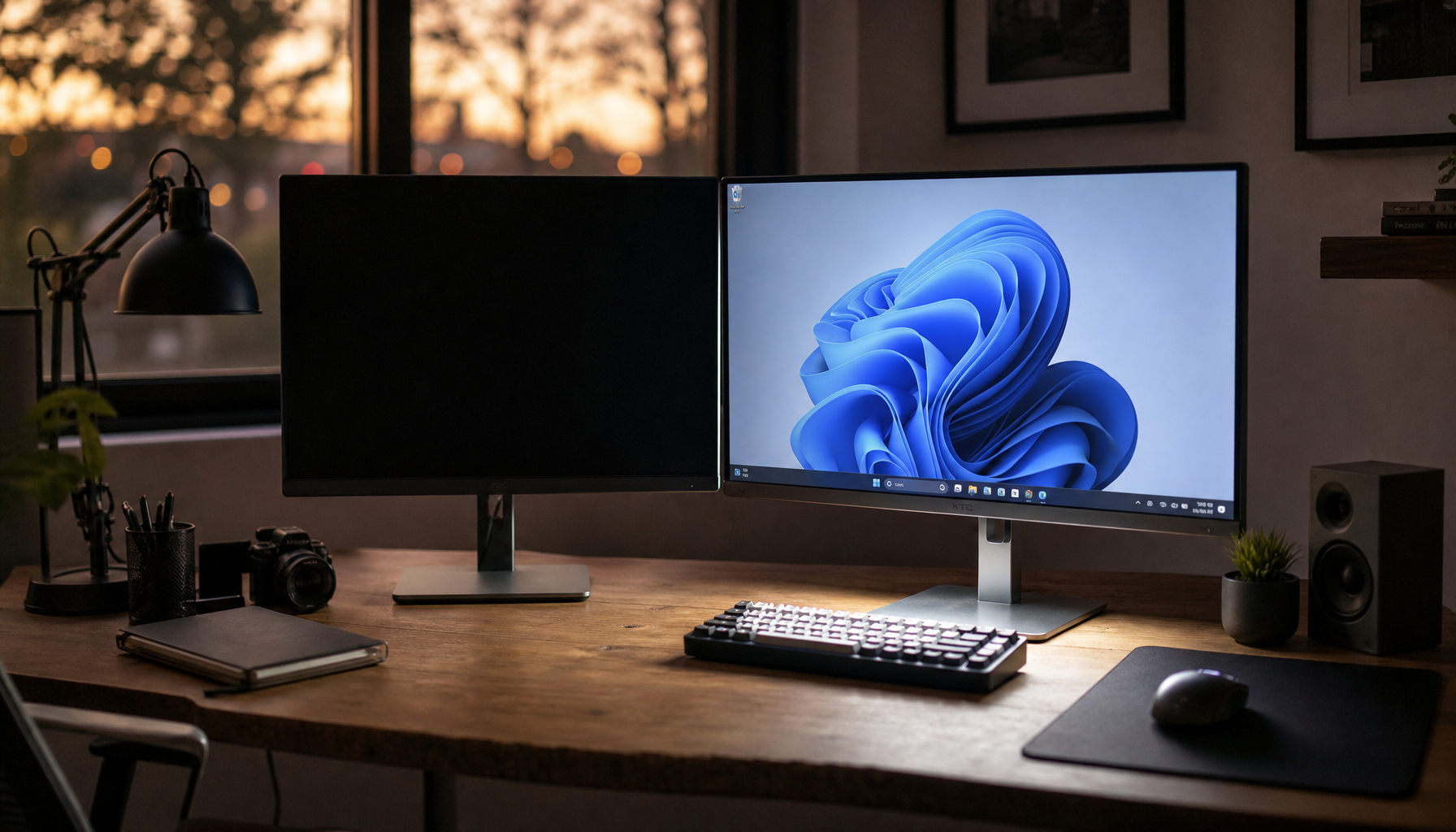
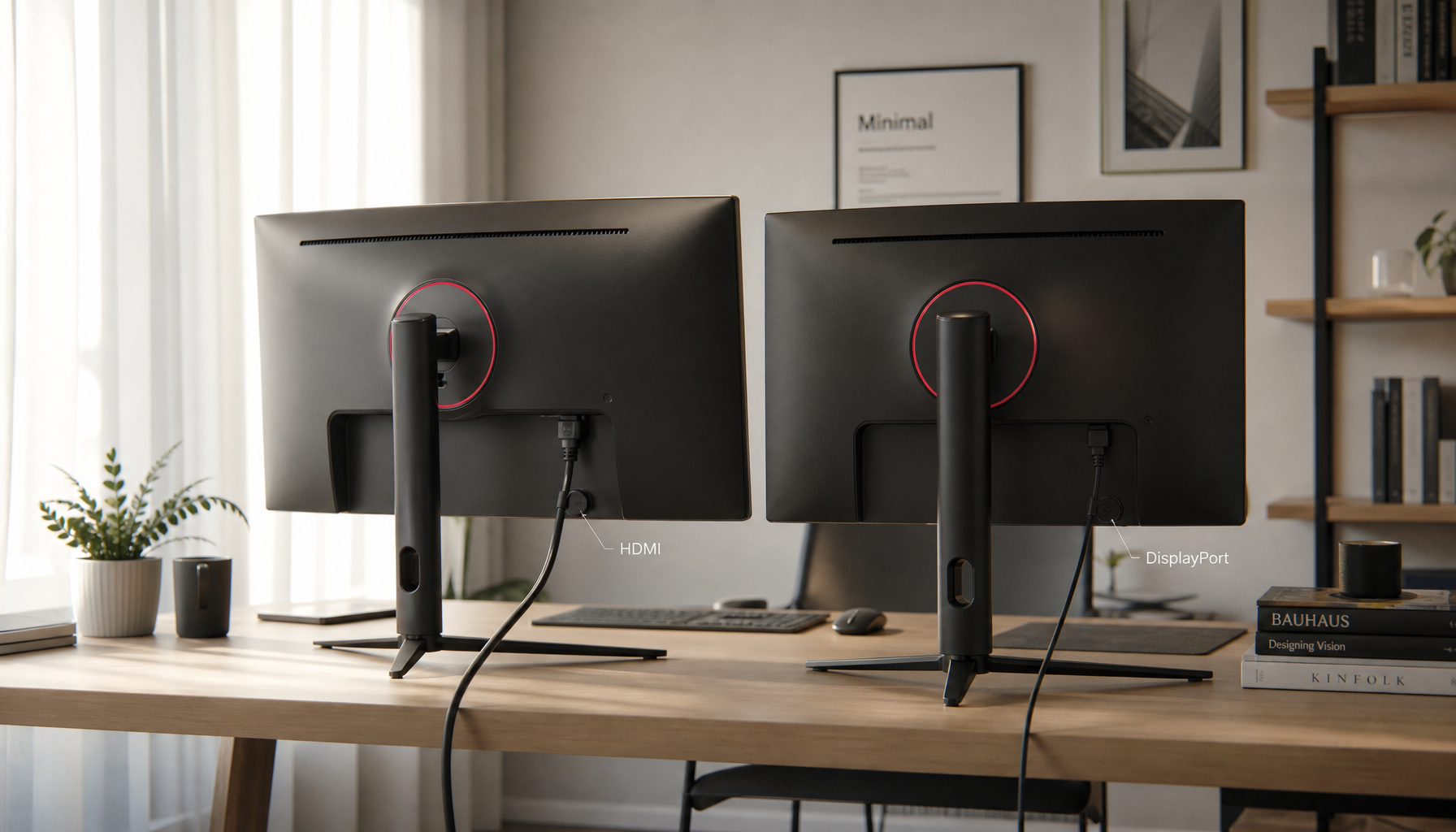
A tight hotel desk can still work like a focused command center: use one-cable USB-C when possible, place the portable monitor vertically or slightly above the laptop, and run extended display mode. The goal is simple: more screen area, fewer cables, and a layout that does not strain your neck, wrists, or suitcase space.
Choose the Fastest Low-Clutter Connection
For hotel work, USB-C is the cleanest setup because it can often carry video and power through one cable, reducing adapter clutter and keeping the desk clear. If your laptop and monitor both support full-featured USB-C, this is the fastest route from unpacked to productive.

HDMI still works well, especially with older laptops, but it usually means one cable for video and another for monitor power. Before travel, confirm your laptop ports, monitor inputs, and whether your USB-C cable supports video, not just charging. Start with USB-C for one-cable power and display, pack HDMI as a reliable backup, use the included cable when possible, and bring a compact hub for rooms with limited outlets or laptop ports.
A portable monitor around 14 to 16 inches is the sweet spot for most travelers, matching common recommendations for travel displays that balance workspace and bag weight.
Build a Desk Layout That Saves Inches
When desk width is limited, do not force a wide side-by-side layout. Put the laptop in the center, then place the portable monitor just to the side in portrait mode for email, notes, chat, or reference documents.

If the desk is very narrow, stack vertically: laptop below, portable screen above or slightly behind it. This keeps your keyboard and mouse area clear while using vertical space that hotels usually waste.

For stacked setups, use the upper screen for glanceable material, not heavy writing. A higher display works best for calendars, dashboards, video calls, documentation, or a slide preview.
Keep the main work screen closest to eye level. Above-screen mounting can help in compact rooms, but safe mounting depends on weight and support; lightweight displays suit travel stands better than heavy panels, as noted in guidance on above-screen portable display mounting.
Set Windows or macOS for Real Productivity
Once connected, choose extended display mode. Mirroring is fine for presentations, but extended mode gives you true second-screen workspace for spreadsheets, editing, calls, and research.
On Windows, press Windows + P, choose Extend, then open Display settings and drag the screen icons to match the physical layout. Arrange displays so pointer movement feels natural across multiple monitors in Windows.
On macOS, open Displays, turn off mirroring, and arrange the screens to match your desk. If the portable monitor is in portrait mode, rotate it in display settings and increase scaling slightly if text looks too small.
A practical split is to keep the main document or spreadsheet on the laptop and place source material, chat, or browser tabs on the portable monitor. That one change cuts constant window switching and makes a small hotel desk feel much less cramped.
Stabilize, Power, and Pack Smarter
Hotel desks vary widely: glass tops, shallow shelves, soft chairs, and awkward outlet placement are common. A compact stand, short cable, and small wireless mouse do more for comfort than a bigger screen alone.
For brightness, 300 nits is usually enough indoors, but brighter rooms or daylight near windows benefit from 400 nits or more. Travel-focused advice often flags brightness as a key spec for changing work environments.
Do a 30-second stability test before working: type normally, move the mouse, adjust the screen angle, and check whether cables tug on the laptop ports. If anything wobbles, lower the monitor, move it closer, or switch from stacked to portrait mode.

Wireless portable monitors reduce cable clutter, but latency and compression can make them weaker for gaming, editing, or precise cursor work.
Quick Hotel-Room Setup Flow
- Clear a rectangle for the laptop, monitor, and mouse before plugging in.
- Connect USB-C, or use HDMI plus USB power if needed.
- Place the monitor in portrait or stacked position to save desk width.
- Select Extend and align display positions in system settings.
- Set brightness, scaling, and angle before opening work apps.