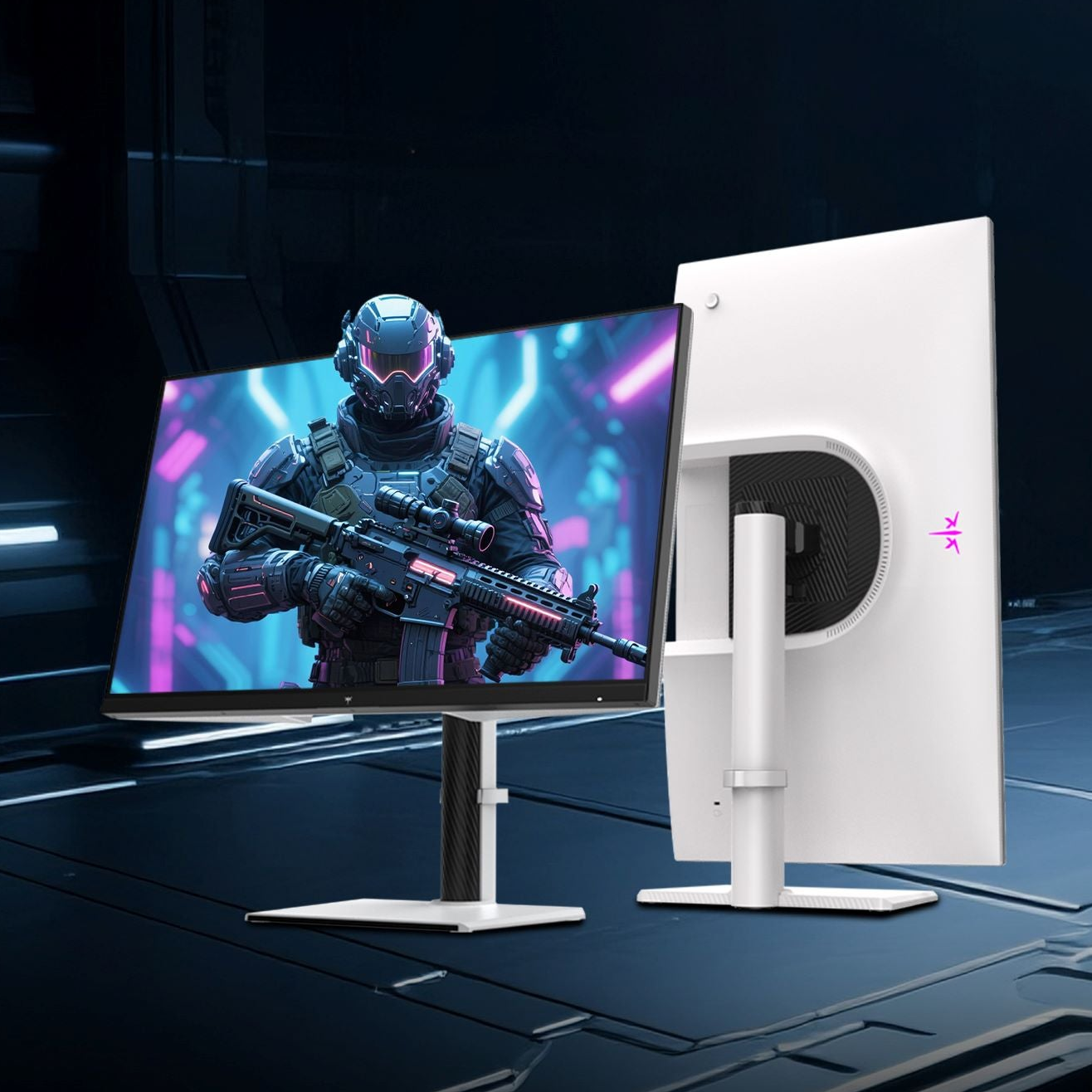
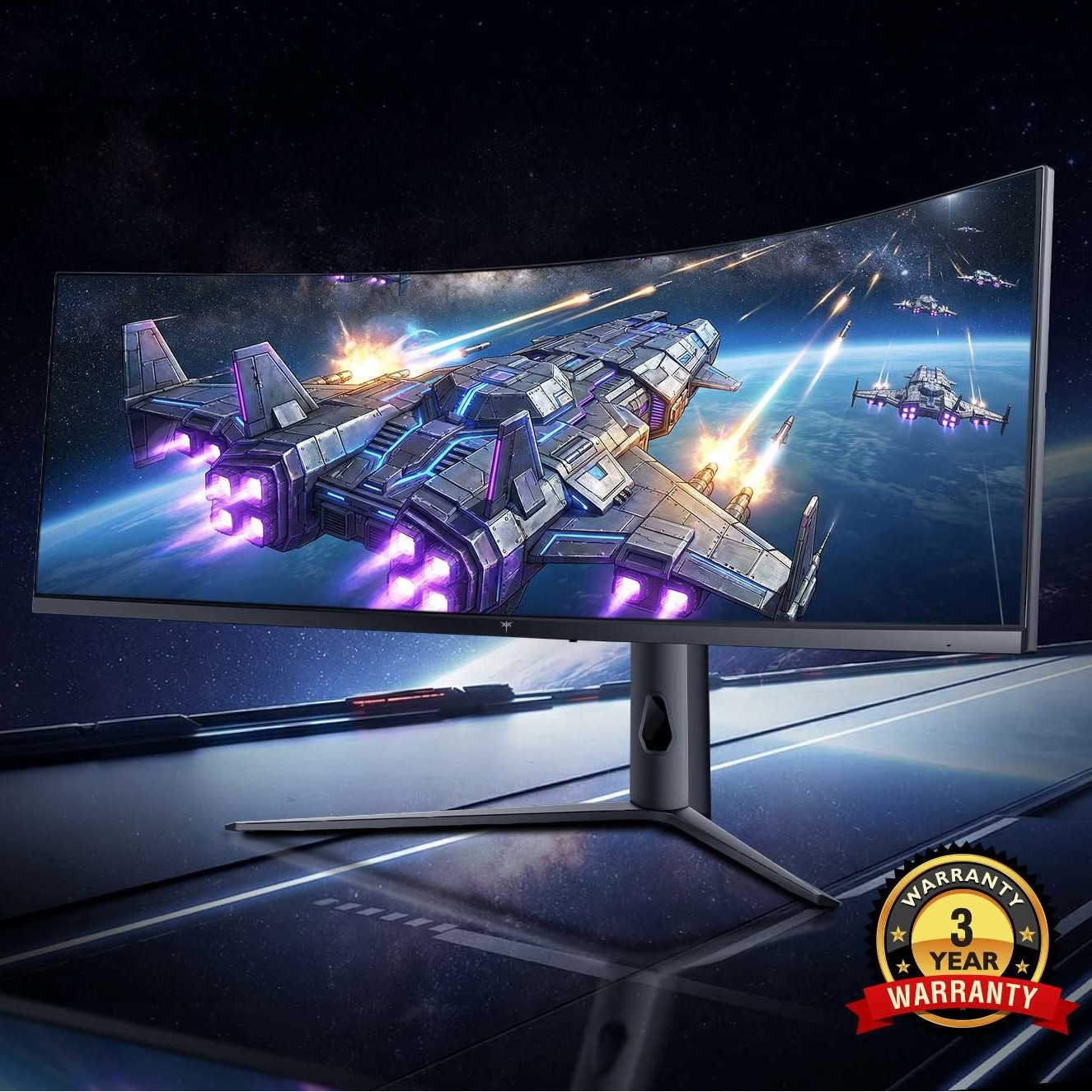



Switching screens can improve workflow, but real eye relief comes from changing focus distance, blinking, and moving.
No. It can make work smoother, but it does not give your eyes the same reset as looking away, blinking more, and changing focus distance.
If your eyes feel dry after a spreadsheet marathon or a coding sprint, it is easy to assume moving to a second screen counts as relief. In practice, a better monitor setup can reduce friction and keep important work visible, but real recovery comes from changing what your eyes are doing, not just which panel they are staring at. The practical difference is simple: better workflow is not the same as less visual strain.
What a real eye break does
A real break gives your focusing system a chance to relax. The American Optometric Association links computer vision syndrome to prolonged screen use, glare, poor viewing distance, and posture, and the clinical review on digital eye strain points to the same problem from multiple angles: reduced blinking, poor contrast, and awkward viewing angles all add up.

That matters because switching from one monitor to another usually keeps the same basic strain in place. Your eyes are still working at close range, your posture is usually still forward-facing, and the room lighting has not changed. If the second monitor is only there to hold email, chat, a dashboard, or reference material, you have changed the workflow, not the workload on your eyes.
Action |
Gives eyes a real break? |
Why |
Switching to another monitor |
No |
Still near-focus work, same lighting, same posture |
Looking far away |
Yes |
Lets focusing muscles relax |
Blinking and closing eyes briefly |
Yes |
Helps dryness and surface irritation |
Standing up and moving |
Yes |
Reduces neck, shoulder, and back strain |
The practical takeaway is simple. A screen change is not a rest unless it also changes distance, focus demand, or posture.
Where multiple monitors do help
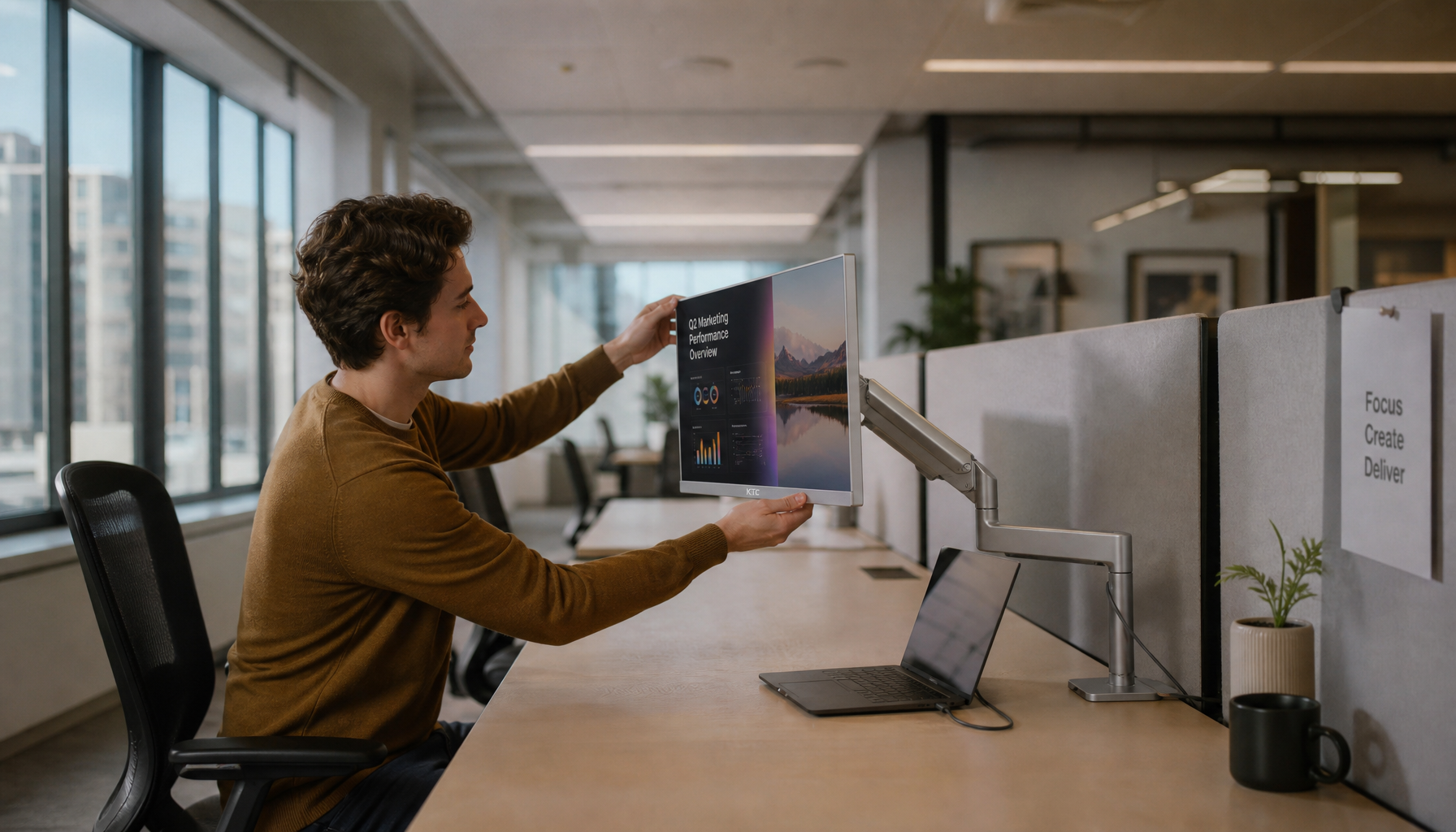
Multiple monitors are still worth using. They are a productivity tool, not an eye-recovery tool. Keeping documents, browser tabs, chats, logs, or dashboards visible at the same time reduces app switching and makes information easier to access, which is why multi-display setups are common in programming, finance, design, and operations work. A productivity-focused write-up on multiple monitors frames the benefit clearly: less switching, less interruption, and faster access to task-critical information.
There is also a measurable workflow benefit in some cases. One estimate suggests that a report requiring five numbers from each source document can save about 66 seconds per weekly report with a second monitor simply by removing repeated tab changes. That is not an eye break, but it is real time saved, and those seconds add up over a day.
The best use of multiple displays is to reduce friction while you work. One screen can hold the active task, another can hold reference material, and a third can keep communication or monitoring tools visible. That is why many people find two or three monitors to be the sweet spot before desk space, setup complexity, and hardware cost start to outweigh the gains. Guidance on two or three monitors lands in that same range.
When multiple monitors become counterproductive
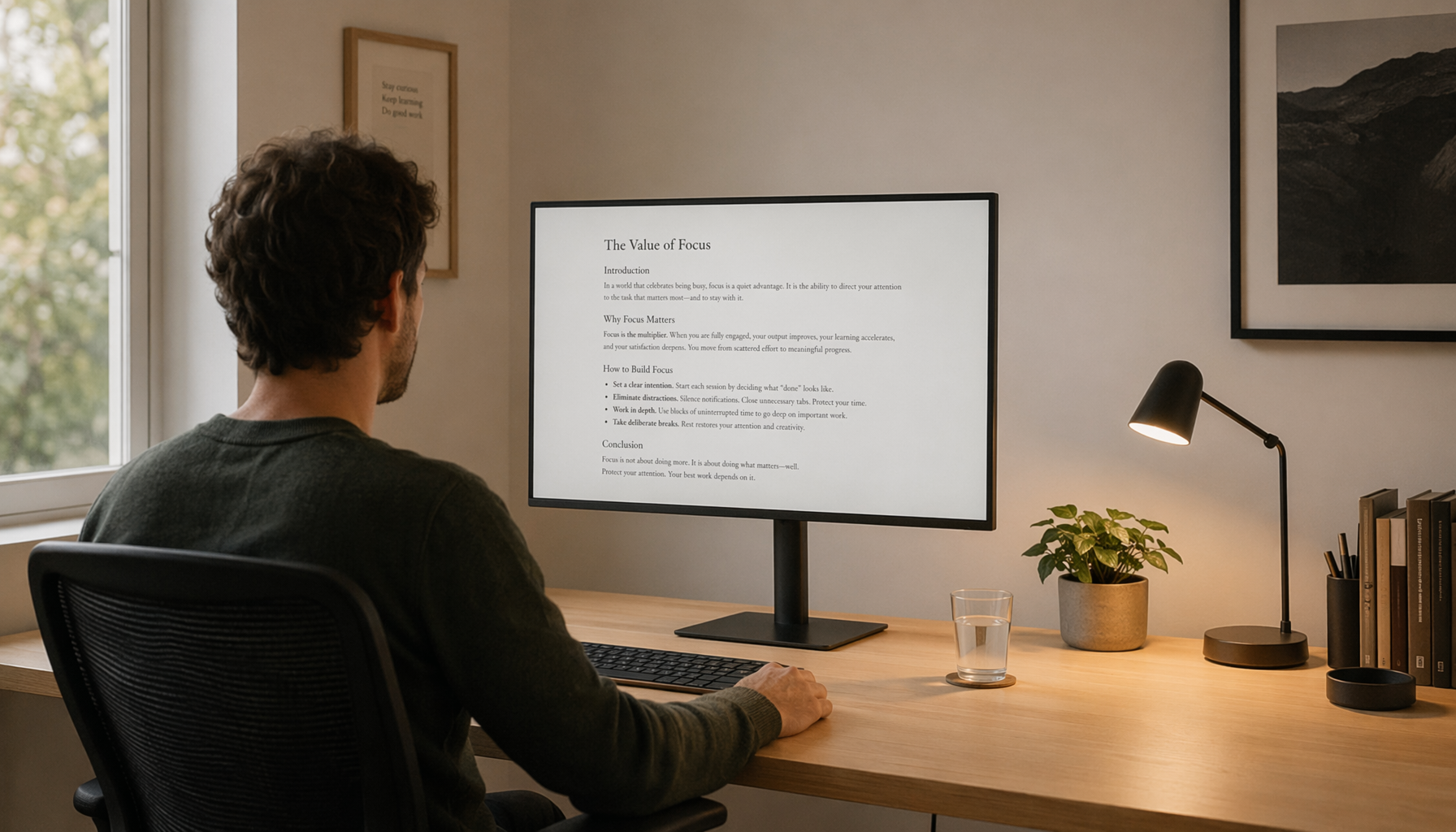
The downside shows up when the setup forces too much head movement or too much visual mismatch. Eye fatigue is not just about brightness. It is also about glare, spacing, screen height, and posture. For multi-monitor stations, ergonomic guidance recommends centering the primary display, angling secondary screens inward, and keeping the top of the display at or slightly below eye level. That reduces constant neck turning and keeps the viewing angle more natural, as described in ergonomic monitor setup.

Monitor size matters too. For general office work, 24- to 27-inch displays are often the ergonomic sweet spot because they support side-by-side work without overwhelming the desk. Larger screens can be excellent for heavy multitasking, but only if they still fit your viewing distance and do not push you into awkward posture. Guidance on monitor size for office work makes the same point: extra screen space helps only when the desk and viewing angle can support it.

How to make a multi-monitor setup easier on your eyes
The best comfort gains come from combining screen placement with break habits. Keep the main display centered, angle the side monitor inward, and avoid forcing your head to swivel all day. Match brightness to the room instead of running every screen at a harsh setting. If the room is dark, add soft ambient light rather than relying on the monitors to light the whole space.
For actual relief, follow the 20-20-20 rule and treat it as nonnegotiable during long sessions. The American Optometric Association recommends looking at something 20 ft away for 20 seconds every 20 minutes. That simple distance change matters because it is the opposite of what screen switching does. The screen keeps your eyes in near work; the break sends them farther away.
It also helps to blink deliberately, especially during long reading or data-entry blocks. The review on digital eye strain notes that blinking drops sharply during screen use, which is one reason dryness shows up so often. If your eyes feel gritty or tired, a monitor change will not fix that by itself. A true pause, more blinking, cleaner lighting, and a better screen distance will.
Bottom line
Switching between multiple monitors is not a real eye break. It can make work faster and cleaner, but it does not reset the visual system the way looking away, blinking, moving, and changing posture do.
Use multiple monitors to organize work. Use actual breaks to protect comfort. That is the approach that supports both productivity and eye comfort.