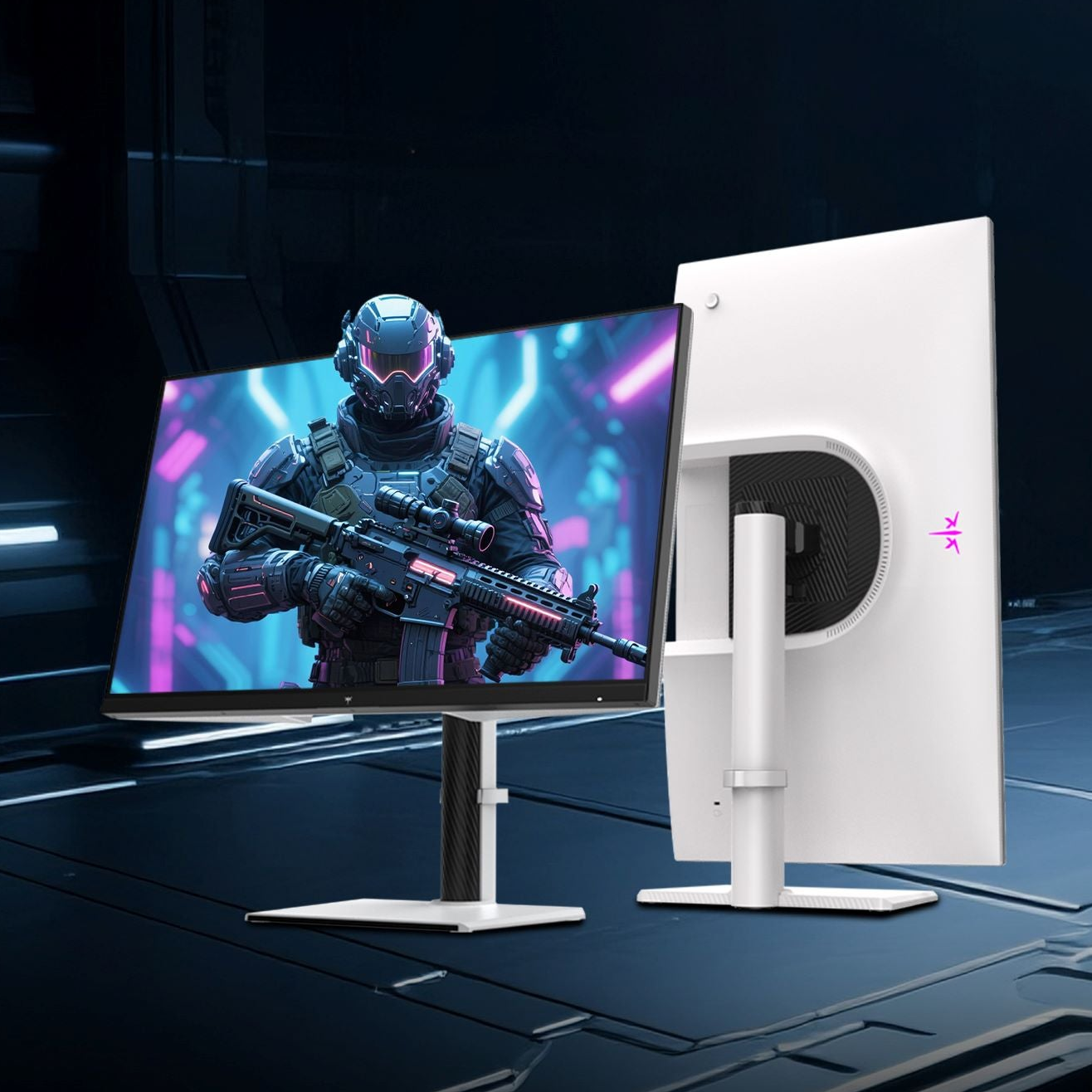
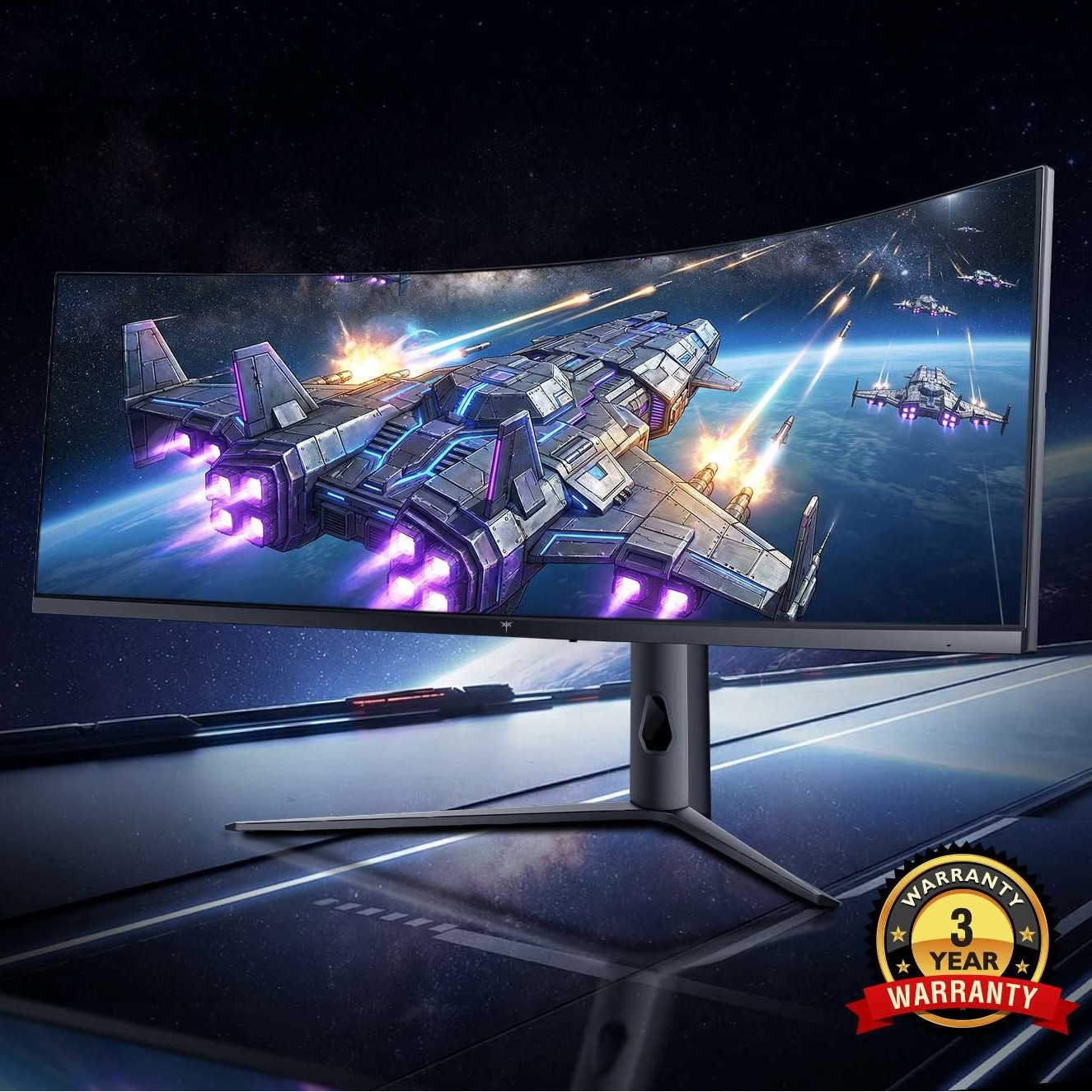



One monitor can still look warmer, cooler, brighter, or more saturated because matching menu settings does not guarantee matching panel behavior. Backlight type, panel age, cable path, GPU output, ICC profiles, and room lighting can all shift color before you adjust RGB sliders.
Same Numbers, Different Hardware
Two displays can share identical brightness, contrast, color temperature, and RGB values and still produce different color. Manufacturing tolerances, panel coating, backlight spectrum, and age all affect what your eyes see.
This is especially obvious when mixing display classes: an IPS office monitor beside a wide-gamut gaming display, a portable smart screen beside a desktop panel, or an OLED beside an LCD. A DCI-P3-capable monitor may make reds and greens look punchier than a basic sRGB screen, even when both are set to 6500K.

Calibration improves consistency, but it is not magic. A calibrated profile approximates a neutral target, while final appearance still depends on the display, viewing light, and output workflow, as color-managed print labs note when explaining neutral color space.
Your Cable and GPU Path May Be Shifting the Image
If one monitor uses HDMI and the other uses DisplayPort, or one runs through a dock while the other connects directly, the signal path may not be equal. This can change RGB range, bit depth, refresh behavior, or color format.
The biggest red flag is mixing analog and digital connections. VGA is analog, while HDMI, DVI, and DisplayPort are digital, so a VGA-fed screen can show tint or softness that no on-screen preset fully fixes.

Quick checks:
- Use the same connection type on both displays when possible.
- Confirm Full RGB, not Limited RGB, in GPU settings.
- Swap ports to see whether the color issue follows the monitor or the output.
- Replace suspect cables, especially older or bent ones.
For performance setups, matching the same digital connection type on both monitors is usually the cleanest baseline before chasing calibration.
ICC Profiles and Apps Do Not Always Agree
A monitor profile tells color-aware software how that specific screen behaves. But not every app handles ICC profiles the same way, and operating system or GPU utilities can override or compete with each other.
That is why matching monitor menus alone often fails. Calibration changes white point, luminance, contrast, and gamma, while profiling creates an ICC description that apps can use for accurate conversion, according to this explanation of calibration and profiling.
Check color management settings for each individual display, not just the primary screen. If one screen is wide-gamut, unmanaged apps may look oversaturated on that display while color-managed apps look closer.
Even a low Delta E calibration result can fail a side-by-side eye test because different display technologies emit light differently.
How to Get Both Screens Closer
Start with a practical target, not perfection. For gaming, productivity, and creator workflows, the goal is a stable, believable match across windows, web content, video, and neutral grays.
Use this order:
- Reset both monitors to factory color defaults.
- Let both screens warm up for about 30 minutes.
- Match brightness first using a white or light gray screen.
- Set both to the same white point, usually D65.
- Create separate profiles with a hardware colorimeter.
A colorimeter is the right tool when color matters. These devices measure the screen directly and build compensation profiles; monitor calibrators are recommended because uncalibrated displays can create warm or cool color casts in visual work, as noted in this overview of monitor calibrators.

When “Close Enough” Is the Smart Answer
For office productivity, esports dashboards, streaming chat, spreadsheets, and web work, a close visual match is usually enough. Match brightness, white balance, and gamma so dragging a window across the bezel does not create a jarring jump.
For photo editing, grading, product design, or print proofing, pick one reference monitor and trust it. Use the secondary screen for tools, timelines, notes, and communication.

If both displays must be color-critical, buy matched panels, use identical cables, calibrate each screen individually, and keep the room lighting consistent. Even then, a perfect match is not guaranteed, but a disciplined setup gets you much closer than copying settings ever will.