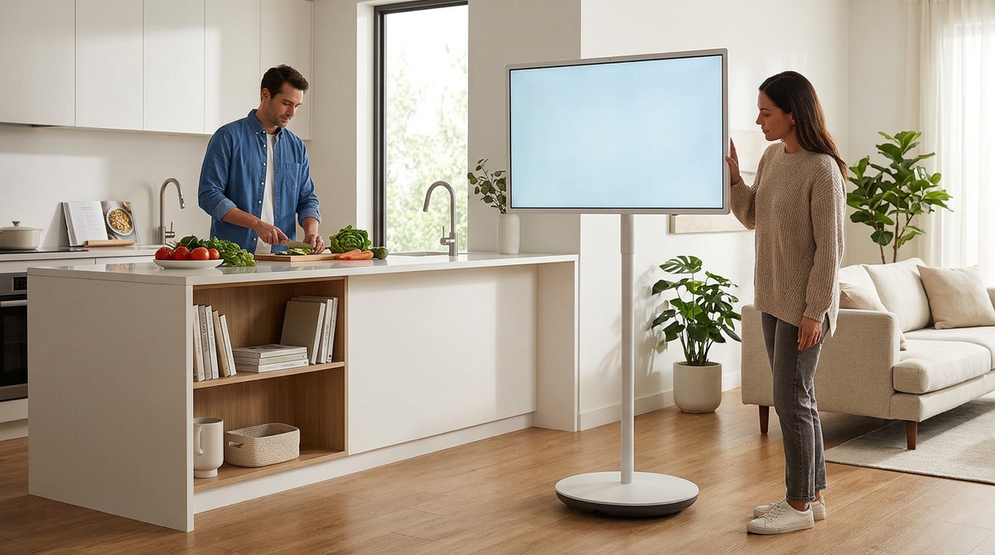
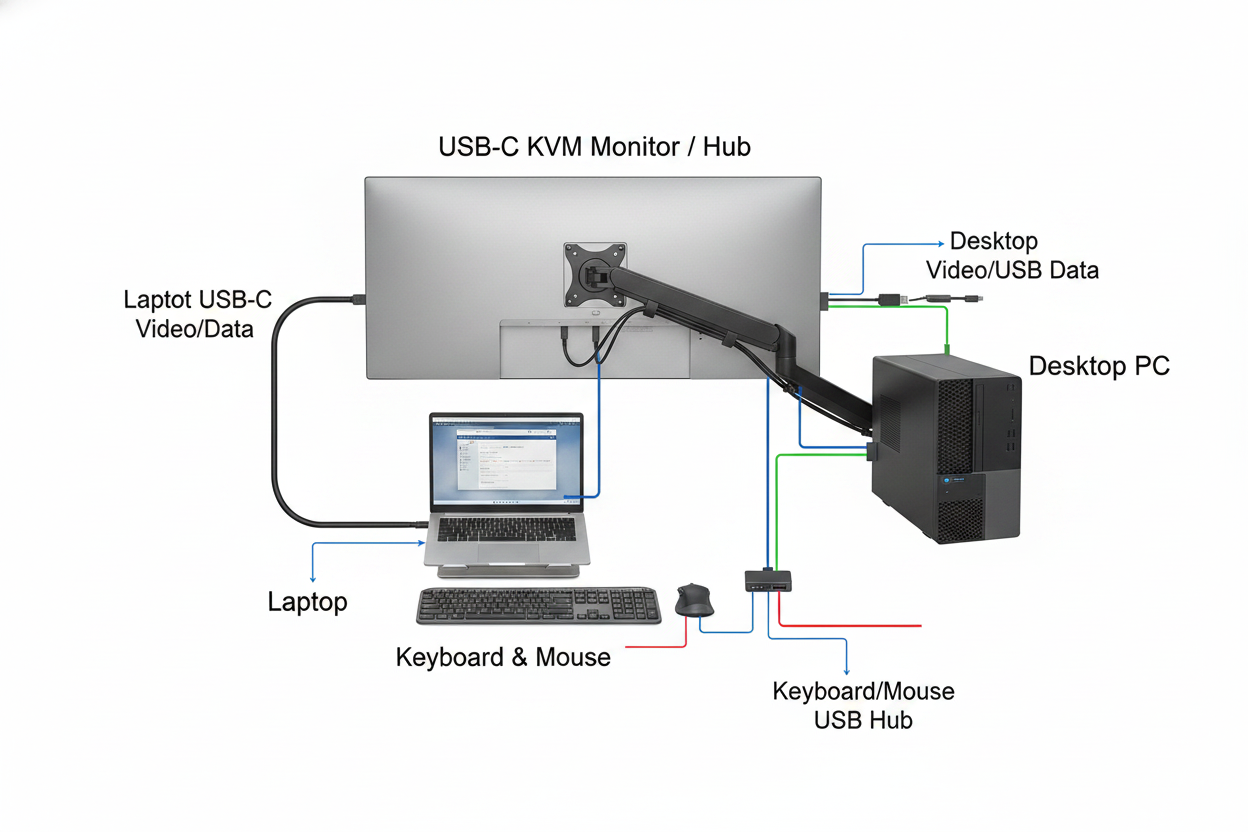
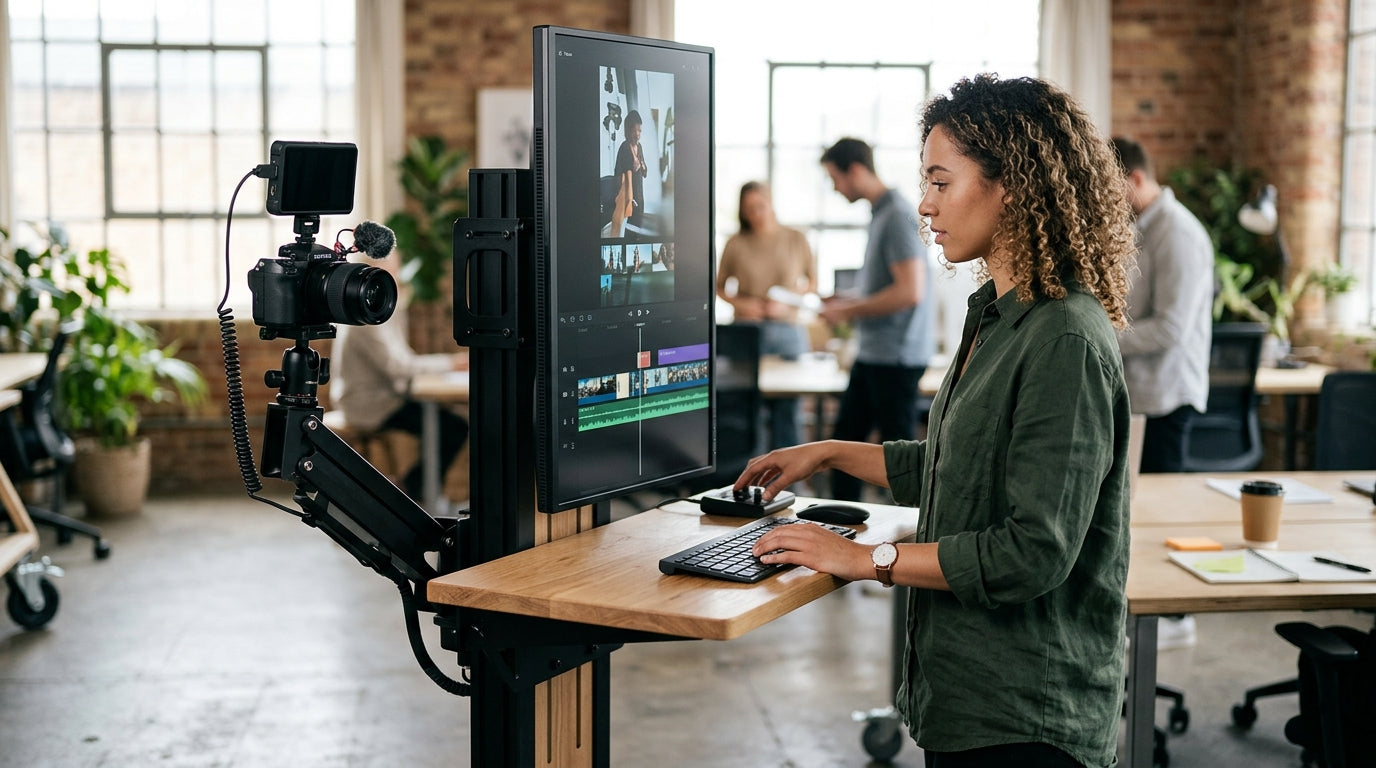
Shared-space ergonomics 2026 in a small apartment is mostly about reducing setup friction: fewer moves, fewer awkward postures, and a screen that can adapt when the room changes. A MegPad-style mobile touch display may help with that, but only if the screen height, viewing distance, and input setup are workable for the person using it.

The Small-Apartment Workspace Crisis
In 2026, the problem in a studio or one-bedroom apartment is not just lack of square footage. It is the way one surface has to do the work of a desk, a dining table, and a living room at different times of day. That is where shared-space ergonomics 2026 becomes a real decision, not a style preference.
A fixed desk often solves the work problem by creating a permanent space problem. It can make the apartment feel more crowded, and it can push people toward laptop-on-lap or dining-table work that is rarely ideal for long sessions. A mobile display does not remove the tradeoff, but it can make the room easier to reassign after the work block ends.
For a category view of that approach, the portable touch screen options collection is a reasonable place to start browsing. It is best treated as a navigation path, not proof that any one model fits your room.
The key question is whether the display can move cleanly between rooms without creating new clutter. If it cannot be repositioned quickly, or if the charging and cable routine is annoying, the promise of flexibility starts to disappear. That is why the MegPad is best read as a tool for reclaiming shared living space, not as a cure-all for ergonomics.
One Display, Three Daily Zones
For most small-apartment users, the real test is whether one screen can support work, cooking, and evening use without feeling improvised. Stanford’s hybrid and on-the-go ergonomics guidance is useful here because it treats frequent position changes as part of the workflow, not as a failure of the setup.
Morning use usually wants the most upright posture. That means rolling the screen to a location where a keyboard and mouse can sit in front of it, while the top of the display stays near eye level. If the screen sits too low, the user tends to hunch forward. If it sits too high, the neck tips back.
Midday use is often the messiest. Kitchen counters, quick calls, and message checks can all work in a short session. General ergonomics guidance suggests allowing short-duration alternate postures, as long as the neck stays neutral and the screen is positioned sensibly.
Evening use is where people often overestimate comfort. Sofa mode may feel relaxed, but it can quietly become a slouching posture if the screen is too low or too close. In real use, the best version of cinema mode is usually still a controlled viewing angle, not a fully collapsed posture.
A useful decision sentence is this: if the screen can move from desk height to couch height without forcing you to re-lean your torso, the setup is probably workable; if every room change creates a new neck angle, the concept breaks down.

Wireless Hardware That Actually Travels
The hardware question is less about buzzwords and more about whether the screen can cross room boundaries without turning into a cable project. The MegPad A32Q7 Pro class of product has a 9500mAh battery, a height-adjustable stand up to 1331mm, Wi-Fi 6, Bluetooth 5.2, and a 426mm chassis footprint according to the product facts. Those are meaningful only if your apartment layout can support them.
The 27-inch model is the more compact reference point in the current facts. It uses a 9500mAh battery, built-in wheels, Android 14 with Google EDLA, and built-in Wi-Fi and Bluetooth. The product page says it can run up to about 6 hours, which is useful as a planning ceiling, not a guarantee. Brightness, wireless activity, and usage type can shorten that.
The 32-inch Android 14 model is more of a larger-screen compromise. It keeps the smart-display idea, but its 8550mAh battery is smaller and its focus is more on a large mobile screen than on long unplugged sessions. If your use case is mostly streaming or mixed home use, that may be fine. If your use case is all-day portable WFH, the larger screen may be the better visual fit but not the easiest mobility fit.
A conservative filter helps here: choose the larger screen if you care more about work area and readability, and choose the smaller model if you care more about moving it around a tight apartment without turning corners into a daily challenge.
Posture Rules for Moving Screens
When the screen moves, the posture rules need to move with it. The most useful baseline is still OSHA’s monitor-height guidance: keep the top of the screen at or slightly below eye level, and place the display directly in front of you. OSHA also notes that the viewing distance should generally be at least about 20 inches, which is a practical way to stop the user from leaning forward.
The MegPad’s height range gives you room to apply that rule across different surfaces. In standing mode, raise the display until the top edge feels level with or slightly below the eyes. In seated mode, bring it down far enough that the shoulders stay relaxed. In lounging mode, the question is not whether the screen can tilt, but whether the tilt still lets the neck stay neutral for a short session.
The body still needs to do part of the work. The screen can support better posture, but it cannot replace a good chair, a proper keyboard, or a usable mouse position. That is why a rolling screen should be thought of as a posture helper, not a posture solution.
| Position | Screen Height Goal | Viewing Distance Goal | Angle Cue | Common Mistake | | --- | --- | --- | --- | --- | --- | --- | | Standing work | Top near or slightly below eye level | About 20 inches or more, if the room allows | Slight downward gaze | Raising the chin to meet the screen | | Seated desk work | Eye line to upper third of screen | Enough distance to avoid leaning | Face the screen squarely | Hunching toward the table | | Kitchen counter check-in | Short-session, eye-friendly height | Far enough to avoid a forward lean | Keep the neck neutral | Twisting sideways to save space | | Sofa or bed viewing | Lower visual load, controlled tilt | More distance if the room permits | Relaxed but not collapsed | Treating lounging as all-day work |
A good rule of thumb is this: if you need to move your torso to make the screen feel right, the screen position is probably wrong. If the screen can be adjusted so the head stays still and the eyes do the work, the setup is closer to the mark.
How to adjust a mobile display across standing, seated, and lounging use
The safest pattern is simple: keep the top of the screen near eye level, keep the display in front of you, and use tilt as a small correction rather than a fix for poor height.
View setup table
| Position | Height band | Tilt cue | Viewing distance cue |
|---|---|---|---|
| Standing | High | Moderate | Farther |
| Seated | Medium | Moderate | Moderate |
| Lounging | Low | Greater tilt | Farther if possible |
Reset and Store It in Under Two Minutes
A good mobile setup should not become a daily chore. If putting the room back together takes too long, the product will start sitting in one place and acting like a fixed object anyway.
A simple reset routine helps:
- Park the screen in a neutral corner where it will not block a path.
- Return the display to a safe angle instead of leaving it aimed at a walkway.
- Check that the cable has enough slack for the next move.
- Confirm the battery status before the next work block.
- Put the input devices back where the next session will start cleanly.
That sequence matters because the friction is cumulative. One hard move is manageable. Repeating that move multiple times a day is where the setup starts to fail. The best use of a mobile screen is the one that still feels easy on a weekday.
The internal blog The Display Challenge of Working from Different Rooms Throughout the Day fits this section well because it focuses on the broader problem of moving between rooms without losing productivity.
A practical not-a-fit filter: if your end-of-day reset takes longer than a couple of minutes, or if the screen is hard to park safely, the room is probably asking for a simpler setup.
How You Know the Setup Is Working
You do not need perfect ergonomics to know the system is helping. You need repeatability.
The setup is working when you can move between work and dining modes without a cable tangle or a last-minute hunt for an outlet. It is working when the morning posture can be recreated without guesswork. It is working when the apartment still feels like a home after work instead of a desk that got folded away.
These are good success checks:
- You can restore the work setup quickly on most weekdays.
- Cables are not the first thing you notice when you roll the display.
- The screen height does not need a full rethink each time the room changes.
- Shared living still has room to happen after the work block ends.
A second decision sentence is worth keeping in mind: if the screen is solving room conflict but not posture, the purchase may still be useful; if it is solving neither, a fixed monitor or simpler office setup is the better choice.
What Small-Apartment Buyers Should Check First
Before you buy, check the room rather than the spec sheet first. Measure the narrowest path the screen needs to roll through. Check the surface you will use for typing. Identify the place where it will charge overnight. Then decide whether 27 inches or 32 inches is the better fit for that path.
The 27-inch MegPad is easier to justify when space is tight and movement matters most. The 32-inch options make more sense when the user wants a larger canvas and can give the screen enough depth and parking space. If your apartment is under 500 square feet and already crowded, size and mobility can matter more than the strongest display specs.
The third decision sentence is simple: if your home can support the screen’s path, height, and charge routine, the MegPad concept is a reasonable small-apartment solution; if any one of those fails, the setup will feel more decorative than ergonomic.
MegPad Shared-Space Setup That Holds Up
For 2026 shared-space ergonomics, the real win is not a bigger screen. It is a screen that can move with your day without forcing your neck, your cables, or your room into constant compromise. When the height is right, the path is clear, and wireless is treated as a convenience rather than a promise, the setup can work well enough to replace a more fixed desk routine. Test the narrowest doorway first, confirm overnight charging access, and verify that the chosen size leaves walking space after parking.