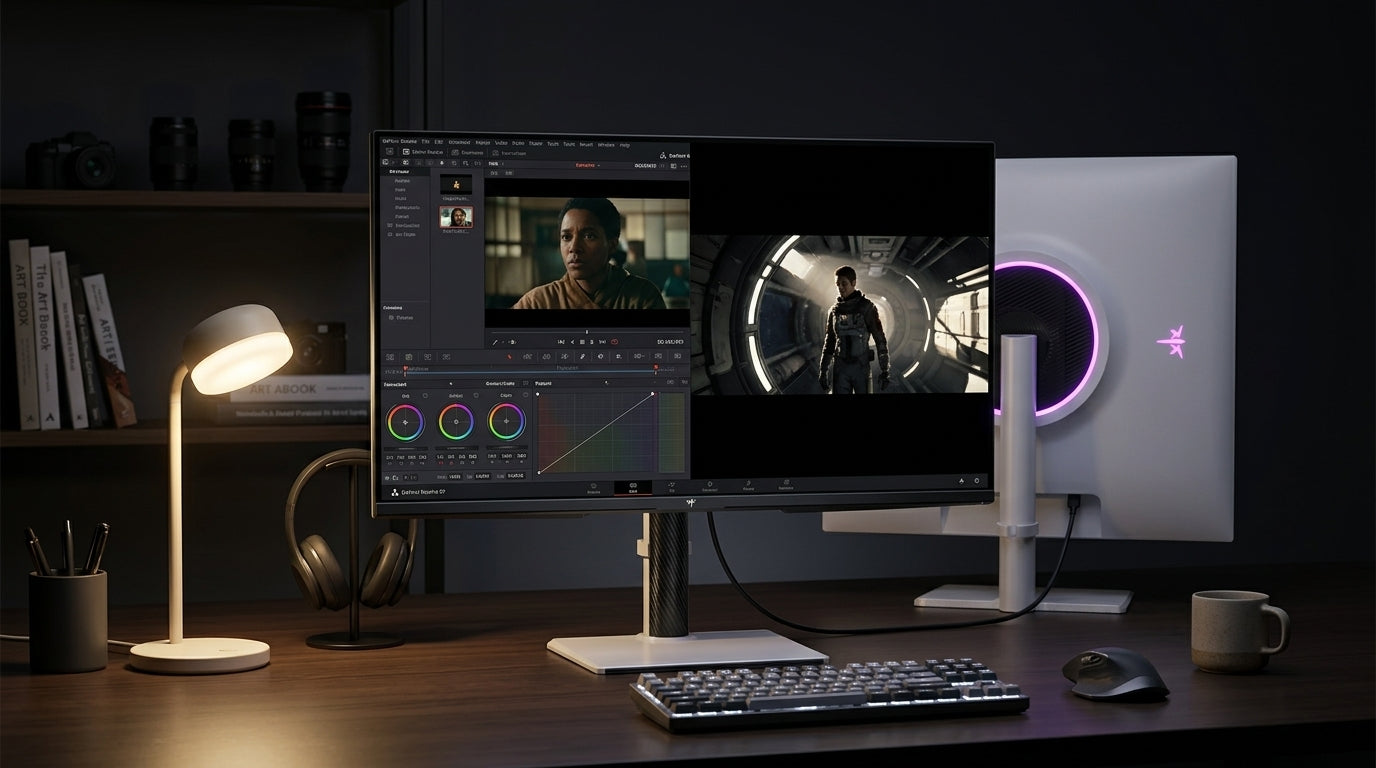
A rolling smart display makes sense when one screen needs to move between rooms without turning every swap into a cable shuffle. For families and remote workers, the real value is flexibility, not novelty.

Why a Rolling Screen Changes Daily Routines
A rolling screen matters most when one device has to serve the kitchen, home office, and living room on different parts of the same day. That is where a rolling smart display starts to feel practical instead of gimmicky.
The best fit is usually a household that shares space. In that setting, the screen can shift from recipe viewing to a video call, then to family streaming, without living permanently on one desk.
The main question is simple: does one mobile screen reduce friction more than a fixed monitor plus a tablet? If the answer is yes, the category starts to make sense. If the answer is no, a simpler setup may be better.
For a broader look at when mobility helps in shared homes, rolling smart display use cases is a useful companion read.
Where It Fits Around the House
The kitchen use case is strongest when hands-free viewing matters. Recipes, timers, and casual streaming are all easier when the screen can sit at eye level instead of on a crowded counter.
The home office use case is strongest when the same screen needs to move from desk work to another room for calls or collaborative notes. In that situation, a portable smart display on wheels saves more time than it costs.
The living room use case works best when one screen becomes a shared viewing station for family video calls or temporary entertainment. It is less about replacing every device and more about making one screen available where people gather.
For readers comparing a room-to-room setup with a more mobile workstation, The Mobile Office Cart: Building a Fully Wireless Workstation with a Battery-Powered Smart Display gives a related workflow example.
What Replaces What Best
If you are choosing between a rolling smart display, a tablet, a laptop, or a fixed monitor, the best option depends on how often the screen needs to move and how many people need to share it.
| Setup | Best When | Main Trade-Off |
|---|---|---|
| Rolling smart display | The same screen must move between rooms | More setup planning than a fixed monitor |
| Fixed monitor | The desk stays in one place | Less flexible for shared household use |
| Tablet on a stand | The task is personal and close-up | Smaller for shared calls or side-by-side work |
| Laptop | The screen stays tied to one user | Less comfortable for shared viewing |
A rolling display usually wins when flexibility matters more than desk permanence. A fixed monitor usually wins when the workspace never changes. A tablet or laptop can still be better if the task is mostly personal, not shared.
What to Check Before You Buy
Start with room fit. Measure the paths between rooms so the screen can clear doorways, corners, and narrow kitchen or hallway turns.
Next, check the stand. Height, tilt, and wheel behavior matter because a screen that rolls badly or sits at the wrong level stops feeling convenient very quickly. Mobile stands with wheels require attention to floor protection, stability, and cable management for safe daily movement.
Then confirm the ports you actually need. Laptops, streaming devices, and wired sources can each create different connection needs, so do not assume one cable covers everything.
Battery runtime should be treated as a convenience factor, not a promise of all-day unplugged use. The right way to think about it is simple: battery helps when the display moves often, but charging still matters.
For a product that matches the room-to-room use case most directly, KTC MEGAPAD 27" FHD Android 14 Google EDLA Smart Touch Monitor with 9500mAh Battery is the first model to check if you want a more compact mobile option.
The larger KTC MEGAPAD 32" 4K Android 14 Google EDLA Smart Touch Monitor with 8550mAh Battery is the better navigation choice if your priority is a bigger shared screen for calls, recipes, or living-room use.
Mayo Clinic's office ergonomics guidance is still relevant here: screen height, viewing angle, and posture matter even when the display moves from room to room.

If the screen is too high in one room or too low in another, the mobility advantage starts to disappear. That is why the stand matters as much as the panel itself.
When It Is Not a Fit
A rolling display is not a great fit if the home rarely changes work areas. In that case, the mobility benefit is small and you may be paying for flexibility you will not use.
It also breaks down in tight homes with narrow hallways, uneven floors, or crowded storage. Those conditions can turn a mobile screen into stationary furniture.
If the household mainly needs one monitor for a single desk, the simpler answer is usually a fixed display. A mobile screen is strongest when the room changes, not when the room stays the same.
For a broader browsing path into setup types, the Mobile Touch Screen collection is the most relevant category page.
Best-Fit Buying Signals
The clearest buy signal is repeated setup churn. If the same household keeps moving a laptop, dragging a monitor, or clearing a table just to change tasks, a rolling smart display may reduce daily friction.
It is also a strong candidate when work and family use overlap. One screen can support school help, a parent call, and evening media without becoming locked to one room.
If the real problem is not mobility but organization, a rolling screen may not fix the bottleneck. In that case, the better move is often to simplify the existing setup first.
The Smart Monitor collection is a useful comparison path if you are deciding whether the screen should stay stationary instead.
| Scenario | Rolling smart display | Fixed monitor | Tablet on stand | Laptop |
|---|---|---|---|---|
| Frequent room-to-room use | Strong | Weak | Moderate | Moderate |
| Shared family viewing | Strong | Moderate | Moderate | Weak |
| Low setup friction | Strong | Moderate | Strong | Moderate |
| Better posture at changing spots | Moderate | Weak | Moderate | Moderate |
| Battery helps convenience | Moderate | Weak | Weak | Moderate |
The Best Family Workflow Setup
The easiest routine is a permanent parking spot near power. That makes it more likely the display gets used every day instead of becoming a novelty.
A simple move-and-return habit matters too. If the screen always goes back to the same place after use, the household spends less time searching for cables or debating where it belongs.
Shared rules also help. A rolling display becomes truly useful only when everyone knows when to move it, where to leave it charging, and how to reset it for the next person.
A short daily reset is worth the effort. Clear the cable path, restore the preferred volume, and make sure the display is ready before the next room change.
If you want the broader category view after reading this, the Featured Product collection is a reasonable browsing stop, and New Arrival is the other collection worth checking for newer mobile display options.
Related Resources
Home workers benefit from adjustable external monitors and proper posture habits when using shared or moving screens. See the full workflow examples in the mobile office workstation guide and the portable display buying guide for small homes.
FAQs
Q1. How Is a Rolling Smart Display Different From a Tablet on a Stand?
A rolling smart display usually offers a larger shared screen and easier room-to-room movement. A tablet is lighter and more personal, but it can feel cramped for family calls, recipes, or side-by-side tasks where a bigger screen is more comfortable.
Q2. Can a Portable Smart Display on Wheels Replace a Home Office Monitor?
Sometimes. It can work well when flexibility matters more than a fixed desk layout. It is a weaker fit if you need a permanent monitor position, but a stronger fit if the same screen must move between work and family spaces.
Q3. What Rooms Make the Most Sense for a Rolling Display?
The kitchen, home office, and living room are usually the most practical. Those are the rooms where a shared screen gets used often enough to justify the mobility, especially when the display needs to support both work and household routines.
Q4. How Do You Keep a Rolling Smart Display Convenient?
Give it a parking spot near power, keep the move-and-return routine simple, and reset it after use. The more predictable the routine, the less likely the display is to become clutter. Convenience usually depends on habits as much as hardware.
Q5. What Should Families Check First Before Buying One?
Check room clearance, stand stability, and how the screen will fit into daily movement. After that, look at ports, battery convenience, and whether touch or camera features actually matter for your household. The best buy is the one that reduces friction.
A MegPad-style rolling display is most useful when a household needs one screen to adapt to changing rooms and changing tasks. If it reduces setup friction and still fits the space, it can be practical. If not, a simpler fixed setup will usually be easier to live with.