Local dimming can cause brightness pulsing during camera pans because the display keeps recalculating which backlight zones should brighten or dim as objects move across the screen. If the algorithm, zone count, or transition speed cannot keep up smoothly, the image can appear to breathe, flash, or step in brightness.
The Core Cause: Backlight Zones Chase the Image
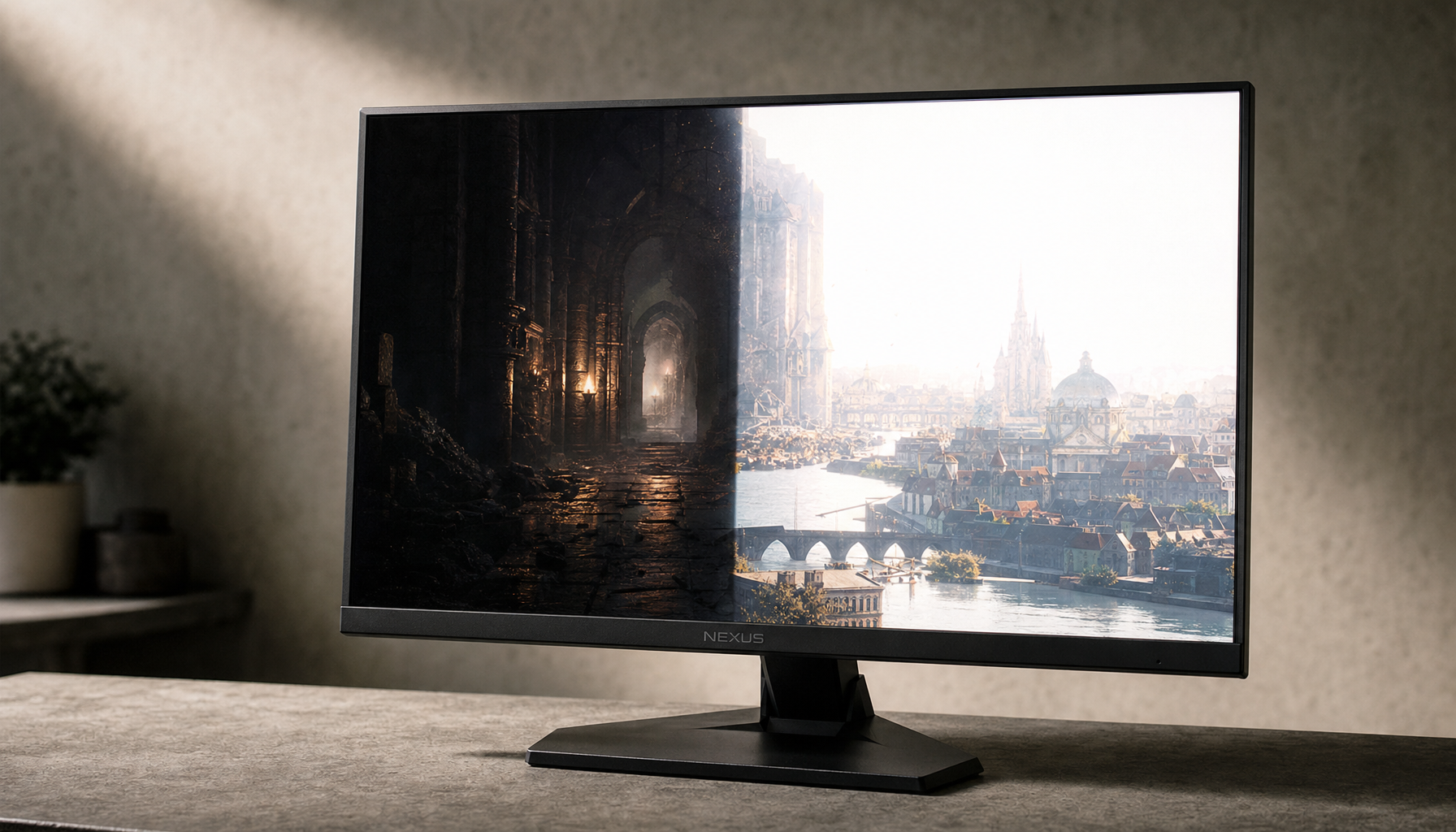
On an LCD monitor or TV, local dimming works by dividing the backlight into controllable regions instead of lighting the entire panel evenly. Those zones can dim dark areas and boost bright highlights, which is why local dimming improves contrast in movies with deep shadows and bright lamps, windows, stars, or subtitles.
During a slow static shot, this can look excellent. During a camera pan, the bright and dark parts of the scene slide across zone boundaries. The display has to decide, frame by frame, whether each zone should rise, fall, or stay steady.

That decision is not instant or invisible. If one zone brightens a fraction too aggressively and the next zone reacts differently, the viewer sees a pulse instead of a smooth pan.
Why Panning Makes Pulsing More Visible
Camera panning is a stress test because the entire image is in motion while the backlight grid stays fixed behind the LCD layer. A bright window moving across a dark wall may pass through several zones in seconds, making each zone wake up and stand down as the object crosses it.

Mini-LED improves this by using many smaller LEDs and more dimming zones, but it does not eliminate the tradeoff. More zones give the processor finer control, while the display still needs fast zone analysis, driver precision, and careful thermal and optical design; Mini-LED displays can involve hundreds to thousands of dimming zones.
More zones can also mean more decisions. If the dimming algorithm is conservative, you may see blooming. If it is aggressive, you may see pulsing, black crush, or brightness pumping as the scene moves.
Common Triggers in Movies
Brightness pulsing is easiest to spot in high-contrast scenes, especially HDR movies where peak highlights and deep shadows share the same frame. Common examples include headlights passing through a dark street, white credits over black, a candlelit room, or a bright sky revealed during a pan.

It can also show up more on lower-zone displays. Edge-lit or basic zone systems control larger chunks of the screen, so one moving highlight may force a broad area to brighten. Full-array and Mini-LED designs usually reduce that effect, but quality still depends on the processing.
A separate but related issue is screen flicker sensitivity. Rapid brightness fluctuation can be uncomfortable for some viewers, and screen flicker is often described as fast changes in light output that may be visible or subtle.
How to Reduce Brightness Pulsing
Start with settings before assuming the display is defective. Local dimming is a performance feature, but the strongest setting is not always the cleanest setting.
Try these quick adjustments:
- Lower local dimming from High to Medium or Low.
- Disable dynamic contrast, adaptive brightness, or eco light sensors.
- Use Cinema, Filmmaker, or HDR Movie mode instead of Vivid.
- For desktop movie playback, turn off local dimming in SDR.
- Update monitor firmware and GPU/display drivers.

For Mini-LED monitors, SDR office and web use often benefit from local dimming off, while HDR content benefits from it on; some Mini-LED recommendations separate SDR office comfort from HDR contrast for this reason.
Should You Turn Local Dimming Off?
Not always. Local dimming is still one of the biggest upgrades for LCD contrast, especially if you watch HDR movies, play cinematic games, or want brighter highlights without washed-out blacks.
Turn it down or off when pulsing distracts you more than grayish blacks do. Keep it on when the scene gains more depth, specular pop, and shadow contrast than it loses in artifacts.
The value-oriented answer is simple: the best display is not the one with the most aggressive dimming, but the one with the most stable dimming during motion. For movie immersion, smooth transitions matter as much as peak brightness.