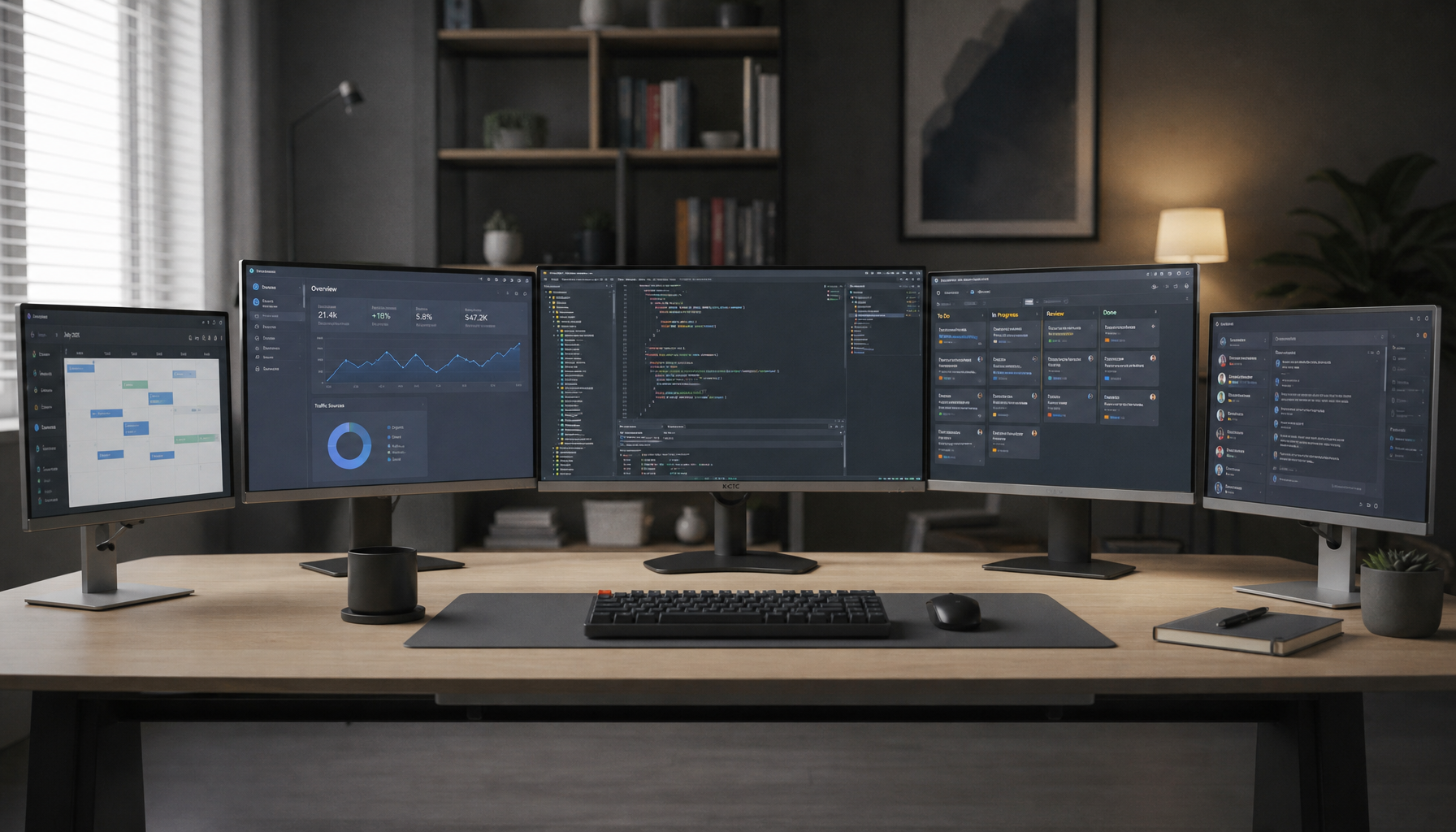
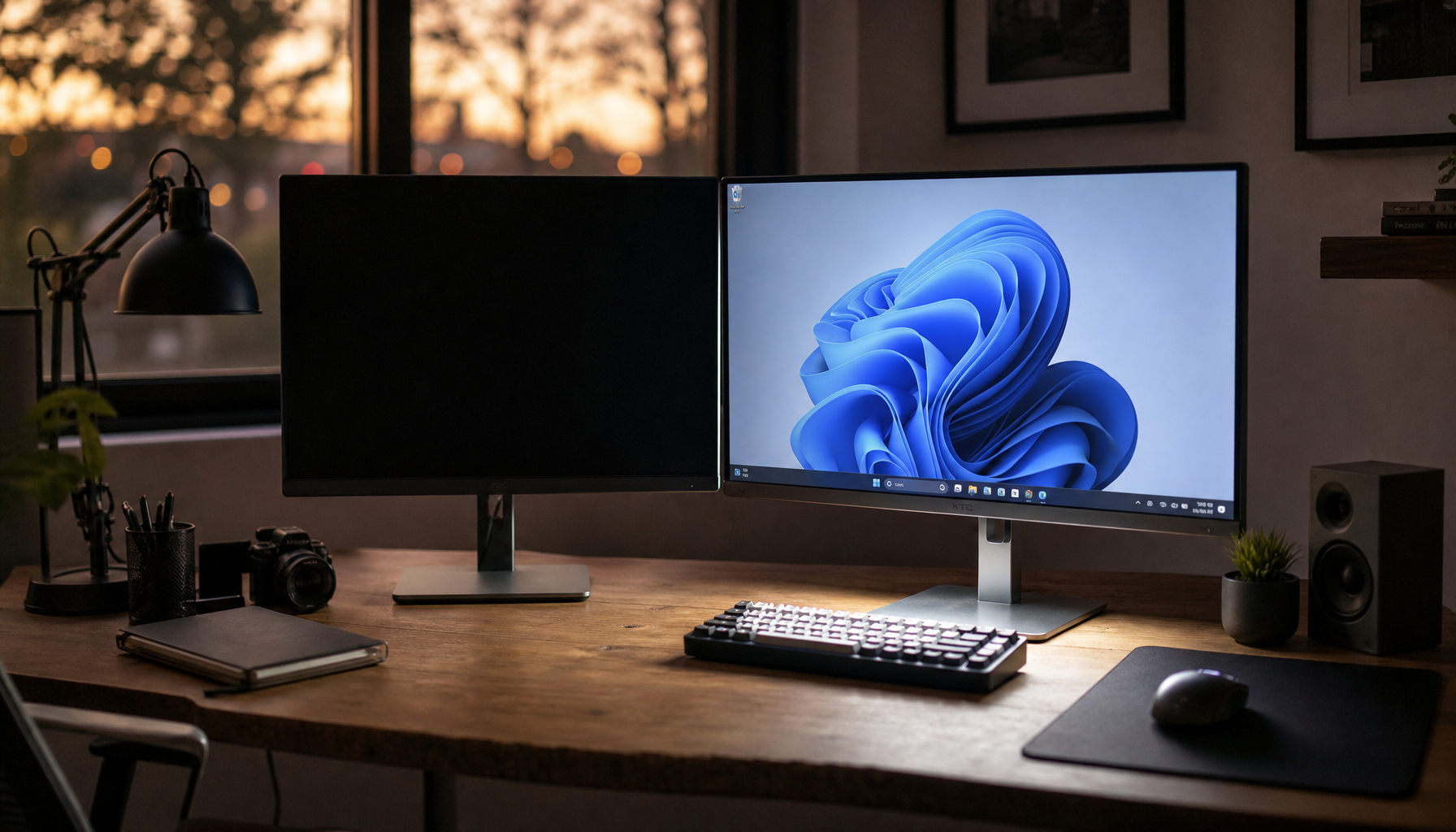
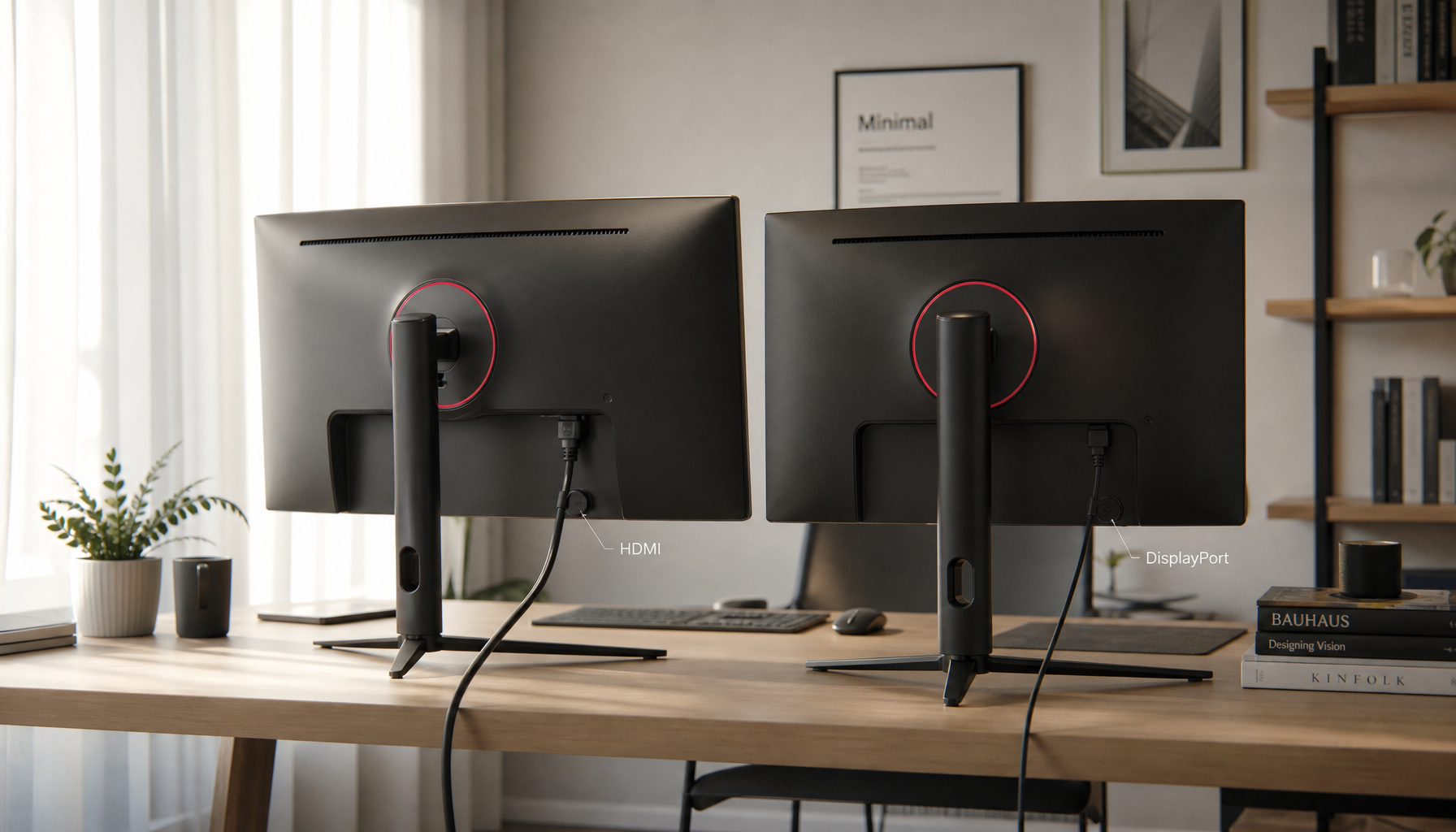
The cleanest single-monitor setup keeps every device permanently connected, then hides only the slack needed for switching, charging, and monitor movement.
Does your desk turn into a knot of HDMI, DisplayPort, USB-C, and power bricks the moment one monitor has to handle both a gaming PC and a streaming device? The difference between a messy setup and a clean one usually comes down to a few measurable choices: the right cable lengths, the right input plan, and routing that still works when the display moves. You’ll leave with a layout that keeps your monitor easy to switch, easy to maintain, and ready for full-resolution, high-refresh use.
Start by Mapping the Whole Signal Path
A cable-management plan starts with counting every run that touches the display: video from the PC, HDMI from the streaming box or stick, USB for any monitor hub, audio if you use speakers, and at least one power cord for the display itself. On a typical 27-inch or 34-inch gaming monitor, that often means four to six separate cables before you even add a dock or capture device.
One of the biggest reasons desks look worse than they need to is cable length that exceeds the real route. Measure the path the cable will actually take along the arm, desk edge, or under-desk tray, then add about 8 inches so the plug reaches the port without pulling tight. That extra room is enough for service access, but not enough to create a loop of spare cable behind the panel. If you are replacing cables, correctly sized HDMI, DisplayPort, or USB-C options such as display signal cables for gaming and productivity monitors in 1.5m or 1.8m lengths can also help reduce excess slack behind a shared monitor setup.
Desk shape matters more than most buyers expect. A deeper desk gives HDMI and DisplayPort cables room to drop gently behind the monitor instead of getting crushed against the wall, and under-desk trays or grommets give power bricks somewhere to live besides the floor. That is especially useful with ultrawide monitors, whose stands and arms already consume more depth than a standard 16:9 office display.
Choose the Right Switching Method for Your Monitor
Native monitor inputs first
Keeping different cables connected to different inputs is usually the simplest method when your monitor already has the ports you need. In practice, that means leaving the PC on the input that unlocks the monitor’s best resolution and refresh rate, and putting the streaming device on HDMI so you switch sources instead of swapping cables. In one real PC setup, manual OSD input changes took about 5 to 6 seconds per monitor, which is tolerable for occasional use but annoying if you switch several times a day.
When an HDMI switch is cleaner
An HDMI switch makes more sense when one display has to juggle several HDMI sources, such as a streaming stick, console, compact PC, or laptop dock. A 3x1 or 4x1 switch reduces cable swapping, keeps one HDMI lead going to the monitor, and is usually easier to hide under the desk than a cluster of adapters hanging off the back of the screen.
The cleanest buying rule is simple: keep the gaming PC on the direct connection that supports the monitor’s full advertised mode, then use the switch only for the lower-priority HDMI devices. That approach protects high-refresh performance on a 144 Hz, 165 Hz, or 240 Hz gaming monitor while still making a streaming box or set-top device easy to access.
Connection strategy |
Best for |
Visible cable count |
Performance notes |
Convenience |
One PC plus one streaming device |
Low |
Best when the monitor already has the right mix of DisplayPort and HDMI |
Good if input switching is fast |
|
HDMI switch |
Several HDMI devices on one monitor |
Low |
Match the switch to the display’s required resolution and refresh on that HDMI path |
Best when the monitor lacks enough HDMI ports |
USB-C dock |
Laptop, mini PC, or creator setup with peripherals |
Medium |
Check video output limits, charging support, and port count before buying |
Strong for one-cable desk docking |
Direct USB-C display connection |
Portable monitor or compact temporary setup |
Very low |
Works only when both device and display support USB-C video properly |
Excellent for travel or small desks |
Protect Image Quality by Managing Cable Stress
Avoid sharp bends behind the panel
The easiest way to create long-term signal problems is ignoring bend radius limits. Tight bends can lead to conductor fatigue, insulation damage, and signal instability over time, which is the opposite of what you want in a high-refresh-rate monitor setup. As a rule of thumb, unshielded copper cable often needs about 4x its outer diameter as minimum bend radius, while shielded or braided cable often needs roughly 6x to 10x.
 More formal minimum bend guidance puts many unshielded power and control cables in the 4x to 8x range and shielded designs in the 5x to 12x range. At the desk, that translates into a practical habit: let the cable leave the monitor in a straight line for a short distance before you turn it downward into a tray, sleeve, or arm channel.
Keep strain off the connector
High-bandwidth monitor cables are usually thicker and less forgiving than basic office-display leads, so the weak point is often the last few inches near the connector. A loose Velcro tie, a small service loop, and strain relief at the arm or desk edge do more for reliability than bundling everything into one hard, tight coil. Cable organization should make the display easier to move and service, not lock every wire into a rigid bundle.
Route for Monitor Arms and Ultrawides, Not Just Flat Screens
Use the arm as a cable path
A monitor arm with built-in routing is often the cleanest upgrade for a one-display setup because it replaces an exposed cable drop with a controlled path from the VESA mount to the desk edge. Check the arm’s VESA compatibility, desk mount style, and load rating, then leave a 20% to 30% safety margin over the monitor’s actual weight so a heavier gaming or ultrawide panel stays stable.
 A properly positioned ergonomic monitor mount also frees the desk area that usually becomes a dumping ground for excess cable slack. Once the stand is gone, it is much easier to mount the power strip underneath the desk, run one clean cable to the wall, and keep the display area visually simple.
Ultrawides need deeper desks and better slack control
A 21:9 or 32:9 ultrawide setup changes cable routing because the display is wider, the arm travel is longer, and the comfortable viewing distance is often about 24 to 31 inches. Keep the main work or play area in the center third of the screen, and make sure the cable bundle is long enough to allow tilt or swivel without dragging on the ports.
Real-world users running 40-inch to 49-inch single displays often describe them as “two monitors” without the center bezel, which can cut one full set of video and power cables from the desk. The tradeoff is that these monitors need stronger arms, better window management, and more disciplined cable placement, especially on shallow 24-inch-deep desks where the panel already sits close to the user.
Adjust the Setup for Portable Monitors, Docks, and Hybrid Devices
Portable monitors and USB-C displays
A portable monitor connection can look dramatically cleaner because one USB-C cable may handle video and charging, but only if the device and display both support the right features. For example, direct USB-C video from an original handheld console or its OLED variant depends on DisplayPort Alt Mode support plus about 7.5W to 39W of charging through the monitor path, while a newer handheld console model launched in 2025 uses HDMI video through its dock instead of lower-port USB-C video output.
That matters beyond handheld consoles. If you are choosing between a portable monitor and a desktop gaming monitor for a mixed PC-and-streaming desk, the portable option reduces visible wiring but also limits port flexibility, stand stability, and usually the range of high-refresh-rate options. For a permanent setup, a full-size monitor with multiple inputs is usually easier to keep tidy over time.
When a dock earns its place
A USB-C docking workflow makes sense when one of the connected devices is really a laptop, mini PC, or creator machine that also needs USB accessories, charging, or Ethernet. The dock consolidates those extras, but it still adds another box that has to be mounted or hidden properly, so it works best when the desk already has an under-desk tray or cable box.
 For most single-monitor desks, the cleanest physical layout is simple: monitor on top, arm or stand routing in the middle, switch or dock under the desk, and power strip mounted underneath. That keeps weight off the monitor’s ports, shortens the visible cable runs, and makes it easier to troubleshoot when one device stops waking the display correctly.
Practical Next Steps
The most reliable cleanup plan is defined cable routing, not hiding a random pile of wires behind the monitor. Once the PC, streaming device, and any dock each have a permanent home, the rest is mostly about shortening runs, protecting bend radius, and making sure the display can still move without stressing the ports.
Use this checklist before you start bundling cables:
- List every device that touches the monitor: PC, streaming box, dock, speakers, USB hub, and power.
- Keep the PC on the monitor input that supports its full resolution and refresh rate.
- Measure each cable route and buy replacements only when the current cable leaves obvious excess; target the route length plus about 8 inches.
- Mount the power strip, cable box, or tray under the desk so only one main power cord reaches the wall.
- Use Velcro ties and loose service loops, not tight zip ties and hard bends behind connectors.
- Move the monitor through its full tilt, swivel, and height range before locking the cable bundle in place.
FAQ
Q: Is it better to switch inputs on the monitor or buy an HDMI switch?
A: If the monitor already has enough ports and input switching is reasonably fast, native inputs are usually cleaner. If you have several HDMI devices or a slow on-screen menu, an HDMI switch is the more practical option.
Q: Do cable sleeves, raceways, or trays affect picture quality on a gaming monitor?
A: No. Organization accessories do not reduce image quality by themselves. The real risks are poor cables, overly tight bends, and strain at the connector.
Q: What changes if the display is an ultrawide or portable monitor?
A: Ultrawides need more desk depth, more arm travel, and better slack planning. Portable monitors reduce visible cables, but they demand stricter checking for USB-C video and power support.
References
- cable management for gaming desks
- a publication: cable management basics and measuring cable runs
- HDMI monitor switch basics
- an author: switching monitor inputs without rewiring
- cable bend radius rules and common mistakes
- installation bending radius guidance
- monitor arms and cable routing
- ergonomic monitor mounts
- a brand: ultrawide ergonomics and viewing distance
- real-world single large display use
- portable monitor and handheld console connection options
- docking considerations for monitor setups