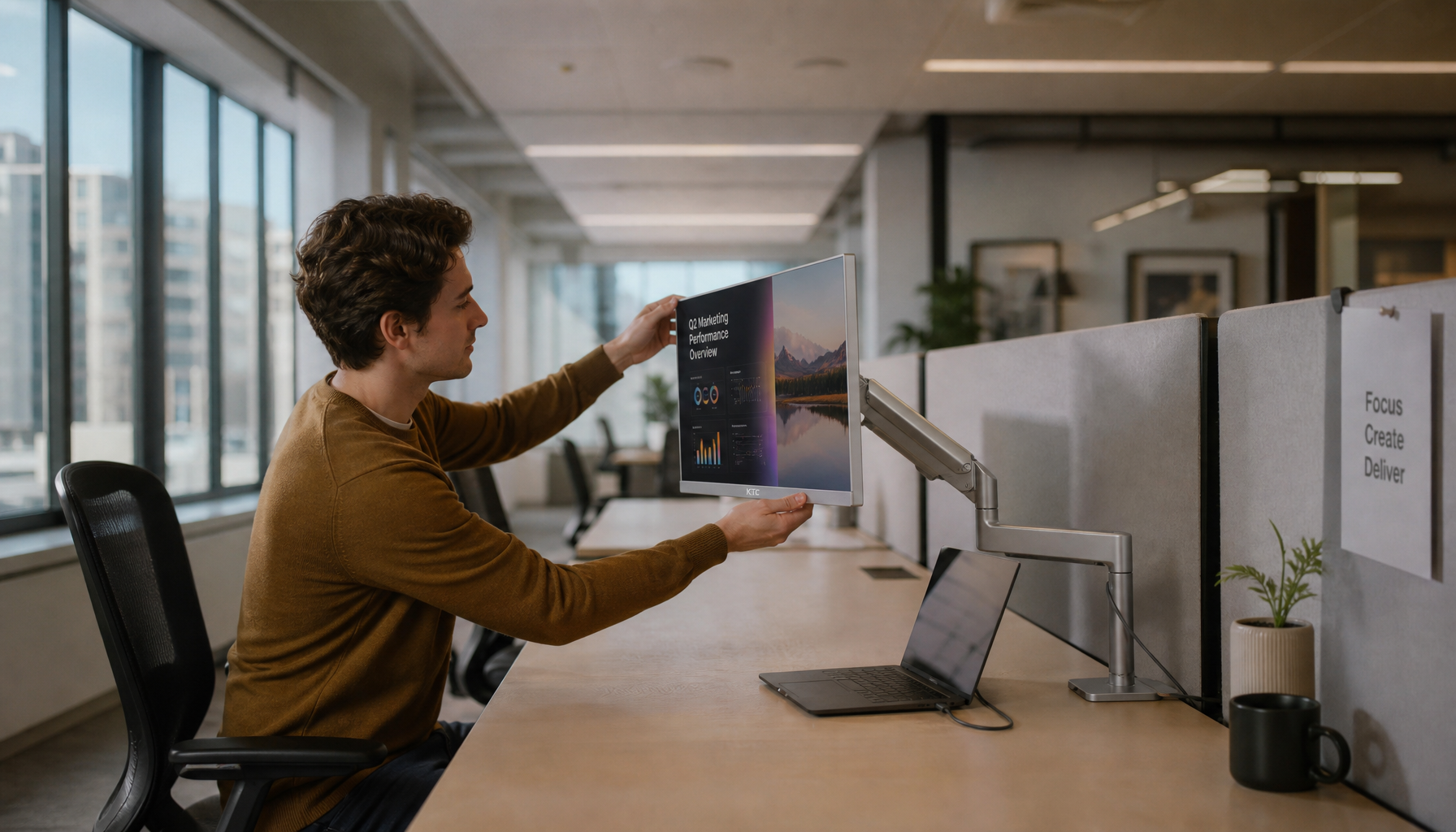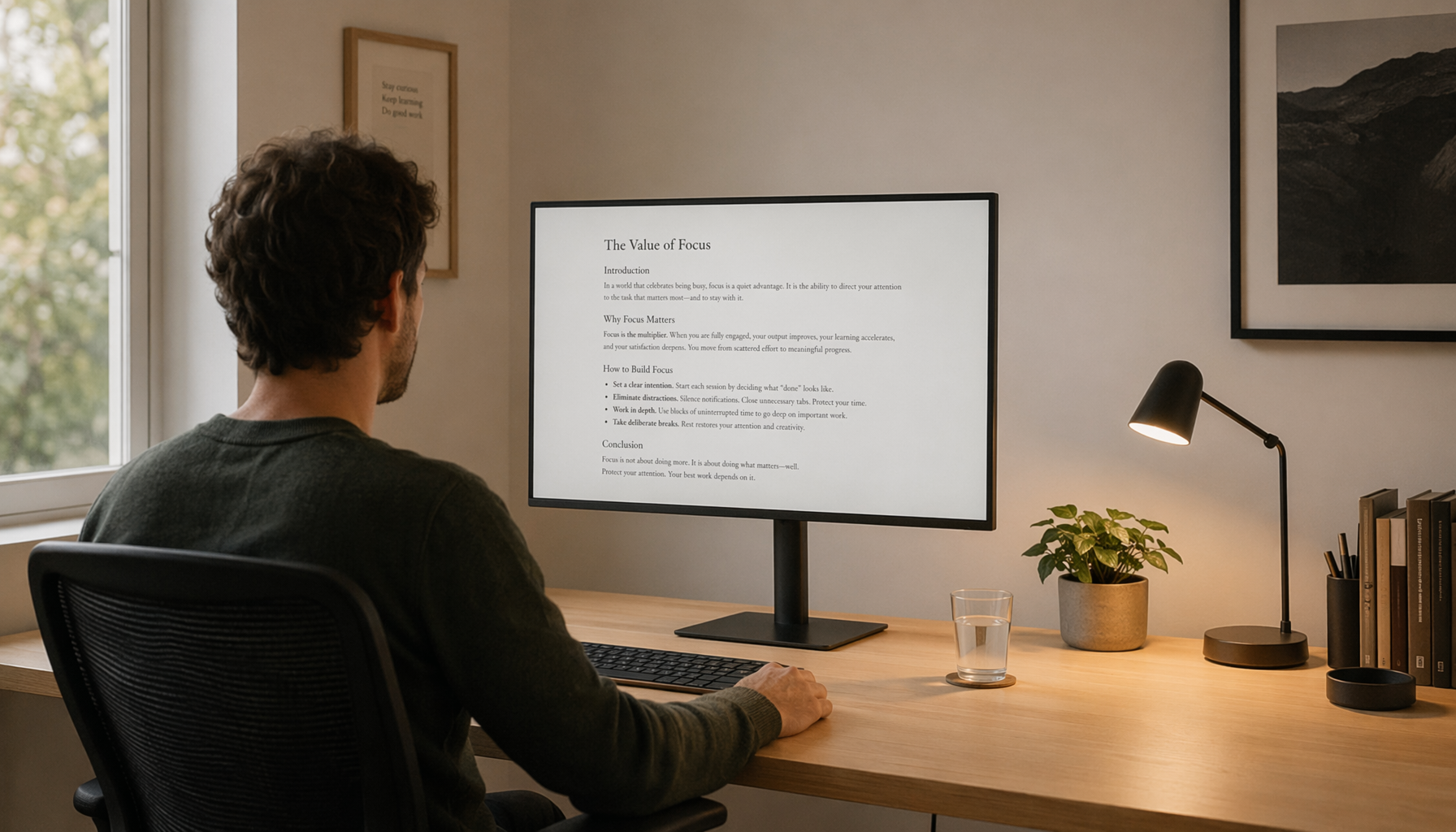


Lower your monitor slightly, tilt it back, and position the main content so you can see it clearly through the intermediate zone of your lenses without lifting your chin. The goal is a sharp screen, neutral neck, and less visual effort during long work sessions.
Why Standard Monitor Height Often Fails
Typical ergonomic advice says the top of the screen should sit around eye level and about an arm’s length away. That works for many users, but progressive lenses split vision into distance, intermediate, and near zones, so your clearest computer view is usually not at the very top of the lens.
With bifocals, the issue can be even more obvious. The lower lens segment is often tuned for near work, so a high monitor may force you to tip your head back just to bring text into focus.
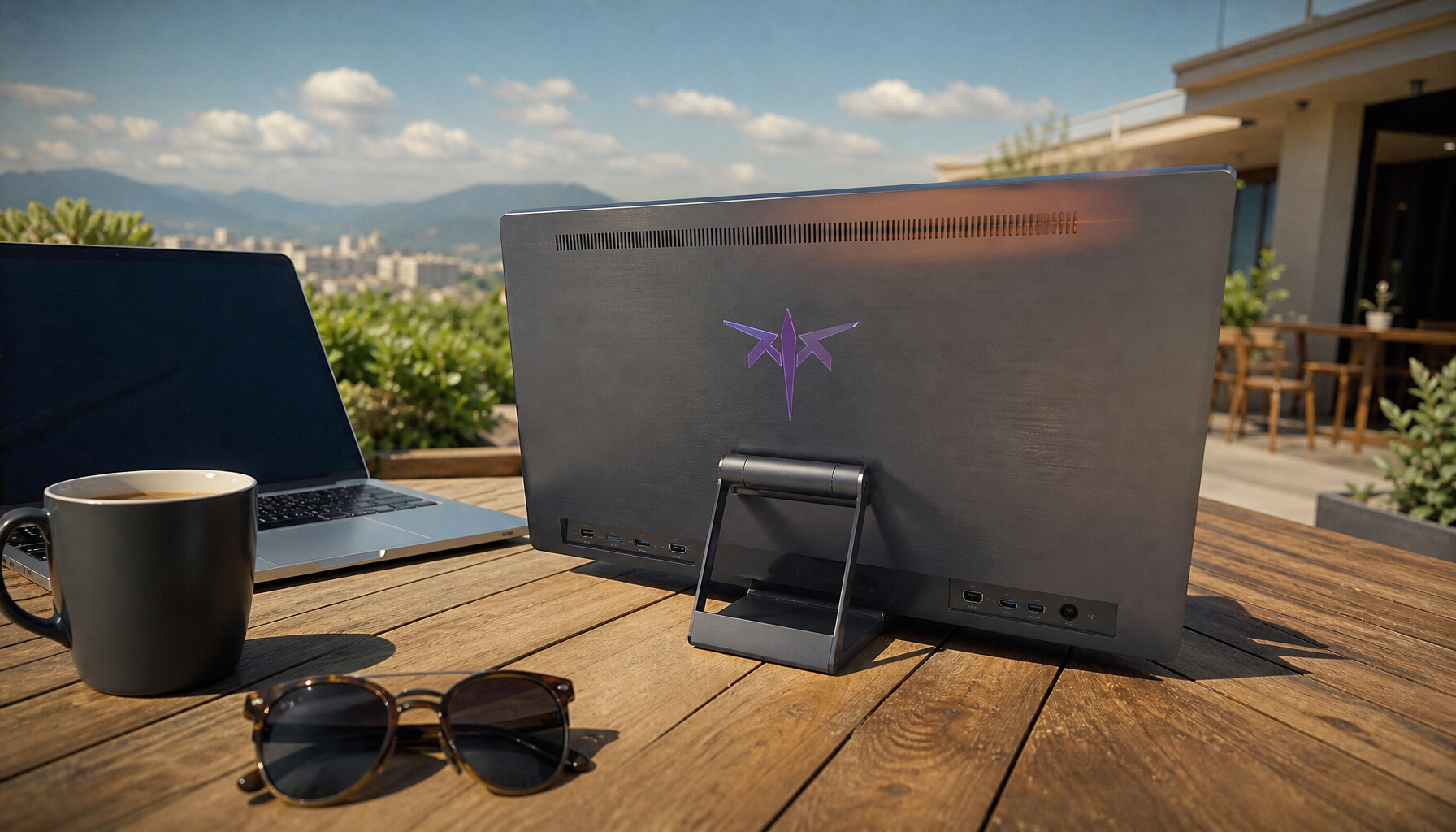
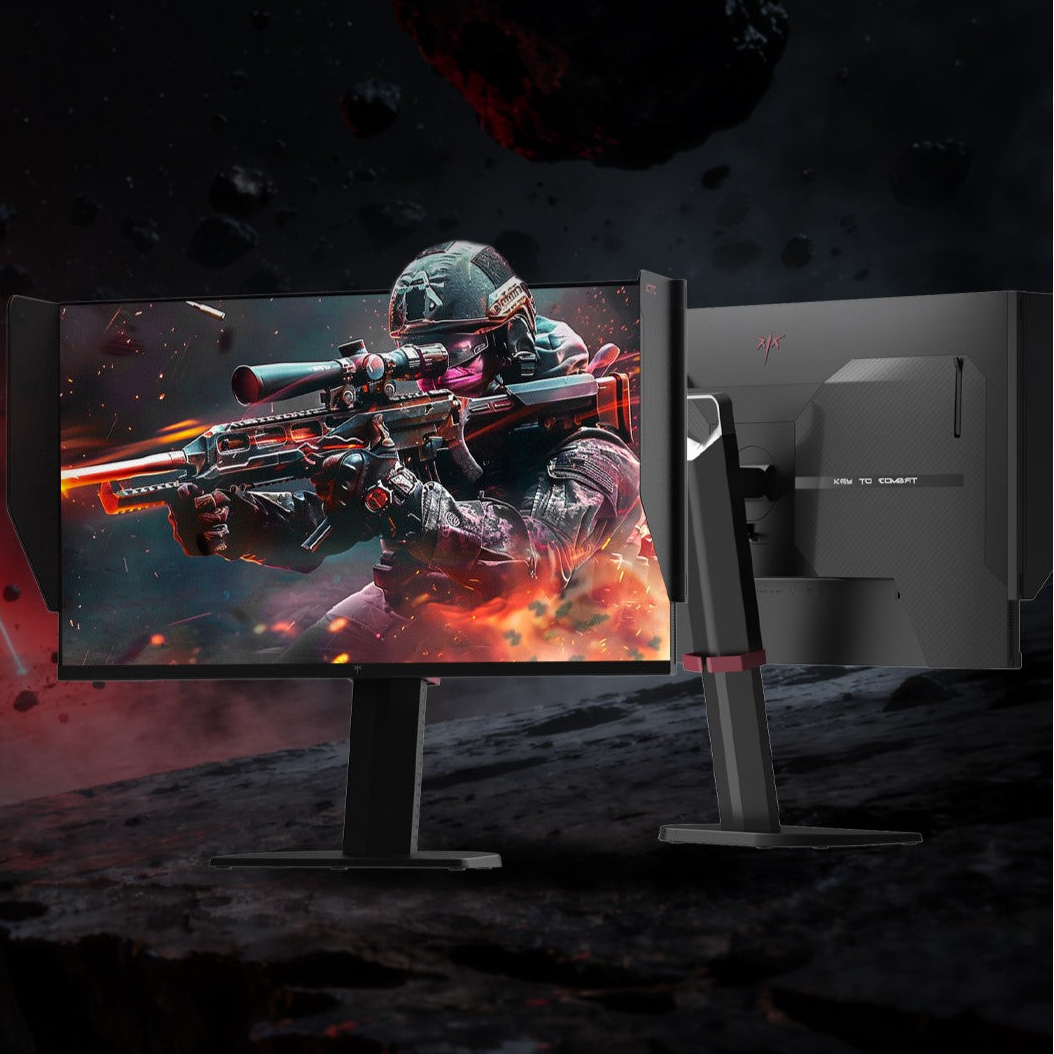
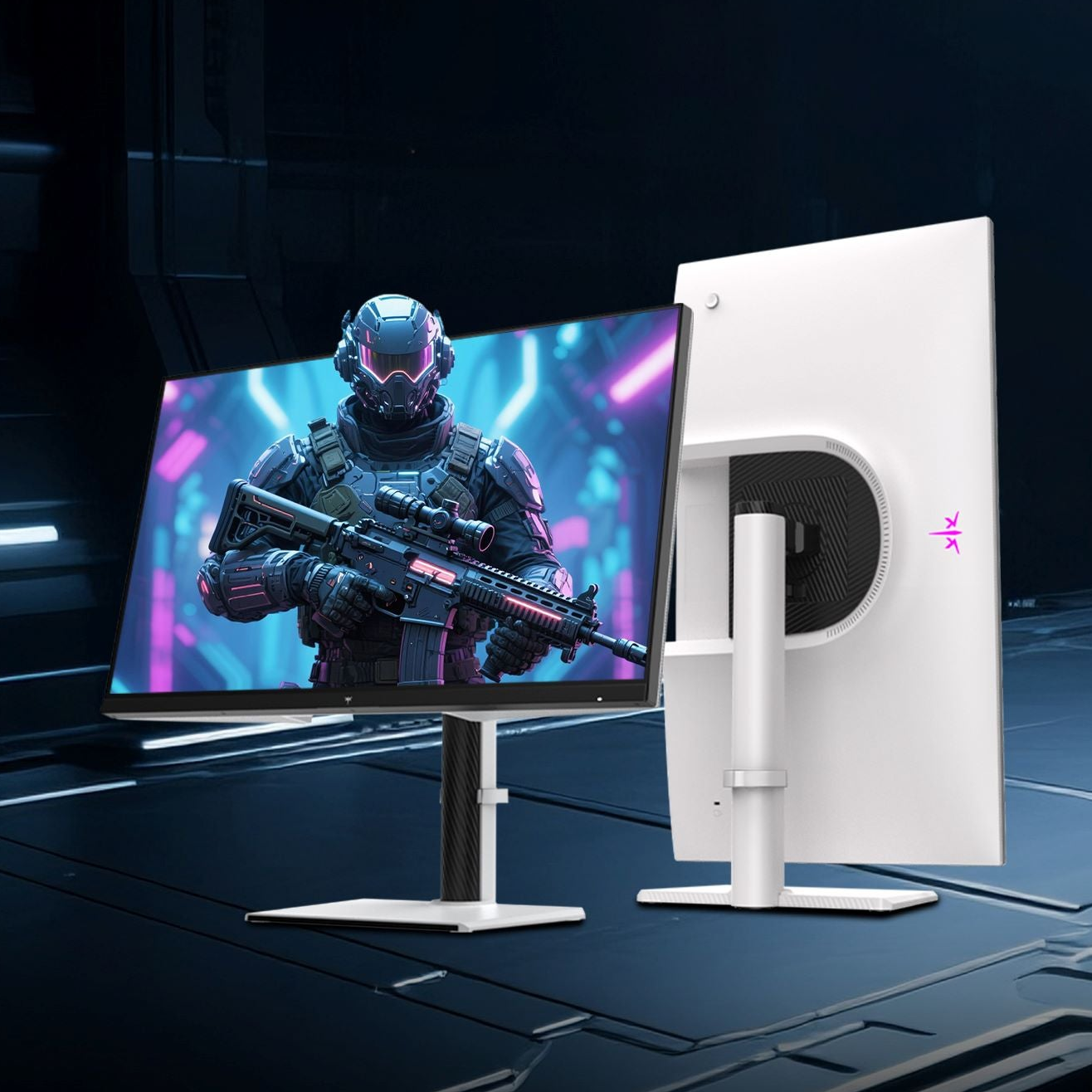
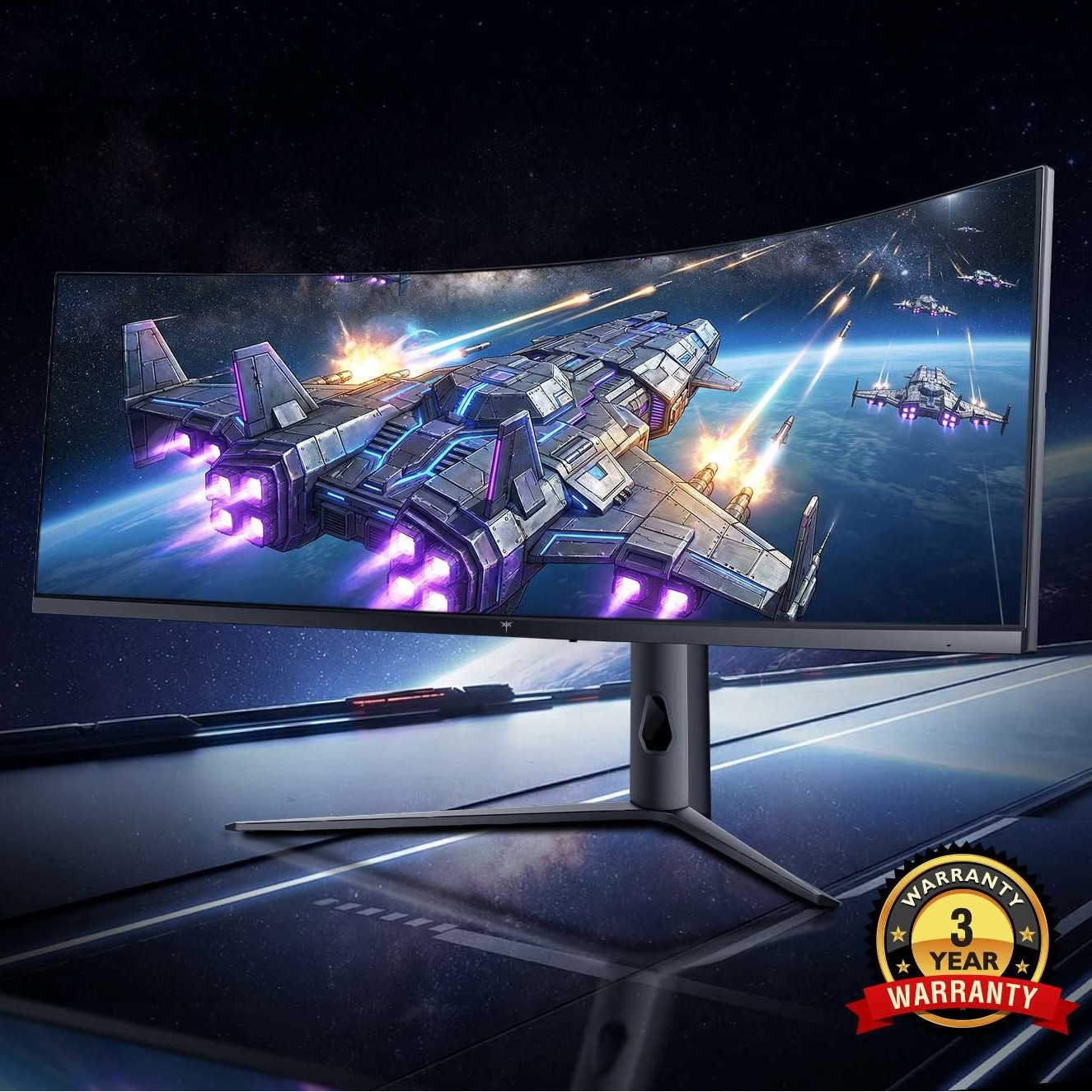
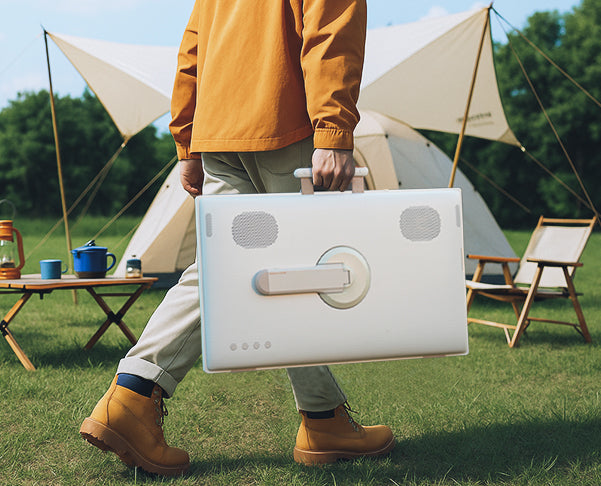
For productivity displays, gaming monitors, and portable screens, the same principle applies: your display should meet your eyes where your lenses are strongest, not make your neck chase the image.
Set Height for the Lens Zone, Not the Desk
Start seated in your normal working posture. Keep your back supported, feet flat, and shoulders relaxed, then look at the part of the screen you use most: the middle of a spreadsheet, the timeline in an editor, or the center of your game HUD.

For progressive lenses, monitors should be slightly lower and tilted back to reduce neck craning. A good practical target is to place the primary content just below straight-ahead sight, then fine-tune until text is sharp without raising your chin.
Quick setup:
- Sit normally before touching the monitor.
- Keep the screen directly in front of you.
- Lower it in small steps, about 0.5 to 1 inch at a time.
- Tilt the screen slightly back so the top leans away.
- Increase font size before moving the screen too close.
For many setups, an arm’s-length distance works well, but large 32-inch or ultrawide monitors may need to sit slightly farther back so you can scan the screen without excessive head movement.
Dial In Tilt, Distance, and Glare
Tilt matters more than many people expect. For bifocal users, monitor tilt can determine whether you read comfortably or end up extending your neck all afternoon.
If the screen points downward, you may compensate by leaning, squinting, or lifting your chin. Instead, try a slight backward tilt, then lower the display until the center of your work area is crisp through the correct lens zone.

Glare also changes posture. If reflections wash out contrast, you may unconsciously move closer or tilt your head. Place windows to the side when possible, reduce harsh overhead light, and match screen brightness to the room.
Some general ergonomics sources favor placing the top of the monitor near eye level, but multifocal lens wearers often need a lower position to keep a neutral neck.
Use the Right Hardware for Your Screen Routine
A fixed stand is often the weak link. A monitor arm with height, depth, and tilt adjustment gives you the control needed for progressive or bifocal lenses, especially if you switch between office tasks, gaming, and video calls.

Dual-monitor users should center the primary display and angle the secondary display inward. If you use one screen for reading documents and another for dashboards, keep the main screen aligned with your intermediate zone and place the reference screen where it does not force neck extension.
Laptop users should avoid treating the built-in screen and keyboard as a complete workstation. Raise or lower the screen for your lenses, then use an external keyboard and mouse so your hands can stay relaxed.
If you spend most of the day at a monitor, computer or reading bifocals or workspace progressives may provide a wider mid-range zone than everyday lenses.
When to Recheck Your Setup
Give new progressives time. Many wearers need a few days to a few weeks to adapt, and consistent wear helps the brain learn the lens zones.
Still, your setup may need attention if you notice repeated headaches, neck tension, blurry screen text, or a constant need to lift your chin. If adjustments do not help, ask your optician to check frame fit, lens alignment, and whether your prescription matches your screen distance.
For daily comfort, add one simple habit: every 20 minutes, look about 20 ft away for 20 seconds. Better display placement gets you into the right visual zone; breaks help you stay there longer.