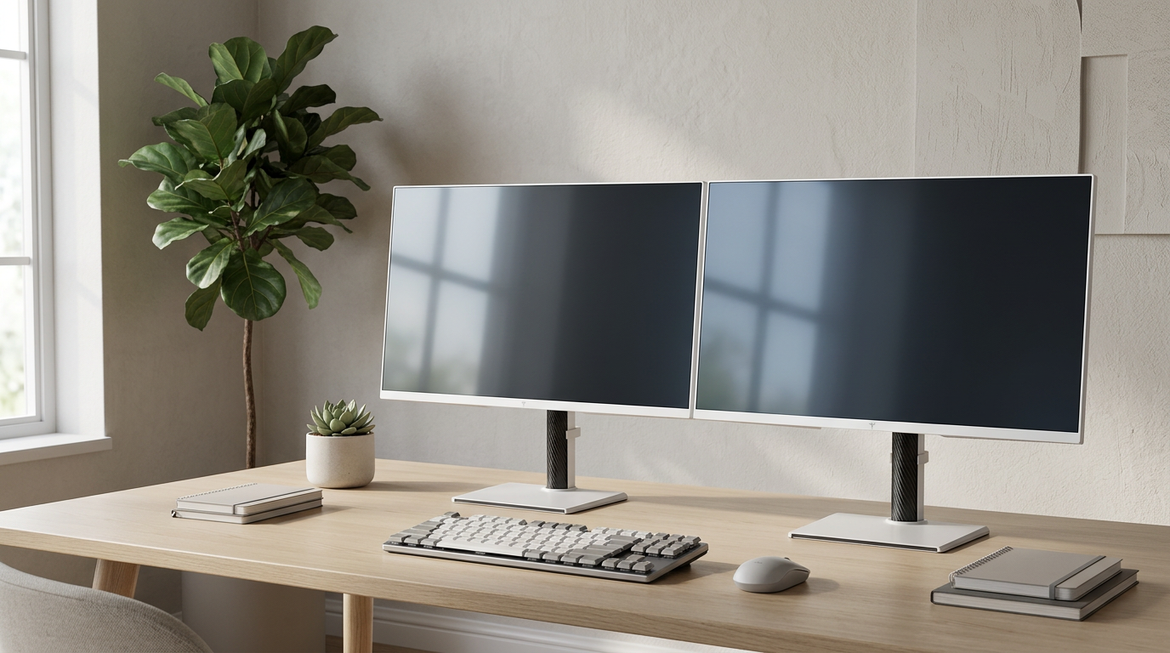
A 21:9 ultrawide usually improves workflow smoothness more than raw screen capacity; two 16:9 monitors still win when you need maximum space, portrait rotation, or hard task separation.
Are you losing your train of thought every time you drag a window across a bezel, hunt for the right tab, or swivel between two mismatched displays? A 34-inch 3440 x 1440 ultrawide can give you two clean work zones with fewer cables and no center split, while a dual 27-inch QHD setup gives far more total pixel width. Here is the practical way to choose the layout that will actually make you faster, not just make your desk look upgraded.
Workspace vs. Workflow
A 21:9 monitor is wider than the standard 16:9 format, but it is not the same as two 16:9 monitors side by side. A typical 34-inch 21:9 productivity display uses 3440 x 1440 resolution, while two 27-inch QHD 16:9 monitors create a combined 5120 x 1440 desktop. That means the dual-monitor setup gives about 49% more horizontal pixels than the 34-inch ultrawide, assuming both 16:9 panels are QHD.

Setup |
Common Resolution |
Practical Meaning |
Single 27-inch 16:9 QHD |
2560 x 1440 |
One strong focused workspace |
34-inch 21:9 UWQHD |
3440 x 1440 |
Two comfortable side-by-side zones |
Two 27-inch 16:9 QHD monitors |
5120 x 1440 |
More total room, with a center bezel |
49-inch 32:9 DQHD |
5120 x 1440 |
Dual-monitor width in one continuous panel |
The value of 21:9 is not that it beats two monitors on total space. Its value is that an ultrawide can reduce window switching, bezel interruption, cable clutter, and panel mismatch while keeping your main work in one continuous visual field, a workflow pattern also emphasized by the University of York’s advice to use window tiling early when adapting to an ultrawide display.
Where 21:9 Feels Faster
The productivity gain is strongest when your work depends on parallel visibility. Think writing with research on the left, a draft in the center, and chat or notes on the right. The same applies to spreadsheets, video timelines, code plus documentation, financial dashboards, CRM work, and presentation editing.

The practical case is simple: replacing a multi-monitor desk with a 34-inch 3440 x 1440 curved display works best for people who naturally keep several windows visible at once, while users who maximize one app may waste much of the width. If your day is mostly one browser tab, one document, or one video call, 21:9 looks impressive but does not automatically make the work faster.
A useful calculation is window width. On a 3440-pixel-wide ultrawide, two snapped windows each get about 1720 pixels before margins. That is wide enough for a browser and a document without either feeling cramped. Three-column layouts are possible, but each column is closer to 1146 pixels, which suits chat, notes, calendars, narrow dashboards, or file managers more than full creative apps.
Where Two 16:9 Monitors Still Win
Two 16:9 monitors are better when you need physical separation. A designer can keep a preview on one panel and tools on another. A developer can rotate one display vertically for logs or documentation. A trader, analyst, or support lead can dedicate one monitor to live dashboards while the other remains focused on active work.
Dual monitors also make sharing easier. You can present one screen while keeping notes or controls private on the other. You can run a full-screen remote desktop, video call, or virtual machine on one panel without sacrificing the rest of the workspace. That flexibility matters in corporate and hybrid work, where software does not always behave smoothly on very wide displays.
Adjustable stands, pivot, swivel, height adjustment, and VESA support are important features for long sessions, and those strengths often favor dual 16:9 setups because each panel can be positioned independently. If one screen needs portrait mode and the other needs landscape, a single 21:9 monitor cannot replicate that.
Ergonomics: The Hidden Productivity Multiplier
Screen space only helps if your body can use it for eight hours. The common mistake with ultrawides is pushing active work too far left or right. That turns the monitor into a neck-rotation problem instead of a productivity tool.

KTC’s ergonomics guidance notes that wider displays can increase head-rotation demands and recommends keeping the primary work zone directly in front of you, with side areas reserved for lower-frequency content such as chat, references, dashboards, or passive documents. In practice, that means your main document, spreadsheet, timeline, or code editor belongs in the center third of the screen, not parked at the far edge.
For a 34-inch curved ultrawide, a viewing distance around 24 to 31 inches is a practical comfort range if your desk has enough depth. If the stock stand eats too much desk space, a VESA arm can be more than a cosmetic upgrade; it can restore proper distance, free the keyboard area, and let you center the panel behind your main input position.
Gaming, Media, and After-Hours Value
For pro gaming and immersive entertainment, 21:9 has a separate advantage: it can feel more natural than dual monitors because there is no bezel splitting the center of the image. Racing, flight, open-world, strategy, and simulation games can benefit from the wider field of view when the game supports it.
The tradeoff is compatibility. Movies and games designed for 21:9 can look excellent, but unsupported 16:9 content may show black bars on the sides. For competitive esports, many players still prefer 24- or 27-inch 16:9 screens because the centered view, standardized tournament format, and high refresh rates matter more than cinematic width.
If one setup must handle work and play, a 34-inch 3440 x 1440 ultrawide is often the balanced choice. It gives a strong office layout by day and a more immersive field by night without demanding as much desk space or GPU power as a 49-inch 32:9 display.
Buying Guidance: Which Setup Should You Choose?
Choose 21:9 if your productivity problem is friction. If you constantly switch tabs, resize windows, lose context, fight bezel gaps, or dislike the visual clutter of two panels, a 34-inch UWQHD ultrawide is the clean upgrade. Modern ultrawide work displays also increasingly bundle practical office features like USB-C, Thunderbolt, webcams, hubs, Ethernet, and tiling software, making the monitor part of the workstation rather than just a screen.

Choose two 16:9 monitors if your productivity problem is capacity. If you need a full-screen app beside another full-screen app, frequent screen sharing, portrait mode, separate systems, or strict task boundaries, dual displays remain hard to beat. Two QHD monitors also give more total working pixels than a typical 34-inch 21:9 ultrawide.
Choose 32:9 if you want the dual-monitor canvas without the center bezel. A 49-inch 5120 x 1440 super-ultrawide is closer to two 27-inch QHD monitors in one panel, and many 32:9 business models are built as virtual dual-display tools for replacing side-by-side monitors. The cost is desk depth, weight, mounting difficulty, and more head movement if you do not manage your zones carefully.
FAQ
Is 21:9 better than dual monitors for productivity?
It is better for continuous workflows, cleaner setups, and side-by-side reference work. It is not automatically better for total screen space, portrait layouts, or screen sharing.
Is a 34-inch ultrawide equal to two 27-inch monitors?
No. A 34-inch 3440 x 1440 ultrawide gives less total width than two 27-inch 2560 x 1440 monitors. A 49-inch 5120 x 1440 32:9 display is the closer match.
What is the best productivity sweet spot?
For most office, creative, and hybrid workers, a 34-inch 3440 x 1440 ultrawide is the practical sweet spot because it supports two strong work zones without the extreme width of 49-inch models.
The real gain of 21:9 is focus continuity: fewer window hops, fewer visual breaks, and a cleaner command center. If your work depends on seeing related information together, go ultrawide; if it depends on maximum independent space, stay dual 16:9 or move up to 32:9.