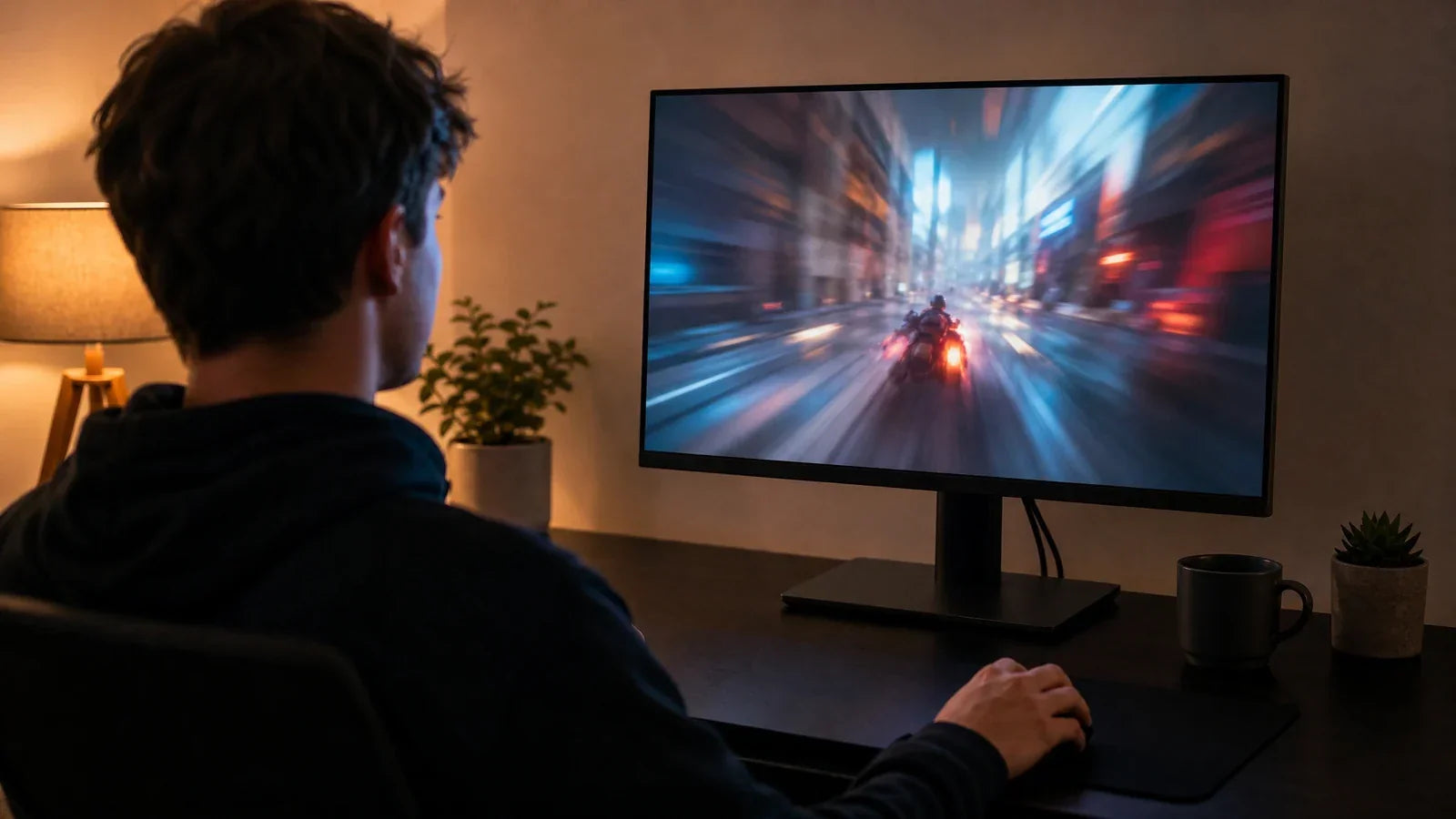
Motion blur reduction and G-Sync solve different gaming problems. Motion blur reduction modes such as ULMB, DyAc, and ELMB improve motion clarity through backlight strobing. G-Sync and FreeSync reduce tearing and stutter through variable refresh rate. For the best monitor for fps gaming, the right setting depends on whether your frame rate is stable enough to match your refresh rate.
How Motion Blur Reduction Works
Motion blur reduction is a monitor feature designed to make fast motion look clearer. It is usually found on a high refresh rate gaming monitor and may appear under names such as ULMB, DyAc, ELMB, MBR, or backlight strobing.
The basic idea is simple. The monitor flashes the backlight between frames instead of leaving it on continuously. This reduces the time each frame is visible to your eyes, which can make motion look sharper during fast turns, flick shots, and tracking movements. Common blur reduction modes use strobe backlights as the main method for reducing perceived motion blur.
For FPS games, the benefit is easier target visibility during movement. When the screen is clearer in motion, it may be easier to track enemies, read fast movement, and keep crosshair placement stable.
Pros And Cons Of Backlight Strobing
The main advantage of backlight strobing is motion clarity. A good strobing mode can make a 240hz gaming monitor feel much sharper during rapid movement than the same monitor with strobing off.
The trade-offs are real. Strobing can reduce brightness, create flicker sensitivity for some users, add crosstalk or double-image artifacts, and usually works best at fixed refresh rates. It also needs stable frame delivery. If the game frame rate drops below the refresh rate often, the experience can become less smooth.
That is why backlight strobing vs vrr is not a simple “one is better” question. Strobing favors clarity when performance is stable. VRR favors smoothness when performance changes.
How G-Sync And FreeSync Work
G-Sync and FreeSync are variable refresh rate technologies. Instead of forcing the monitor to refresh at a fixed pace while the GPU delivers frames at a different pace, VRR lets the monitor adjust its refresh timing to match the game’s frame output within a supported range.
This helps reduce screen tearing and stutter. NVIDIA describes G-Sync monitors as designed for smooth, tear-free gaming, and the technology was created to synchronize display refresh rates with the GPU.
For FPS games, VRR is most useful when frame rate fluctuates. If a game runs between 170 and 230 FPS on a 240Hz display, G-Sync or FreeSync can make motion feel smoother than fixed refresh without sync.
Eliminating Screen Tearing At The Cost Of Clarity?
VRR does not directly reduce motion blur the way strobing does. It improves frame pacing and reduces tearing, but the monitor still holds each frame normally. That means motion clarity may be lower than a strong strobing mode.
However, VRR usually feels better when frame rate is unstable. In games with heavy effects, large maps, or frequent frame dips, G-Sync or FreeSync can create a smoother overall experience.
For an esports gaming monitor, VRR is a stability tool. Motion blur reduction is a clarity tool. The better choice depends on which problem is more noticeable in your game.
ULMB Vs. G-Sync: Which Is Better For CS2 And Valorant?
For games like CS2 and Valorant, the answer depends mostly on frame consistency. These games are often played at high frame rates, and competitive players usually care about motion clarity, low latency, and stable frame pacing.
If your PC can hold frame rates at or above your monitor refresh rate, motion blur reduction may be the better choice. For example, if you use a 240hz gaming monitor and your system can hold around 240 FPS or higher with stable frame times, ULMB, DyAc, or ELMB can improve target clarity during fast movement.
If your FPS regularly drops below refresh rate, G-Sync or FreeSync is usually better. A fluctuating frame rate can make strobing feel uneven, while VRR helps reduce tearing and stutter.
Best Choice For CS2
CS2 can be demanding depending on settings, maps, smoke effects, and CPU performance. If your system consistently stays near your monitor’s refresh rate, motion blur reduction can help with clarity. If your FPS varies heavily, VRR may feel smoother.
Best Choice For Valorant
Valorant is usually easier to run at high FPS on many systems. That makes motion blur reduction more practical if your monitor supports a clean strobing mode and your brightness remains acceptable.
In both games, test with real match conditions, not just an empty practice range. Frame rate stability during full gameplay is what matters.
Can You Use Motion Blur Reduction And G-Sync At The Same Time?
On many monitors, no. Traditional strobing modes and VRR are often mutually exclusive because strobing depends on predictable frame timing, while VRR changes refresh timing dynamically. Many users will see that enabling G-Sync disables ULMB or that enabling strobing disables VRR.
There are exceptions and newer technologies. NVIDIA announced G-Sync Pulsar to combine variable refresh rate with ultra-low motion blur, and newer G-Sync developments are bringing advanced features into more monitor scalers.
Still, for most current monitors, the practical answer is that you usually choose one mode at a time. Check your monitor’s OSD and manual. If it allows both together, test carefully because the result depends on that exact model.
This is the key point in backlight strobing vs vrr: strobing wants fixed, stable timing; VRR is built for changing frame timing.
Which Setting Has Lower Input Lag?
Input lag depends on the monitor, refresh rate, frame rate cap, V-Sync setting, and game engine. It is not safe to say one mode always has lower input lag.
Motion blur reduction may feel more responsive because the image is clearer during motion, but some strobing modes can add processing or require settings that affect latency.
G-Sync can reduce tearing and stutter, but it is usually best used with proper frame-rate limits. Many competitive players cap FPS slightly below the monitor’s maximum refresh rate when using VRR to avoid hitting the V-Sync ceiling.
For the best monitor for fps gaming, do not judge by feature name alone. Check independent latency tests when possible and test the monitor in the actual game you play.

Which Mode Should You Use By Monitor Refresh Rate?
144Hz Monitors
At 144Hz, motion blur reduction can help, but strobing artifacts and brightness loss may be more noticeable. VRR is often the safer default unless your FPS is very stable.
240Hz Monitors
A 240hz gaming monitor is where the choice becomes more interesting. If your game holds 240 FPS, strobing can look very clear. If FPS drops often, VRR is usually better.
360Hz And Higher Monitors
At 360Hz or higher, motion clarity improves even without strobing because frames refresh more often. Strobing can still improve clarity further, but it needs excellent frame consistency. These monitors are often aimed at serious competitive players.
A high refresh rate gaming monitor gives you more room to choose. The higher the refresh rate and the more stable the FPS, the more useful motion blur reduction becomes.
What Is The Best Setup For Competitive FPS?
A good competitive FPS setup starts before the monitor setting. First, reduce graphics settings enough to keep FPS stable. Then choose the monitor mode that matches your frame behavior.
Use motion blur reduction if:
- Your FPS stays near or above refresh rate
- You value target clarity over tear-free smoothness
- Your monitor’s strobing mode is clean
- Brightness loss does not bother you
- You play esports titles with stable performance
Use G-Sync or FreeSync if:
- Your FPS fluctuates often
- You notice screen tearing
- You play mixed game types
- You prefer smoothness over maximum clarity
- Your monitor’s strobing mode has artifacts
For most casual players, VRR is easier to live with. For serious FPS players with a tuned system, motion blur reduction can be more useful.

How To Set Up The Best Monitor For FPS Gaming
Start by checking your average FPS and 1% lows in the games you actually play. If the 1% lows are far below your monitor refresh rate, VRR is usually the better starting point.
Next, test motion blur reduction in a fast movement scenario. Look for brightness loss, flicker discomfort, double images, and whether targets look clearer during strafing or fast turns.
Then test VRR. Look for tearing, stutter, and whether the game feels smoother when FPS changes.
Finally, choose the setting that solves your biggest problem. If you lose targets during motion, strobing may help. If you notice tearing and uneven motion, VRR may help more.
The best monitor for fps gaming is not only the one with the most features. It is the one that lets you match the right mode to your system and game.
Setting Up The Best Monitor For FPS Gaming
Motion blur reduction and G-Sync are both useful, but they solve different problems. Turn on ULMB, DyAc, or ELMB when your FPS is stable and motion clarity matters most. Turn on G-Sync or FreeSync when FPS varies and tearing or stutter is the bigger issue. For an esports gaming monitor, the best setting is the one that matches your actual frame rate, refresh rate, and game.
FAQs about Gaming Monitor Motion Features
What Is Motion Blur Reduction On A Gaming Monitor?
Motion blur reduction is a feature that reduces perceived blur during fast movement, often by using backlight strobing. On some monitors, this setting may appear as MBR or MPRT in the OSD menu. If your KTC monitor only shows MPRT On/Off, that is the related motion clarity setting to test.
Is G-Sync Better Than ULMB For FPS Games?
G-Sync is better when FPS fluctuates. ULMB or similar strobing modes are better when FPS is stable and motion clarity is the priority.
Should I Use DyAc, ULMB, Or ELMB For CS2?
Use it if your FPS is stable near your monitor refresh rate and the strobing mode looks clean. If you see stutter, tearing, or heavy brightness loss, VRR may be better.
Can A High Refresh Rate Gaming Monitor Use Both Features?
Some newer technologies aim to combine blur reduction and VRR, but many monitors still require choosing one. Check the exact monitor model.
Is A 240Hz Gaming Monitor Enough For Competitive FPS?
Yes. A good 240hz gaming monitor is still strong for competitive FPS. Higher refresh rates can improve motion smoothness, but 240Hz remains a practical competitive standard.