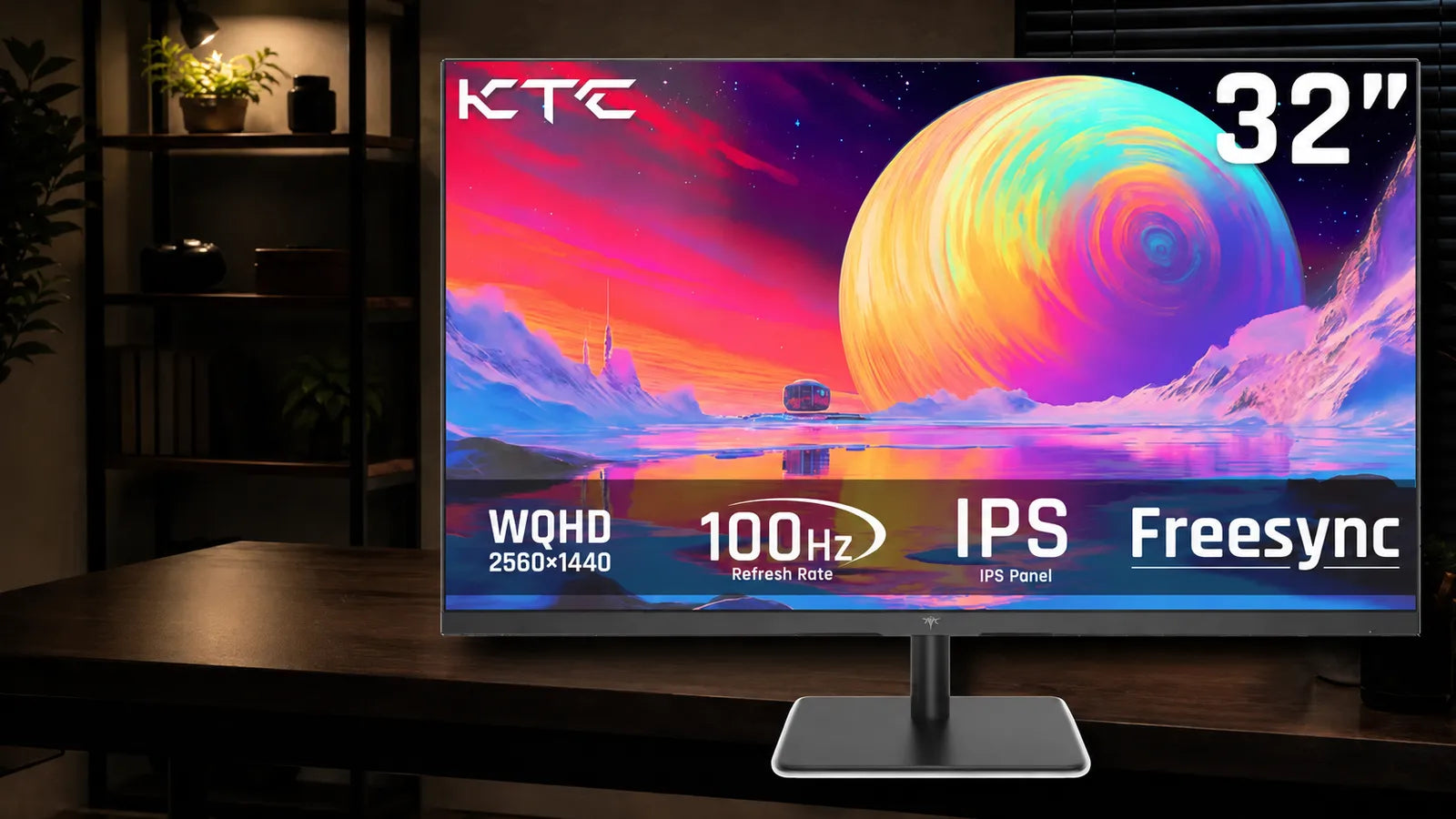
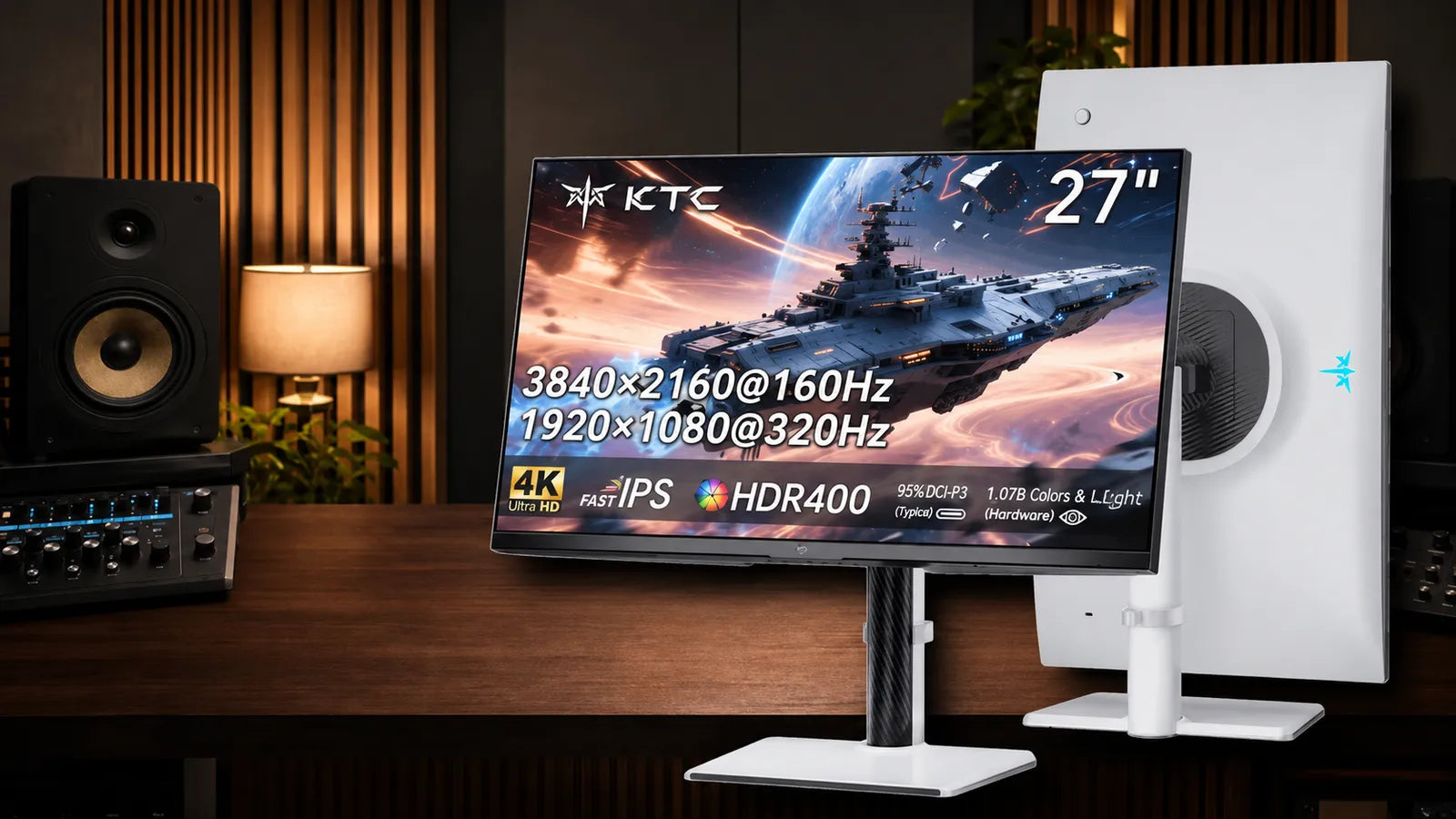
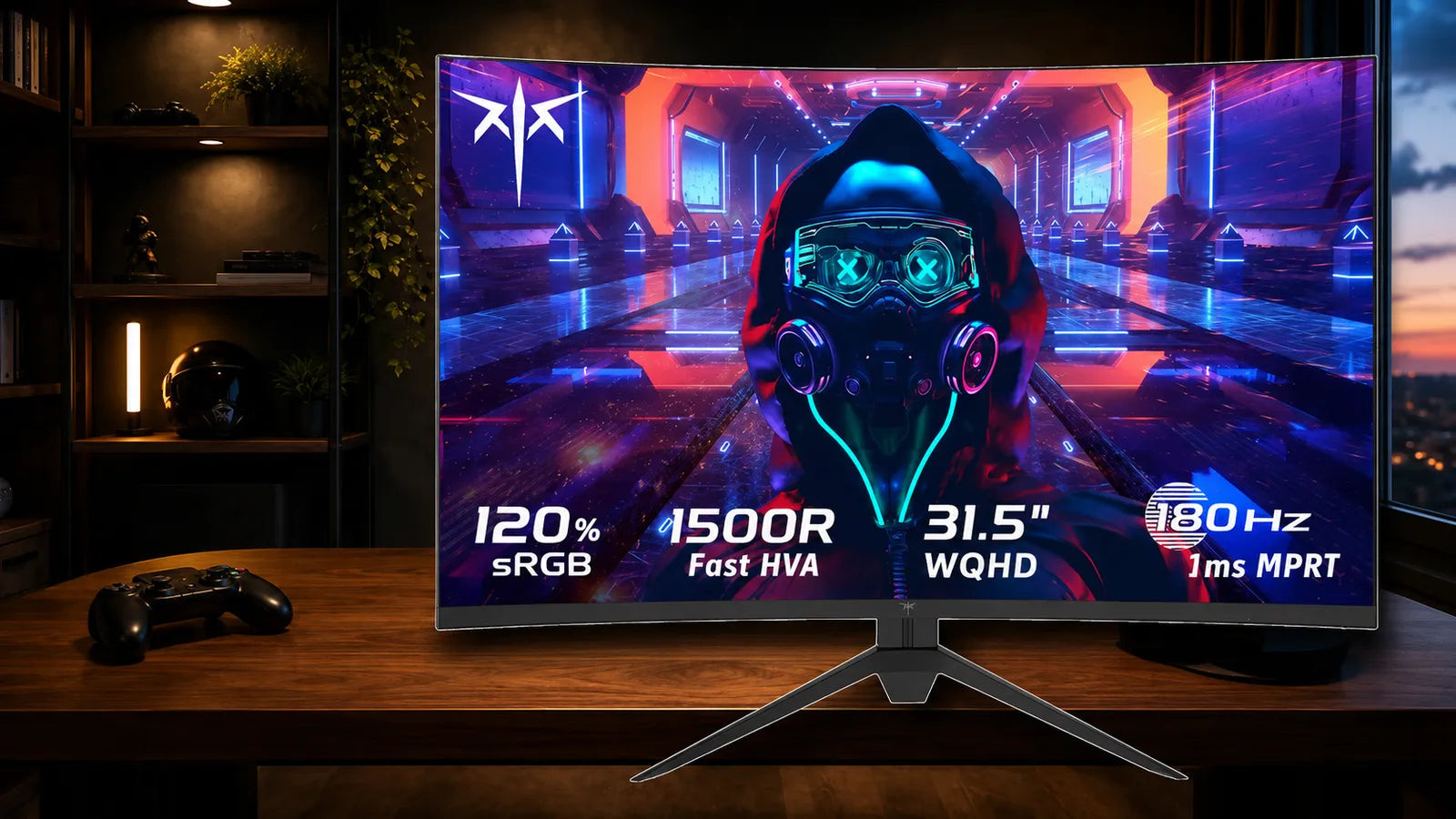
Choosing the right cable matters when your monitor supports high resolution, fast refresh rates, HDR, or variable refresh rate. A high refresh rate monitor can only perform correctly when the computer, console, display port, and cable all support the required signal. This guide explains the practical differences between DisplayPort 1.4 and HDMI 2.1.
What Are the Bandwidth Limits for DP 1.4 and HDMI 2.1?
Bandwidth decides how much display data can move from your device to the monitor each second. Resolution, refresh rate, color depth, HDR, and chroma format all affect that demand.
DisplayPort 1.4 Bandwidth
DisplayPort 1.4 uses HBR3 link rates with up to 32.4Gbps raw bandwidth. After encoding overhead, the usable data rate is about 25.92 Gbps.
That is enough for many common gaming setups, including 1440p at high refresh rates and 4K at lower or moderate refresh rates. For heavier formats, DisplayPort 1.4 often uses Display Stream Compression, usually called DSC.
DSC is designed to reduce bandwidth demand while keeping the image visually lossless in normal viewing. This is why a 4K high refresh rate monitor may still work through DisplayPort 1.4 even when the uncompressed signal would exceed the native bandwidth.
HDMI 2.1 Bandwidth
HDMI 2.1 can support up to 48Gbps when the device, display, and cable all support full-bandwidth HDMI 2.1 signaling. This gives it more raw bandwidth than DisplayPort 1.4.
However, not every port labeled HDMI 2.1 offers the same bandwidth or feature set. Some displays or devices may support only part of the full specification. Always check the monitor manual, graphics output, and cable certification instead of trusting the label alone.
Why Specs Alone Can Mislead Buyers
A cable standard is only one part of the chain. Your graphics output, monitor input, firmware, refresh-rate setting, and color settings all matter. This is the simplest version of monitor bandwidth limits explained: the final output can only run at the highest format supported by every link in the chain.
Does HDMI 2.1 Support 4K 144Hz Gaming Monitors?
HDMI 2.1 can support many 4K high-refresh formats, but actual support depends on bandwidth, monitor design, and device output.
4K 144Hz Is Possible With The Right Setup
A 4K 144Hz gaming monitor can work over HDMI 2.1 when the monitor input, source device, and cable support the required bandwidth. For full-quality output, you also need to consider color depth and HDR.
For example, 4K at 144Hz with 10-bit color requires more bandwidth than 4K at 144Hz with 8-bit color. If the connection cannot carry the full signal, the system may lower refresh rate, reduce color depth, use chroma subsampling, or rely on compression.
Use The Right HDMI Cable Type
For HDMI 2.1 features, use an Ultra High Speed HDMI cable. This cable category is designed for high-bandwidth video modes such as 4K at 100Hz or 120Hz and other demanding formats.
A standard older HDMI cable may still display an image, but it may not support the full refresh rate or HDR format. If your 4K 144Hz gaming monitor keeps dropping to 60Hz or 120Hz, the cable is one of the first things to check.
Check the Monitor Input Menu
Some monitors require a setting change before HDMI 2.1 bandwidth is fully enabled. Look for options related to HDMI mode, enhanced format, refresh rate, HDR, or adaptive sync. If the setting is not enabled, the display may behave like a lower-bandwidth input.

Can DisplayPort 1.4 Handle a 4K High Refresh Rate Monitor?
DisplayPort 1.4 is widely used for PC monitors and can handle many demanding gaming formats. The key is whether the monitor and graphics output support DSC.
Without DSC
Without DSC, DisplayPort 1.4 has less effective bandwidth than full HDMI 2.1. It can still handle many excellent PC gaming modes, especially 1440p high refresh rates and 4K at moderate refresh rates.
For uncompressed 4K at very high refresh rates, bandwidth can become a limit. This is where some users see lower available refresh-rate options in the operating system.
With DSC
With DSC, DisplayPort 1.4 can support higher 4K refresh-rate modes on compatible hardware. This is why many PC users successfully run a 4k high refresh rate monitor through DisplayPort 1.4.
The important detail is compatibility. The monitor, graphics output, and display mode must all support DSC. If one part does not, the system may fall back to a lower format.
When DisplayPort 1.4 Is A Strong Choice
DisplayPort 1.4 is often a strong choice for PC users because many graphics cards and gaming monitors support it well. It is also common on monitors designed for desktop gaming. If your main display is a high refresh rate monitor connected to a desktop PC, DisplayPort 1.4 is often the first port worth testing.
Evaluate HDMI 2.1 vs DisplayPort 1.4 for PC Gaming
The best choice depends on your monitor, graphics output, target resolution, and refresh rate. There is no single winner for every PC setup.
When HDMI 2.1 Makes More Sense
HDMI 2.1 makes sense when your monitor has a full-bandwidth HDMI 2.1 input and your graphics output supports the display mode you want. It is especially useful for 4K displays that support high refresh rates through HDMI.
For a 4k 144hz gaming monitor, HDMI 2.1 can be a clean solution if the monitor and source both support the required bandwidth. It can also be useful when the same display is shared between a PC and a game console.
When DisplayPort 1.4 Makes More Sense
DisplayPort 1.4 makes sense when your monitor’s best PC input is DisplayPort or when the HDMI input has lower limits. Many PC-focused monitors unlock their highest refresh rates through DisplayPort.
If your monitor manual lists a higher refresh rate on DisplayPort than HDMI, use DisplayPort. The cable should match the monitor’s supported DisplayPort version and quality requirements.
How To Decide Quickly
For HDMI 2.1 vs DisplayPort 1.4 for gaming, check these four items first:
- Monitor input specifications
- Graphics output specifications
- Target resolution and refresh rate
- HDR, color depth, and adaptive sync requirements
This is how monitor bandwidth limits are explained in practical terms: do not compare cable names alone. Compare the exact display mode you want to run.
Choose the Best Monitor Cable for 240Hz Displays
A 240Hz display can mean very different bandwidth needs depending on resolution. The best cable is not the same for 1080p, 1440p, and 4K.
1080p at 240Hz
For 1080p at 240Hz, both DisplayPort 1.4 and HDMI 2.1 have enough bandwidth when the device and monitor support that mode. In many cases, the monitor manual will tell you which input supports the full refresh rate.
If both inputs support the same mode, choose the one that gives more stable adaptive sync and color settings on your system.
1440p at 240Hz
1440p at 240Hz requires more bandwidth, but it is still commonly supported by DisplayPort 1.4 on compatible monitors. HDMI 2.1 can also support it when the monitor input is designed for that mode.
The best monitor cable for 240hz at 1440p is usually the one that matches the monitor’s listed full-performance input. Do not assume HDMI or DisplayPort automatically wins.
4K at 240Hz
4K at 240Hz is much more demanding. It often requires DSC or a newer connection standard beyond the basic comparison here. Some setups can use HDMI 2.1 with DSC, while others rely on DisplayPort with DSC.
If you are shopping for the best monitor cable for 240 Hz at 4K, first confirm the monitor’s exact supported input mode. Then check whether your graphics output supports the same mode with the same compression and color settings.

Connect a Current-Generation Game Console: Which Cable Do You Need?
Most current-generation game consoles are designed around HDMI output, so the answer is usually simpler than PC gaming.
Use HDMI For Console Gaming
For console gaming on a 4K television or monitor, use an ultra-high-speed HDMI cable if you want high refresh-rate support. DisplayPort is generally a PC monitor connection, while HDMI is the standard choice for living-room displays and modern consoles.
Check 4K and 120Hz Support
Many console games target up to 4K at 120Hz rather than 144Hz or 240Hz. To use that mode, the console, cable, and display must all support it. The display also needs a suitable HDMI input.
If the screen only shows 60Hz, check the display settings, console output settings, and HDMI input mode. Some displays have only one or two full-performance HDMI ports.
Avoid Unnecessary Adapters
Adapters can introduce compatibility issues, especially with high refresh rates, HDR, and variable refresh rates. For console use, a direct HDMI connection is usually the safest path.
For HDMI 2.1 vs. DisplayPort 1.4 for gaming on a console, HDMI 2.1 is usually the correct choice because the console output is built for HDMI.
Pick the Best Display Port
For most PC gaming setups, choose the port that your monitor lists as supporting the highest resolution, refresh rate, HDR, and adaptive sync mode. DisplayPort 1.4 is often excellent for desktop monitors, while HDMI 2.1 is strong for 4K high-refresh displays and consoles. A high refresh rate monitor only performs as expected when every part of the signal chain supports the same mode.
FAQs about Monitor Cables and Refresh Rates
Is DisplayPort 1.4 Better Than HDMI 2.1?
Not always. DisplayPort 1.4 is common and reliable for PC monitors, but HDMI 2.1 has higher maximum raw bandwidth. The better choice depends on your monitor input, graphics output, resolution, refresh rate, HDR setting, and whether DSC is required.
Do I Need HDMI 2.1 for a 4K High Refresh Rate Monitor?
Sometimes, yes. A 4K high refresh rate monitor may need HDMI 2.1 if you want 4K at 120Hz or 144Hz through HDMI. DisplayPort 1.4 can also work on many PC monitors, especially when DSC is supported.
What Is The Best Monitor Cable For 240Hz Gaming?
The best monitor cable for 240 Hz depends on resolution. For 1080p and 1440p, DisplayPort 1.4 or HDMI 2.1 may both work. For 4K at 240Hz, confirm DSC support and check the exact input limits in the monitor manual.
Why Does My Monitor Not Show the Highest Refresh Rate?
The cable, port, graphics output, monitor setting, or color mode may be limiting the signal. Try a certified cable, use the monitor’s highest-bandwidth input, update display settings, and reduce color depth only if needed. This is a common case of monitor bandwidth limits explained by the weakest link.
Is HDMI 2.1 vs. DisplayPort 1.4 For Gaming Different For Consoles And PCs?
Yes. For PCs, both standards can be good depending on the monitor. For consoles, HDMI is usually required. HDMI 2.1 vs DisplayPort 1.4 for gaming should always be judged by the actual device output, not only by the cable name.