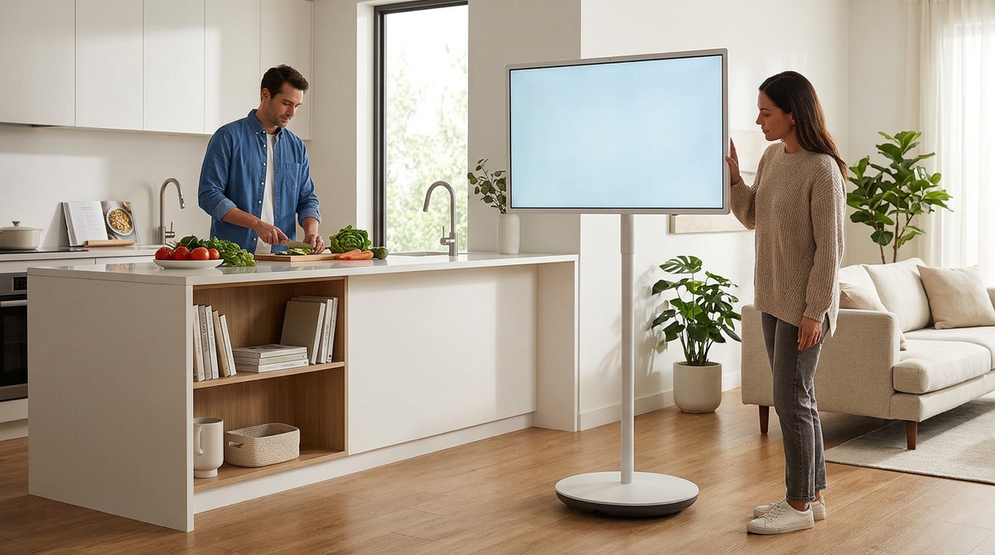
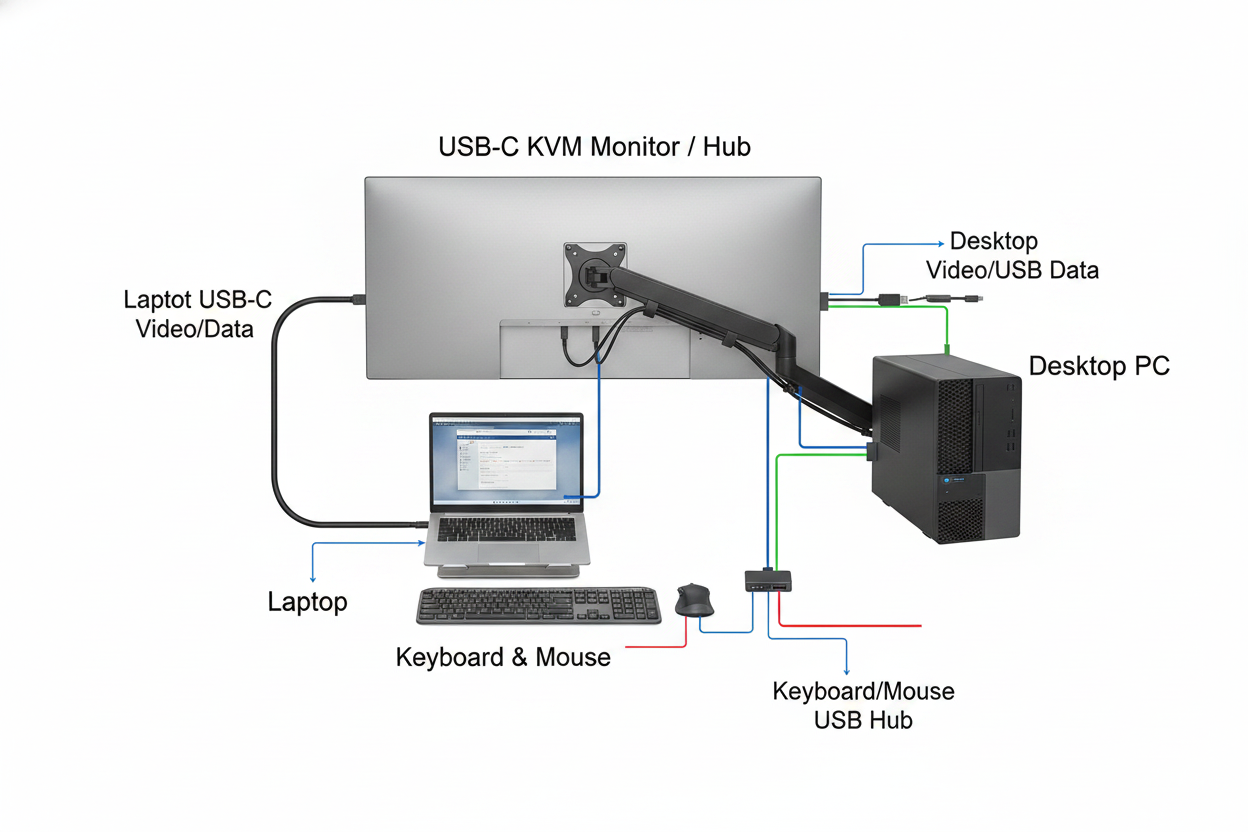
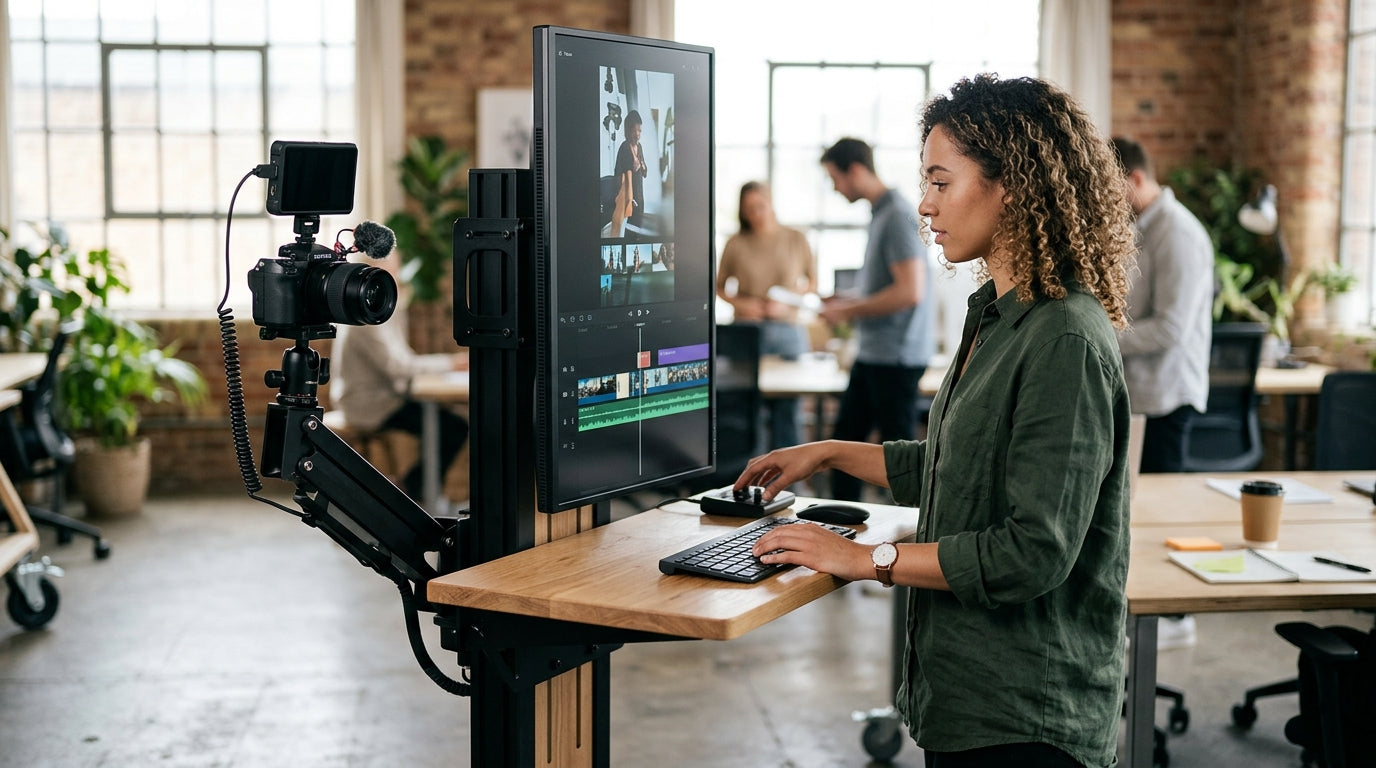
In flexible offices, neck pain often starts when the same person uses monitors that sit at different heights from desk to desk. The most reliable fix is consistent screen placement plus displays and mounts that can be adjusted in seconds.
Does your neck feel fine at one workstation and tight by the next meeting block? A few inches of monitor-height drift can push your eyes off the top third of the screen and turn normal viewing into repeated chin-down or chin-up compensation. You’ll see why that happens, which monitor features matter most, and how to set up gaming, ultrawide, and portable displays so shared desks feel more consistent.
Why Flexible Offices Turn Small Height Errors Into Daily Neck Strain
The same screen can force two different postures
Even incorrect monitor height can start the problem: a low screen makes you tip your head down, while a high screen makes you tilt it back. In an assigned office, that error might get fixed once and stay fixed. In a flexible office, the same user can move from a low desk in the morning to a higher desk after lunch and repeat the strain cycle twice in one day.

That repeat exposure matters because the human head weighs about 10 pounds, and the neck absorbs more stress when the head is no longer level. Forward head posture tends to load the cervical spine, upper back, and shoulder muscles, while chin-up viewing can irritate the same region from the opposite direction. The result is often a familiar pattern: tightness by late morning, stiffness after calls, and headaches that seem unrelated until the desk setup is checked.
Hot-desking multiplies compensation
A monitor set too low or too high makes the body compensate instead of staying neutral. In practice, that compensation rarely stays isolated to the neck. People lean forward, round the shoulders, or slide to the edge of the chair to keep the screen readable, which is why neck discomfort in shared offices often arrives with upper-back fatigue and lower-back tension.
The Height Rules That Matter Most
Set the chair before you judge the screen
A good workstation setup starts with the chair: feet flat on the floor, knees around 90 degrees, and the back supported. Once that base is set, sit upright, look straight ahead, and use that neutral eye line to place the monitor. For most office and home-office displays, the top of the screen should land at or slightly below eye level.
 That top-of-screen placement is more useful than generic advice like “sit up straight,” because it gives you a fast buying and setup filter. If a monitor stand cannot get the panel low enough on a tall desk, or high enough on a low desk, it will be hard to keep multiple users comfortable without extra risers, books, or improvised stands.
Aim for the top third of the display
A natural gaze should land on the top third of the screen, not the bezel, the center logo, or the taskbar. That usually means the display is about an arm’s length away, close enough that your fingertips could touch it when your arm is extended. A slight backward tilt, roughly 10 to 20 degrees, can also improve the viewing angle and cut glare without forcing the chin up.
For monitor buyers, this matters more as panels get larger. A 34-inch ultrawide or a tall 32-inch gaming display can look impressive on paper, but if the stand geometry forces the top edge above comfortable eye level, the extra screen space may cost more in posture than it gives back in usability.
Which Monitor Hardware Makes Shared Desks Easier to Standardize
Fixed stands are usually the weak point
A neutral monitor position depends on matching screen height to the user, not asking the user to adapt to the stand. That is why fixed-height displays are usually the least forgiving choice for flexible offices. They can work for assigned seating, but they break down quickly when different users, chair heights, and desk surfaces are mixed.
An adjustable stand or a monitor arm does not solve posture by itself, but it makes the correct position reachable in seconds instead of turning every desk move into a compromise. In buying terms, vertical adjustability and easy standard-mount compatibility are often more valuable for shared-office comfort than a premium finish or a slightly thinner bezel.
 Comparison: which option fits a flexible office best
Option |
Height flexibility |
Best use case |
Main ergonomic advantage |
Main risk |
Fixed stand monitor |
Low |
Assigned desks with one consistent user |
Simple and stable |
Often too high or too low once desks vary |
Height-adjustable stand |
Medium |
Shared desks with standard office monitors |
Fast to reset for different users |
Adjustment range may still be limited |
Monitor arm |
High |
Hot-desking, ultrawides, mixed user heights |
Large range for height, depth, and tilt |
Needs proper installation and desk clearance |
Portable monitor |
Low to medium |
Temporary stations, travel, overflow desks |
Easy to carry between spaces |
Built-in kickstands often sit too low |
Portable displays deserve a special note. A laptop setup usually needs an external keyboard, mouse, and stand, and the same principle applies to many portable monitors. If the panel travels well but always lands 4 to 8 inches too low on the desk, the convenience can still turn into a daily neck flexion problem.
How Setup Changes for Gaming, Ultrawide, and Multi-Monitor Displays
Gaming monitors reward adjustability, not just refresh rate
A screen about an arm’s length away becomes more important when users spend long blocks focused on one display, as they often do with high-refresh-rate gaming monitors or hybrid work-and-play setups. These monitors can have large bases, deeper chassis shapes, and taller panels, so the stand has to do more ergonomic work than buyers sometimes expect.
If a gaming monitor is going into a shared desk environment, treat stand travel as a core spec. The best result is a panel that can drop low enough for shorter users, rise high enough for taller users, and tilt without wobble. If that range is not built into the stand, plan on a standard-mount arm instead of assuming posture can be fixed later.
Ultrawide and dual-monitor setups need a clear centerline
A multiple-monitor setup works best when the main screen is directly ahead, with any secondary display angled inward. That advice matters even more with ultrawides, because the screen is wide enough to tempt people into mounting it too high so the whole panel “fits” visually above the desk. The safer move is to center your straight-ahead gaze on the middle of the display and keep the top edge from creeping above comfortable eye level.
A second screen becomes a problem when it turns into a second bad posture. If both panels sit flat across the desk, one side usually forces neck rotation or shoulder twist. In flexible offices, that means dual-monitor users benefit most from arms or stands that let the secondary screen swing inward quickly instead of staying locked in a wide, fixed position.
When the Issue Is Height Plus Vision
Monitor height changes again after 40
An age-related change in close-up vision often changes the “right” monitor height even when the desk stays the same. Around age 40, many users begin dealing with presbyopia, and off-the-shelf reading glasses often have a clear focal range of about 18 inches. If the screen sits outside that range, the user may lean forward to bring text into focus or move the head back to find a clearer angle.
That is one reason a shared office can frustrate experienced employees more than younger ones. The problem may look like a posture issue from a distance, but the real trigger is that the screen height and viewing distance are no longer matched to the way that person actually sees.
Progressive lenses often require a lower screen
A progressive lens “sweet spot” sits below pupil height, so a monitor that used to feel correct at eye level can become too high. A simple test is to look at the bottom, middle, and top of the screen. If the head stays neutral at the bottom and middle but tips back at the top, the monitor is probably too high and should be lowered until the entire panel is readable without chin-up posture.
For display purchasing, this is a strong argument against one fixed corporate standard. Flexible offices usually serve mixed ages, mixed prescriptions, and mixed tasks, so monitors and mounts that adjust quickly are not a luxury feature. They are what allows one desk to work for more than one body.
Practical Next Steps
A top-of-screen position at or just below eye level is still the fastest rule to apply at any shared desk, but it works best when the rest of the station follows it: chair first, then screen height, then distance, then tilt, then keyboard and mouse. That order matters because people often try to “fix” neck pain by moving the monitor alone when the real problem started with sitting too low or too far from the desk.
For teams buying office monitors, gaming displays, ultrawides, or portable side screens, the practical priority is simple: buy adjustment first and image quality second if neck comfort is the goal. A great panel on a bad stand becomes a posture problem faster than a slightly less premium panel on a stand or arm that lets every user reach the right height.
Action checklist
- Set the chair so your feet are flat, your back is supported, and your knees are near 90 degrees.
- Place the monitor so the top edge is at or slightly below eye level.
- Move the screen to about an arm’s length away.
- Tilt the panel back about 10 to 20 degrees if glare or viewing angle is forcing your chin up.
- Keep the main display directly in front of you and angle any second screen inward.
- If you use reading or progressive glasses, lower the monitor until the whole screen is clear without lifting your chin.
- Choose monitors with adjustable stands or standard-mount-arm compatibility for hot-desking.
FAQ
Q: Why does my neck hurt only on some desks if I use the same monitor model?
A: Shared desks change the relationship between the chair, desk surface, and screen height. The same monitor can be ergonomically fine at one workstation and too high or too low at the next, which forces either chin-down or chin-up viewing.
Q: Is a monitor arm better than a height-adjustable stand?
A: In most flexible offices, yes. A good stand is usually enough for one user range, but an arm gives more height, depth, and tilt control, which is useful when desks and users change throughout the day.
Q: Are portable monitors a good ergonomic choice?
A: They can be useful for overflow desks and travel, but only if they can be raised high enough. Many built-in kickstands leave the screen too low, so a separate stand and external input devices are often necessary.