Green or magenta gray usually means the display is not keeping red, green, and blue output balanced across the grayscale. A quick gray-ramp check can separate a settings problem from a panel issue before you spend hours troubleshooting.
Does a gray menu, spreadsheet background, or game fog suddenly look mint green on one side and pink on the other? A five-minute grayscale check can separate a simple settings problem from a panel-uniformity issue before you waste hours editing, gaming, or comparing screenshots. You’ll learn what the tint means, how to test it, and when calibration or replacement is the smarter move.
What “Neutral Gray” Actually Means
On an RGB display, neutral gray is not a vibe; it is a balance point. A true digital neutral has equal red, green, and blue values, such as 128/128/128, and photography workflows often use gray instead of pure white because a neutral gray patch gives measurable color information without clipping.
That matters because a display creates white, black, and every gray step by mixing red, green, and blue light. If green output is too strong in the midtones, gray turns greenish. If red and blue dominate relative to green, gray can lean magenta. This is why a spreadsheet, browser background, or game smoke effect can reveal problems faster than a saturated wallpaper.
Why Green and Magenta Show Up First in Gray
Gray is unforgiving. Bright red armor in a game or a colorful presentation slide can hide small errors because your brain expects strong color. A gray ramp, however, should change only in brightness from dark to light. When it shifts from pink shadows to green midtones or blue highlights, the display is changing hue while it changes luminance.
A display’s white point, gamma, color temperature, panel coating, backlight spectrum, and internal processing all interact. The practical target for most web, gaming, office, and photo work is around 6500K with gamma near 2.2, and a grayscale ramp is one of the fastest ways to catch screen interference.
The trap is assuming “6500K” alone guarantees neutrality. It does not. Two displays can measure near the same color temperature and still look unlike each other because the green-magenta axis is not fully described by Kelvin. In hands-on display tuning, this is where cheap presets often fall apart: “Warm” may look too yellow, “Cool” may look blue, and “Standard” may still carry a green push.
The Main Causes
Picture Modes and Enhancement Processing
The most common cause is also the easiest to fix: the monitor is in the wrong mode. Vivid, Movie, FPS, Eye Care, Low Blue Light, Dynamic Contrast, and some HDR emulation modes often change several settings at once, including white point, saturation, contrast, gamma, and RGB channel balance.
For gaming, these modes can look exciting at first because they raise perceived contrast or make enemies stand out. The tradeoff is that neutral tones stop being neutral. In office work, that can make white documents look dirty or gray UI panels look slightly green. In content creation, it can lead to bad edits because you compensate for an error that lives in the screen, not the file.
Panel Uniformity
If the center of the screen looks neutral but the left edge looks pink and the right edge looks green, you are probably seeing uniformity variation. This is common on larger displays because the backlight, filter layers, and panel structure are not perfectly consistent across the whole surface.

Color temperature readings can miss the visible problem because green-magenta tint is better evaluated with perceptual color-difference tools. Calibration guidance notes that similar correlated color temperature can still appear greenish or pinkish, and that deltaC can be useful when the concern is chroma cast rather than brightness difference.
In practical terms, a 27-inch productivity or gaming monitor may be acceptable for spreadsheets and web work even with mild edge tint. For photo grading, print proofing, UI design, or competitive play on gray-heavy maps, the same flaw becomes much more visible.
Wide-Gamut Oversaturation and Color Management
Wide-gamut displays are powerful, but they need discipline. A wide-gamut panel can reproduce a larger color range than standard sRGB displays, which is excellent for HDR, DCI-P3 work, and rich game worlds. The downside is that unmanaged sRGB content can look oversaturated or skewed, especially in reds, greens, skin tones, and brand colors.
A 2024 paper on wide color gamut displays explains that perceived color performance depends not only on gamut size, but also on how encoded signals become emitted light through the EOTF. That is a useful reminder for buyers: “more gamut” is not automatically “more accurate.” A fast OLED or mini-LED monitor can look spectacular in HDR and still need correct sRGB, gamma, and white-point behavior for everyday neutral gray.
Calibration Drift, ICC Profiles, and GPU Output
Monitors drift with age, heat, brightness habits, and firmware behavior. Operating systems can also load the wrong ICC profile or apply a stale calibration curve after a driver update. If your tint appears after changing GPUs, switching cables, enabling HDR, installing a display driver, or cloning settings from another monitor, suspect the signal chain before blaming the panel.
For color-critical work, hardware calibration remains the reliable path because it measures actual screen output. Monitor-to-printer calibration advice commonly notes that hardware calibration with a colorimeter or kit is more accurate than built-in visual tools, especially when color decisions have real cost.
Cables, Ports, and Legacy Display Behavior
Digital connections are usually stable, but a damaged cable, poor adapter, loose connector, or incorrect color format can still cause odd color output. Try another DisplayPort or HDMI cable before starting a return process. Also check whether the GPU is outputting full RGB rather than a limited or mismatched range when connected to TVs or capture setups.
Older CRT displays had other tint failure modes because color CRTs used three electron beams for red, green, and blue phosphors. In those monitors, convergence, magnetism, and aging phosphors were part of the color story. Modern LCD and OLED monitors do not behave the same way, but the basic RGB balance principle still applies.
How to Diagnose the Tint Without Guesswork
Start with a neutral test image that includes dark gray, mid-gray, light gray, and pure white. View it full screen in a color-managed browser or trusted image viewer. Let the display warm up for at least 20 minutes, turn off night mode or blue-light reduction, and keep direct sunlight off the screen.
Set the monitor to sRGB, Standard, Custom, or User mode. Avoid FPS, Movie, Vivid, Eco, and Eye Care while judging color. Set brightness to match the room instead of running the panel at maximum. On many desks, maximum brightness makes whites glare and makes your eyes adapt in ways that exaggerate tint.
Then inspect the ramp from your normal seating position. If the whole screen leans green or magenta, adjust RGB gain or white balance in the monitor menu if available. If only one side or corner shifts, changing RGB gain will move the entire screen and may not fix the local patch. That is a panel uniformity issue.
Symptom |
Likely Cause |
Best Next Move |
Whole screen looks green or pink |
White balance, picture mode, ICC profile |
Reset mode, choose sRGB or Custom, recalibrate |
Edges differ from center |
Panel uniformity |
Test solid grays, consider uniformity compensation or return |
Only one app looks wrong |
Color management mismatch |
Check app profile handling and HDR state |
Tint began after cable or GPU change |
Signal chain issue |
Try another cable, port, driver, and RGB range |
Grays change with viewing angle |
Panel type or coating |
Recheck from normal seating distance and height |

What to Do on Gaming, Office, and Portable Displays
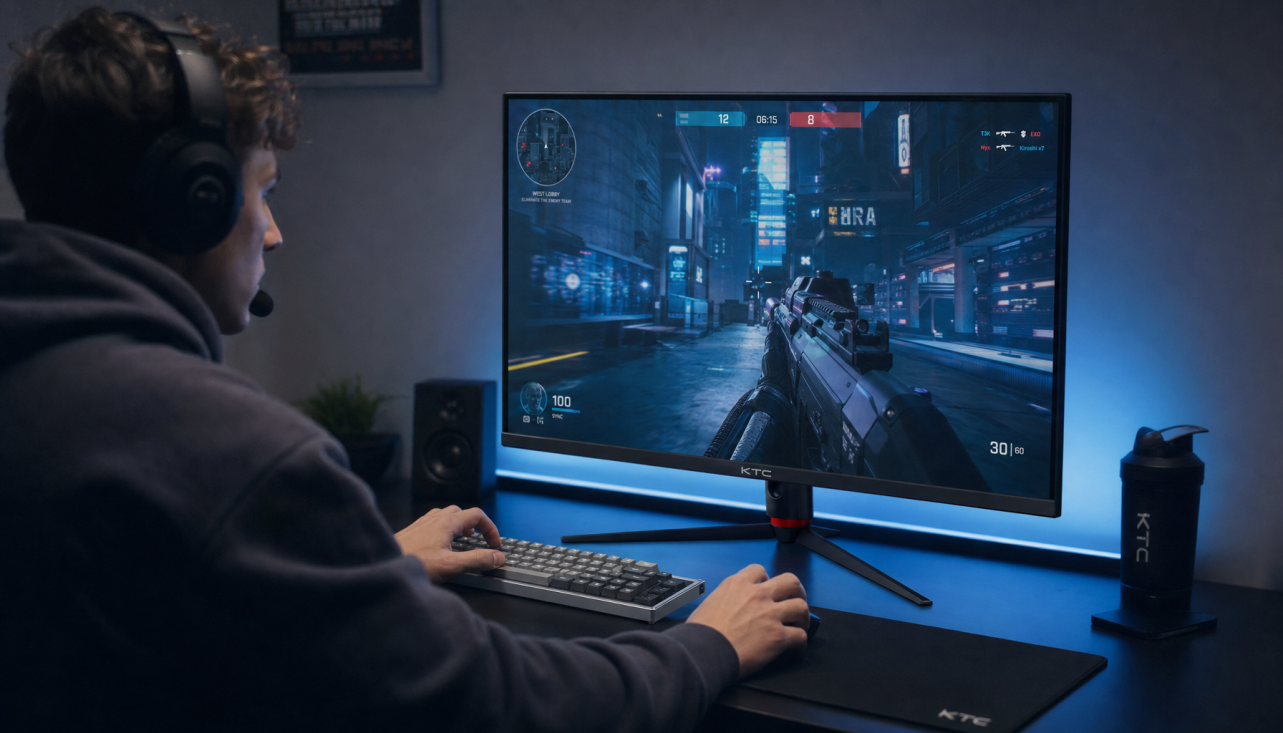
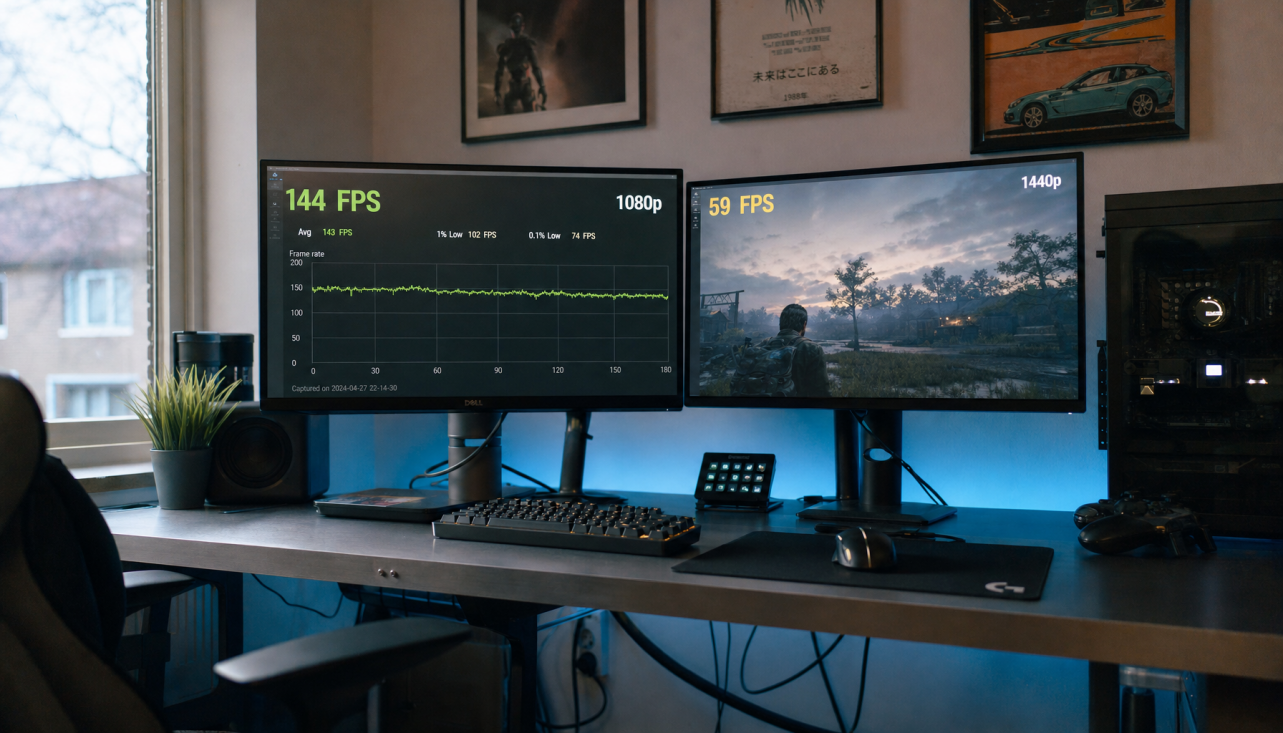
A gaming monitor should not be judged only by refresh rate. A 144 Hz or 165 Hz panel can feel smooth, but if its gray balance is poor, fog, shadows, menus, and web pages will look wrong every day. Gaming monitor guidance often emphasizes matching refresh rate, resolution, and GPU power, and that same performance-first mindset should include monitor choice for panel type and color behavior, not just speed.
For office productivity, prioritize comfort and consistency. A mild uniformity shift may not ruin spreadsheets, but it can make long reading sessions feel off because white and gray backgrounds are everywhere. Choose Standard or sRGB mode, keep brightness moderate, and avoid blue-light modes while reviewing design files or brand colors.
For portable smart screens, be stricter about viewing angle and power state. Some portable displays change brightness or color behavior depending on USB-C power delivery, battery mode, or connected device settings. Test gray screens at the brightness you actually use, not only at the store-demo maximum.
Calibration: Pros, Cons, and When It’s Worth It
Software calibration is low cost and better than doing nothing, but it depends heavily on your eyes and room lighting. It can improve obvious imbalance, yet it cannot measure the display or correct physical uniformity problems.
Hardware calibration is the stronger option. A colorimeter reads the display directly, builds a profile, and helps you target D65, gamma 2.2, and an appropriate brightness level. The downside is cost and time, and it still cannot turn a poor panel into a reference monitor. If your screen has a green left edge and magenta right edge, calibration may make the center accurate while leaving the sides visibly uneven.
Factory calibration reports can help when buying, especially if they include color gamut, Delta E, gamma, color temperature, and uniformity. Still, a report is not a lifetime guarantee. Shipping, aging, brightness habits, and panel variation can change what you see on your actual desk.
When to Return or Replace the Display
Return the monitor if the tint is obvious on neutral gray after resetting the display, testing another cable and port, disabling enhancement modes, checking another device, and warming up the screen. A small cast that disappears after calibration is normal maintenance. A strong green or magenta zone that remains in the same physical area is usually not worth fighting.
For competitive gamers, replacement makes sense when tint affects visibility in shadows or fog and cannot be corrected without crushing contrast. For creators, replace sooner if client work, product color, skin tone, or print matching depends on the display. For office users, the threshold is comfort: if gray backgrounds look dirty all day, the monitor is undermining the reason you bought a better screen.
FAQ
Can a green or magenta tint be caused by my eyes?
Yes, perception plays a role. Your brain adapts to room lighting, nearby wall colors, and the display you used before. That is why testing in stable lighting with a neutral gray ramp is more reliable than comparing two screens by sight alone.
Is OLED immune to gray tint?
No. OLED avoids backlight bleed and can deliver excellent contrast, but it can still show tint, uniformity variation, color-management issues, or mode-related shifts. Panel technology changes the cause profile, not the need for testing.
Should I use pure white to set white balance?
Use white to check clipping and overall brightness, but use mid-gray to judge neutrality. Pure white can glare, clip, or reflect maximum-brightness behavior, while mid-gray exposes channel imbalance more clearly.
A display that handles neutral gray well usually handles real work better too. Start with the simple fixes: correct mode, stable lighting, clean signal path, and a gray ramp. If the tint stays locked to one area of the panel, treat it as a hardware quality issue rather than a settings puzzle.