Auto-brightness helps with quick visibility, but it can undermine focused work, competitive gaming, and color-sensitive editing. When brightness shifts without warning, your eyes, attention, and color judgment keep recalibrating instead of staying locked on the task.
Why Brightness Shifts Break Focus
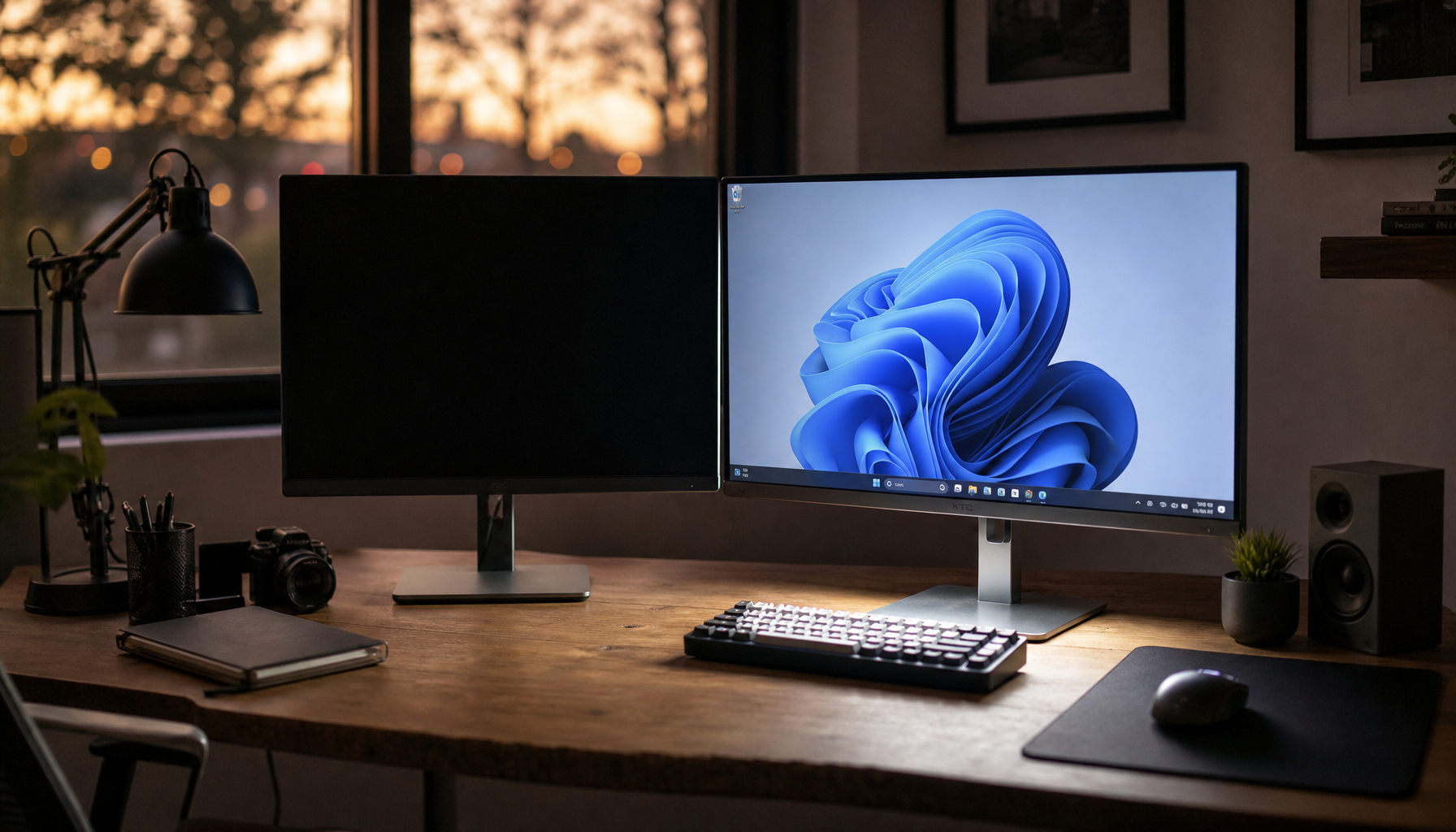
Concentration depends on visual stability. If your display dims during a spreadsheet review, brightens in a browser window, or pulses while switching between dark and light apps, your brain registers the change before you even name it.

That micro-interruption matters during long sessions. Poorly matched brightness and room lighting can increase visual effort, contributing to eye fatigue, headaches, and blurred vision, especially when screen use runs for hours.
For gamers, the issue is more immediate: a sudden dimming shift can flatten shadow detail in a dark corridor or make HUD elements feel less consistent. For office users, it can make white documents feel harsh one moment and dull the next.
The Color Consistency Problem
Auto-brightness does not usually recolor pixels directly, but it changes perceived color by changing luminance. A photo, product mockup, or video timeline can look warmer, flatter, darker, or more saturated simply because the screen output changed.

That is why calibration workflows usually favor stable lighting and fixed display behavior. Professional calibration aims to make on-screen colors more predictable across devices, and monitor calibration starts with brightness, contrast, gamma, and color balance under the conditions you actually use.
This is especially important for creators working in sRGB, DCI-P3, or other wide-gamut color spaces. If your display keeps adapting mid-edit, you may correct an image for the screen’s temporary brightness state instead of the image itself.
Some system-level color features are helpful: automatic color management can improve color consistency across apps, while auto-brightness changes viewing intensity.
Ambient Sensors vs. Content-Based Dimming
Not all automatic brightness behaves the same way. Ambient auto-brightness uses a light sensor to react to the room. Content-adaptive brightness changes output based on what is on the screen, such as dimming a dark app interface or boosting a bright page.
That second type can feel especially disruptive on laptops and portable screens. A dark editing interface, gaming menu, or code editor may trigger dimming even when your room lighting has not changed.

Depending on hardware, drivers, and power mode, users may see settings for automatic brightness, content-based brightness, or battery-saving display behavior.
When to Turn It Off
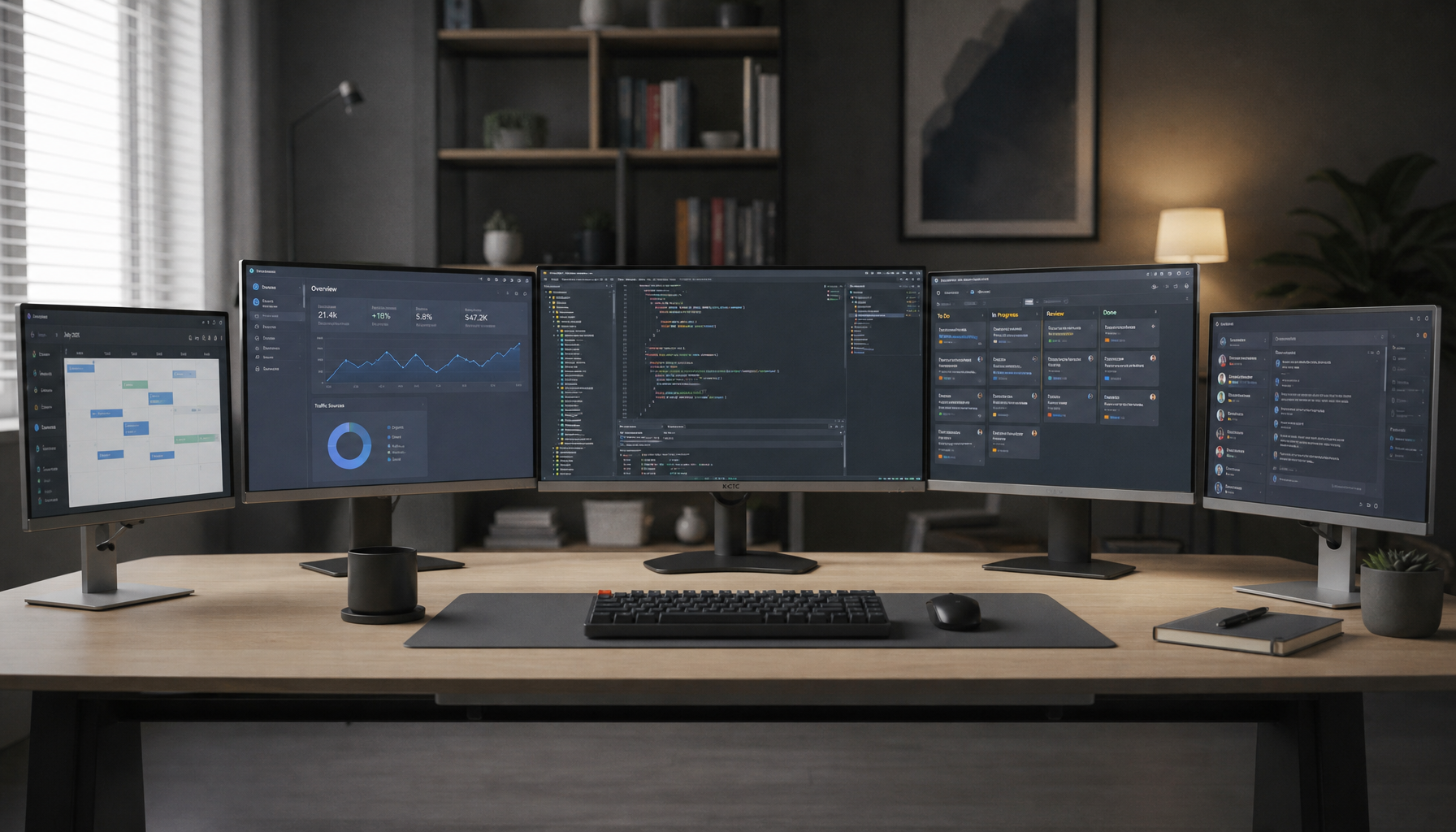
Disable auto-brightness when accuracy or sustained attention matters more than hands-off convenience. That includes color grading, product photography, esports practice, financial dashboards, CAD work, and multi-monitor office setups.
Use a fixed brightness target that matches the room. In a dim workspace, lower brightness reduces glare; in a bright office, a stronger setting keeps text readable without constant squinting.

- Turn off auto-brightness or adaptive brightness.
- Disable content-adaptive dimming if available.
- Keep room lighting consistent during color work.
- Calibrate after the display has warmed up.
- Recheck brightness when moving between rooms.
For practical tuning, brightness controls backlight intensity and should be raised in bright rooms and lowered in dark rooms.
A Better Display Strategy
Auto-brightness is not a bad feature; it is a convenience feature. It works well for casual browsing, travel, and battery savings, especially on cell phones and tablets.
Performance displays deserve performance discipline. Lock brightness for serious work, use calibrated picture modes, and reserve automation for situations where convenience matters more than precision. The result is a calmer viewing experience, steadier color decisions, and a screen that supports your focus instead of constantly renegotiating it.