Yes. A cable can appear perfectly stable at 1080p and still fail at 4K because 4K requires much more bandwidth, tighter tolerances, and better signal integrity across the entire connection.
Does your screen go black, flicker, or drop to 30 Hz the moment you switch from a reliable 1080p setup to sharp 4K? In real desk setups, the fastest way to confirm the cause is usually simple: keep the same monitor and source, change only the cable or reduce the signal load, and the failure pattern will often reveal the problem quickly. That gives you a practical way to diagnose the cable, the port, and the settings without wasting money on random replacements.
Why 1080p Success Does Not Guarantee 4K Success

A cable that handles 1080p is not automatically ready for 4K because the connection must carry much more visual data at the higher mode. A 1080p image is 1,920 x 1,080, while 4K UHD is 3,840 x 2,160, so the monitor is dealing with four times as many pixels per frame before you even factor in refresh rate or HDR. That is why a link that seems fine at Full HD can start showing black screens, sparkles, signal dropouts, or forced lower refresh rates when you move to 4K. This is the same logic behind newer cable classes and higher-bandwidth standards described in HDMI categories and monitor cable selection guidance.
In practice, this pattern is predictable. A setup may run 1080p/60 smoothly all day, then fail at 4K/60 because the added signal load pushes the cable past its real-world margin. With HDMI, the jump is easy to understand: HDMI 2.0 supports up to 18 Gbps, while HDMI 2.1 supports up to 48 Gbps. If your cable or device chain is effectively limited to an older standard, 4K can expose that weakness immediately.
The Cable Is Only One Part of the Chain

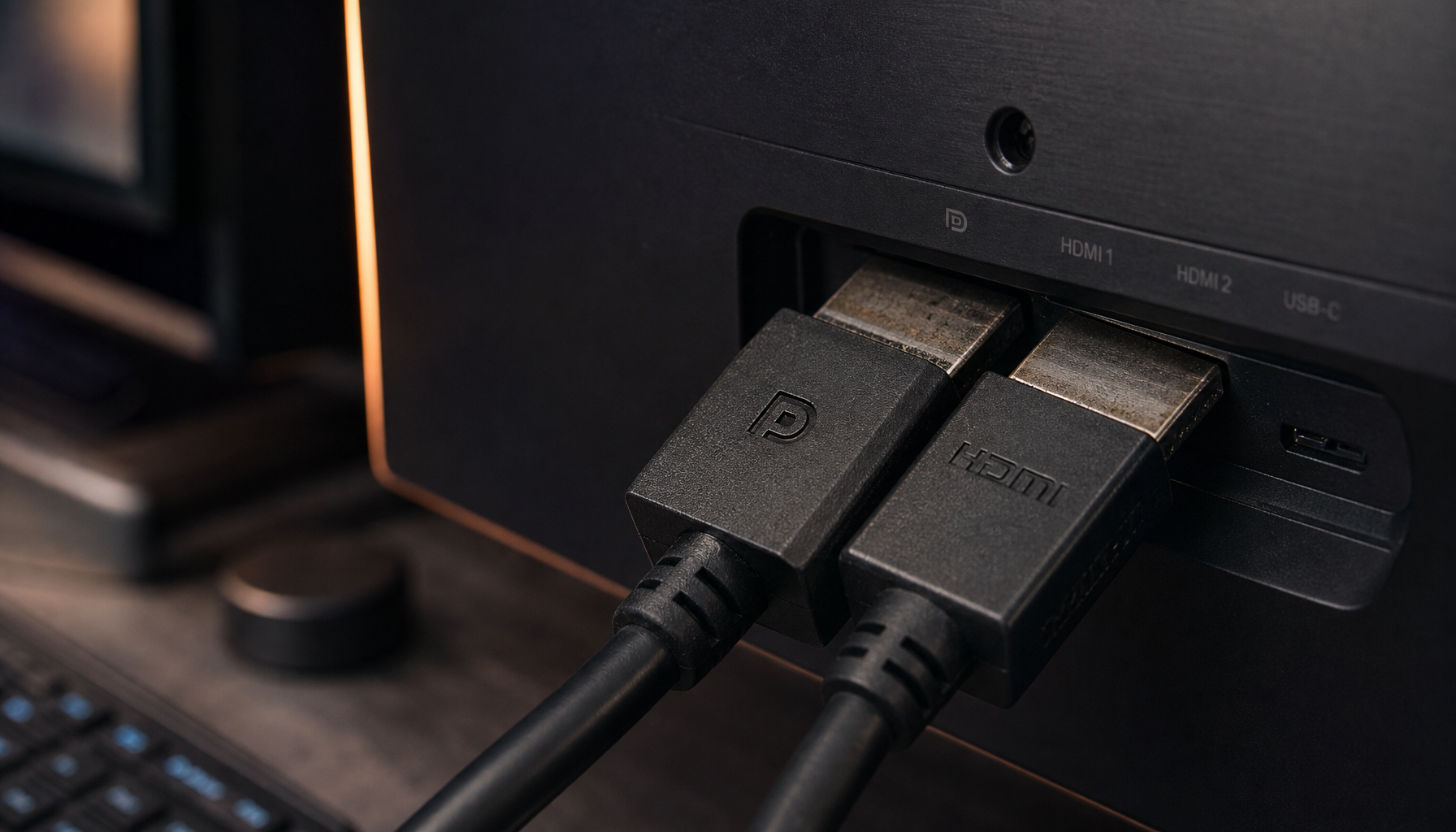
A display link is only as strong as its weakest part. A cable may be marketed as 4K-capable, but if the source port, monitor port, dock, adapter, or selected input mode is older, the connection will still be limited. HDMI version compatibility matters because the entire chain is capped by the oldest supported component, and adapter quality can reduce resolution or refresh rate even when the ports themselves seem capable.
That is why the same monitor can behave differently with the same cable depending on the signal you ask it to display. A monitor that accepts 1080p over almost anything may require HDMI 2.0, HDMI 2.1, or DisplayPort 1.4 behavior for the mode you actually want. If you are trying to run 4K at 120 Hz, VRR, or deep color, the margin gets even tighter. For gaming displays and performance-oriented desktop monitors, DisplayPort is often preferred for high refresh rates at high resolution, while certified DisplayPort cables reduce the risk of unpredictable failures.
What Failure Actually Looks Like at 4K
Higher-resolution cable problems usually do not make the image look slightly worse. DisplayPort guidance is useful here: a bad digital cable does not gradually soften the picture like an old analog connection. Instead, you get obvious errors such as corruption, flicker, audio dropouts, or no image at all. That matches what shows up on real desks when a cable is marginal rather than fully compliant.
The failure pattern is often revealing. If 1080p works, 1440p is mostly stable, and 4K causes intermittent blanking, the cable may be right on the edge. If 4K works only at 30 Hz but not 60 Hz, the chain probably lacks the bandwidth for the higher mode. If 4K works directly but fails through a dock or adapter, the cable may be fine and the conversion step may be the weak point. These are not random glitches; they are useful clues.
Why Length, Bends, and Build Quality Matter More at 4K

Cable length matters because longer runs are less forgiving at high data rates. Passive HDMI runs are commonly described as reliable up to about 15 ft, after which active or fiber solutions may be needed. That does not mean every 16 ft cable fails, but it does mean a cable that barely passes at a desk-friendly 6 ft may become unstable when stretched across a room.
Physical handling matters too. Performance testing guidance for cabling systems points to bend-radius violations, poor workmanship, and component mismatches as real causes of failure, and test-cable engineering guidance explains the broader principle: when you push a cable harder, tradeoffs in loss, flexibility, shielding, and durability matter more. On a monitor arm, for example, a tightly kinked cable behind the hinge is worth suspecting long before blaming the panel. A cable can pass when laid flat, then fail once it is sharply bent and under tension.
Why Certification Matters More Than Price
Price alone is not a performance metric. DisplayPort certification guidance states that a more expensive cable does not improve picture quality by itself, and the smarter move is to buy reputable, certified products. The same logic applies to HDMI: the useful question is not whether the cable feels premium, but whether it matches the bandwidth and certification class your setup needs.
The networking world has lived with this lesson for years. Cable standards history and structured cabling standards both reinforce a broader engineering truth: cables that look similar on the outside can differ meaningfully in transmission performance, noise tolerance, and standards compliance. For monitor users, that translates into a simple buying rule: trust standards, certification, and known compatibility more than vague “8K-ready” marketing.
How to Diagnose the Problem Without Guessing
The fastest controlled test is to keep the same monitor and source, then change one variable at a time. If the cable works at 1080p but fails at 4K, first try 4K at a lower refresh rate. If that stabilizes the image, you have strong evidence that bandwidth headroom is the issue. Next, remove any adapters or docks and use a direct connection, because direct cables are usually the safer path. Then test a shorter, certified replacement cable.
This table summarizes the most common outcomes.
What you see |
Most likely cause |
Best next move |
1080p works, 4K has no signal |
Cable or chain cannot carry the required bandwidth |
Try a certified shorter cable and a direct connection |
4K works only at 30 Hz |
Older HDMI path or a limited adapter or dock |
Verify port versions and replace the weakest link |
Flicker or sparkles at 4K |
Marginal cable quality, damage, or sharp bends |
Reroute the cable, remove tension, and swap the cable |
Direct connection works, adapter path fails |
Adapter or dock is limiting the mode |
Use native HDMI or DisplayPort where possible |
The same cable works on one input, not another |
Ports may support different versions or settings |
Check the monitor OSD and source port capabilities |
When a Replacement Cable Is Actually Worth It

A replacement is worth it when your current cable is old, unusually long, physically stressed, or of unknown specification. For 4K monitors, HDMI 2.0 or DisplayPort 1.4 is a sensible baseline, and if you are aiming for 4K/120 Hz or modern gaming features, Ultra High Speed HDMI or a DP-certified cable is the more reliable choice.
For office and productivity users, the same advice still applies, just with less emphasis on extreme refresh rates. A clean, direct, standards-matched cable reduces downtime and troubleshooting friction. If your desk uses monitor arms or frequent docking changes, give the cable enough slack and avoid crushing or overbending it; that matters for reliability just as much as the printed version label.
A cable that passes 1080p but fails at 4K is not unusual. It is a classic signal-margin problem. Match the cable to the mode you actually want, keep the run short and direct, and let certification and standards do the heavy lifting instead of marketing claims.