A portable smart display makes sense in a dorm or small apartment when one screen has to do several jobs without permanently taking over the room. The best fit is usually the model that matches your desk depth, outlet access, and how often you move it between study, streaming, and casual gaming.

Why a Portable Smart Display Fits Small Spaces
In a tight room, the main advantage is flexibility. A portable smart display can cover schoolwork, streaming, and light gaming without asking for a fixed wall mount or a full-size desk footprint. That matters in shared housing, where every extra cable, outlet, and shelf tends to stay visible.
If you want a browsing path first, the Mobile Touch Screen collection is the cleanest place to start. It groups the portable screen category together so you can compare sizes before narrowing down a model.
The practical question is not whether a portable smart display can do everything. It is whether it does enough jobs to replace more than one device in a room that is already crowded. For dorm move-ins and first apartments, that trade-off often matters more than raw specs.
Where It Works Best in a Dorm or Apartment
Shared Desk Corner
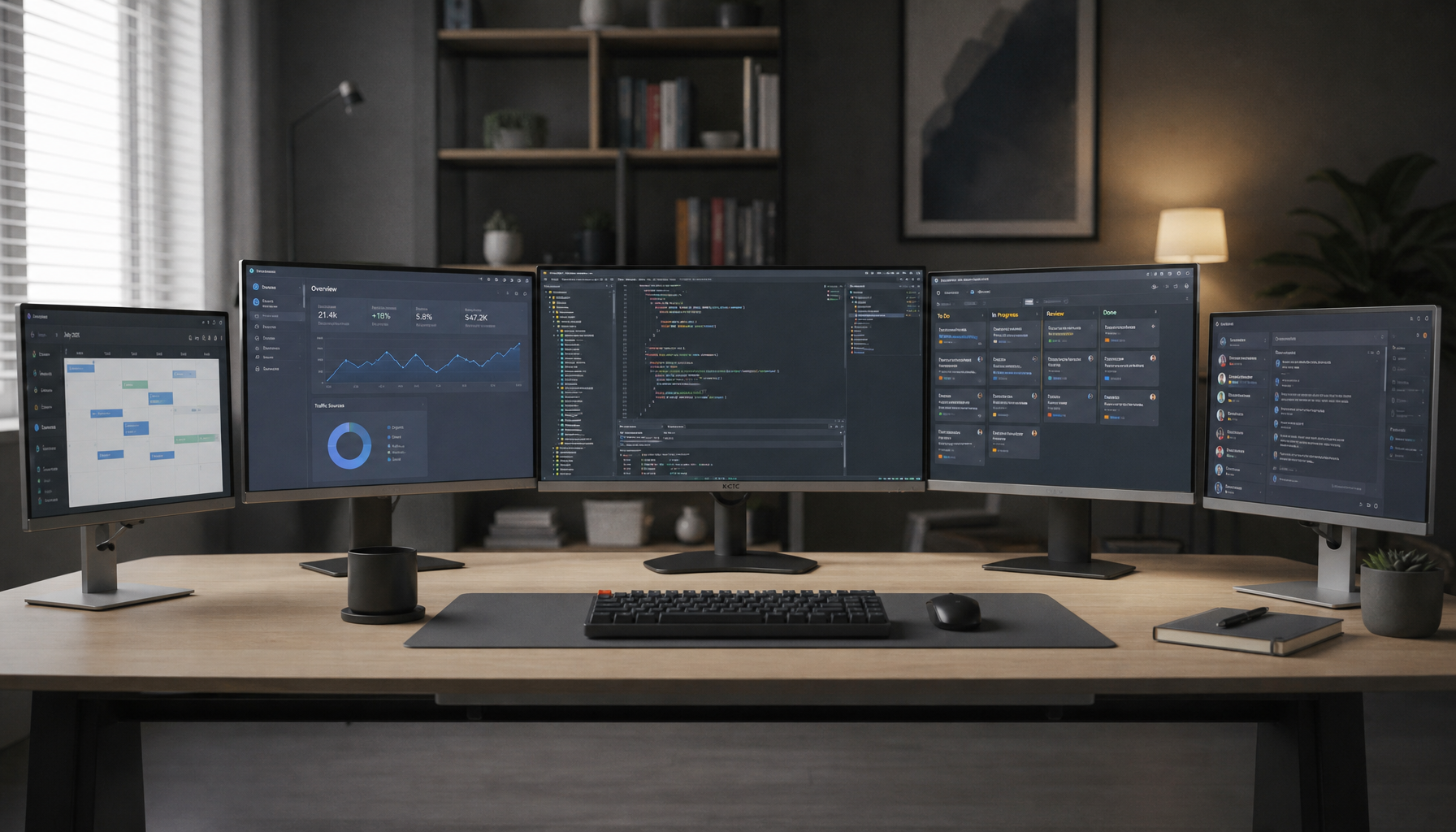
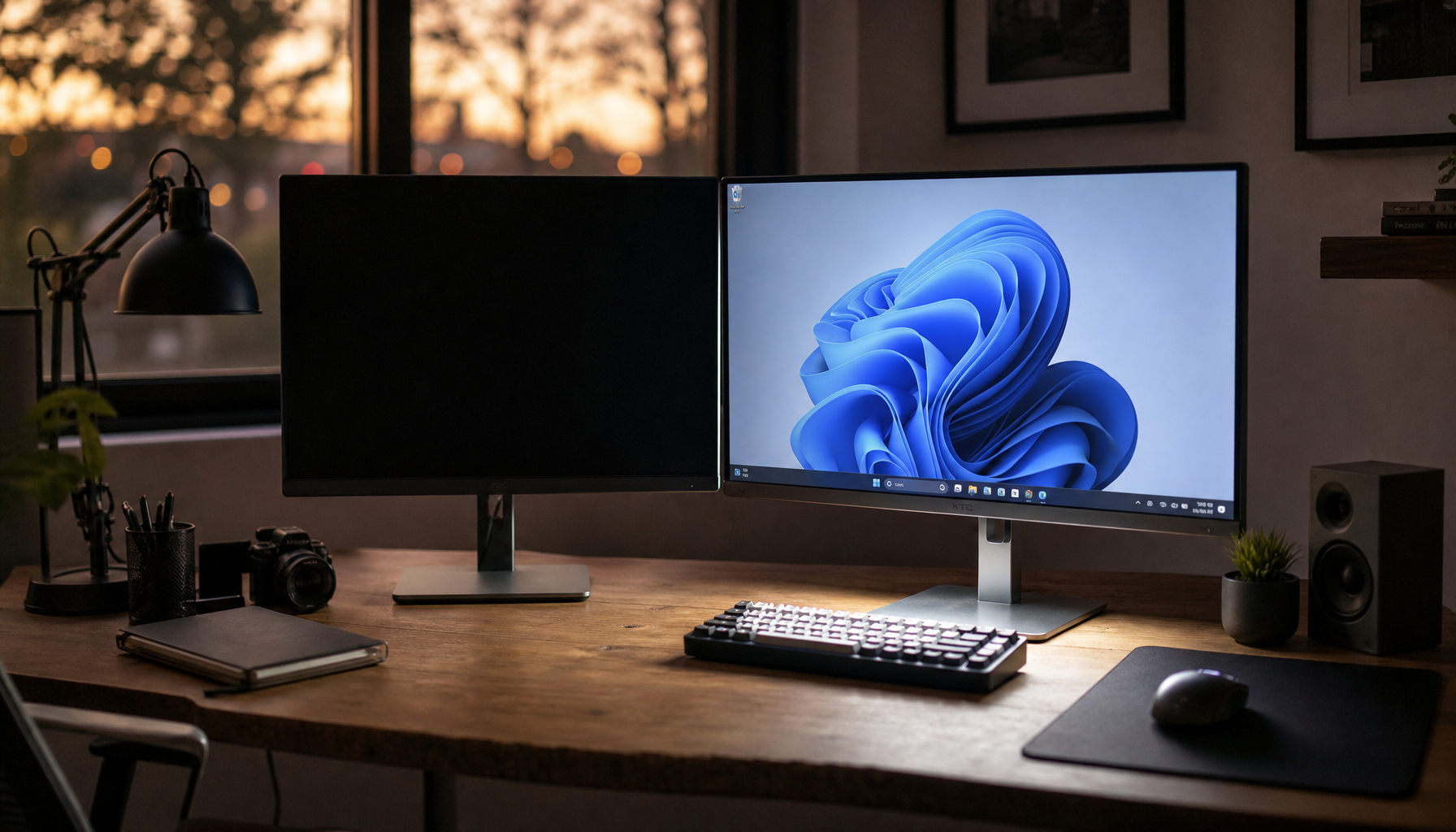
A shared desk corner is the easiest place for a portable smart display to earn its keep. If the screen sits where a laptop already lives, it can handle classes, notes, and a streaming break without forcing a second permanent monitor onto the desk. The catch is desk depth. If the surface is shallow, a larger screen can feel awkward fast.
The KTC MEGAPAD 27" FHD Android 14 Google EDLA Smart Touch Monitor with 9500mAh Battery is the most natural middle-ground reference here because its built-in wheels and rolling design suit a desk that also needs to stay movable. That does not make it the right pick for every student, but it does show the kind of setup that works when the screen has to move without becoming a permanent fixture.
Bedside Streaming Setup
Bedside use is usually about convenience, not desk productivity. If the screen has to roll from bed to desk, the easier model is the one that does not demand constant lifting or complex cable swaps. In a twin-bed dorm, that usually favors a setup that stays close to an outlet and uses short cable runs.
This is also where clutter shows up fastest. A long power cord across a narrow walkway is more annoying than it sounds, especially when roommates are sharing the same floor space. The screen may look portable in a product photo, but the real test is whether it can move without turning into a daily obstacle.
Living Room That Doubles as a Study Space
A small apartment living room often has to behave like three rooms at once. In that case, a portable smart display works best when you can roll it between a couch, a table, and a work corner without redoing the whole setup every time. That is more useful than a fixed monitor if the room gets repurposed throughout the day.
What to Check Before You Set It Up
- Check the footprint first. A screen that looks manageable online can still crowd a small desk once you account for the stand and cable space.
- Match power behavior to the room. If outlets are limited, a built-in battery can reduce how often you have to park the screen next to the wall.
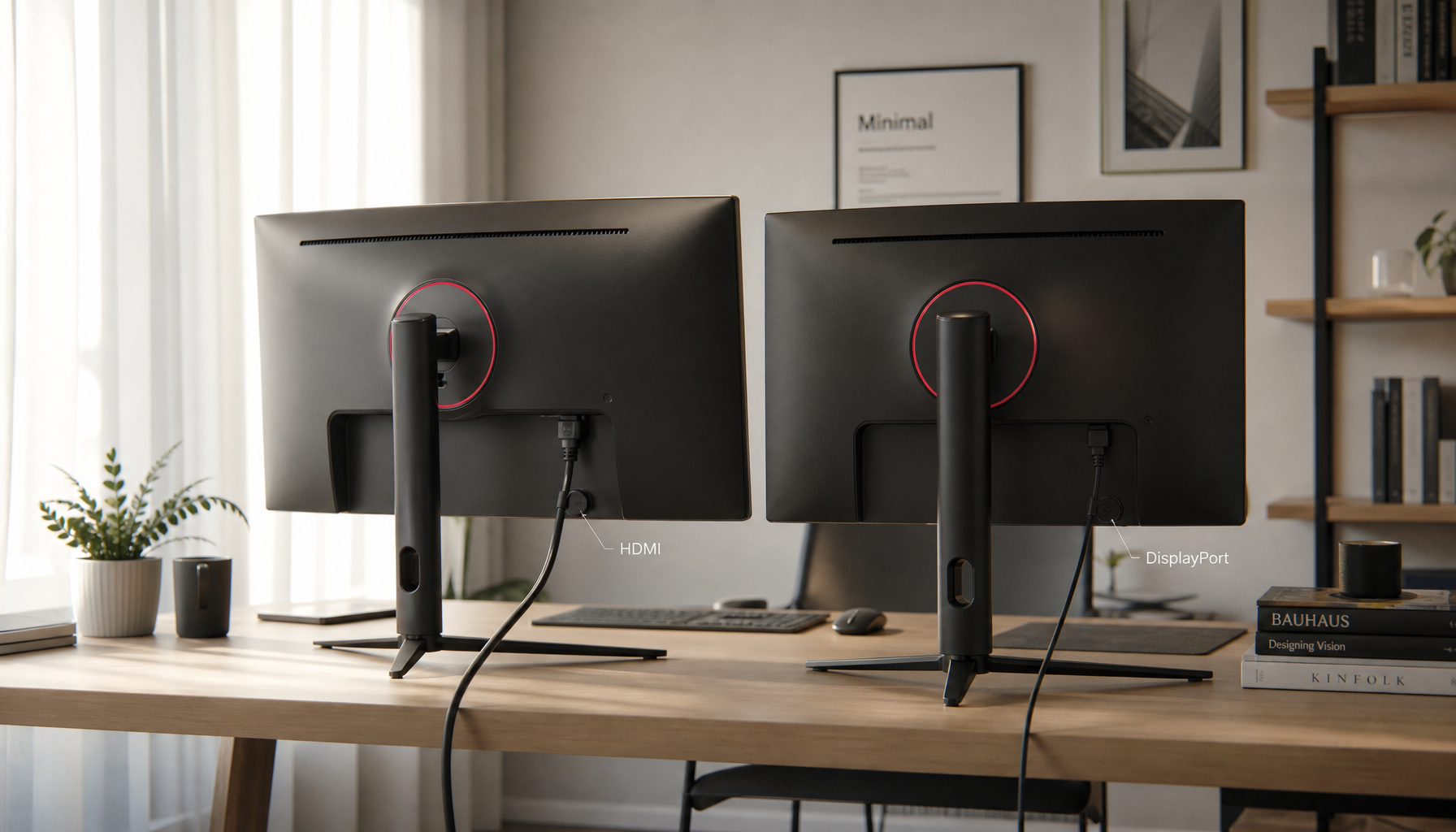
- Confirm the ports you will actually use. USB-C and HDMI are the useful starting points if you move between a laptop, console, or streaming device.
- Look at stand style and movement. A rolling stand is easier to reposition than a fixed base when the screen has to move between bed, desk, and common space.
- Treat app and Wi-Fi support as a real check, not an assumption. If you plan to use built-in apps, make sure the model supports the way you actually watch or study.
For a deeper buying checklist, see 5 Essential Specs to Check Before Buying a Portable Touch Screen Monitor. A good rule of thumb is simple: if the screen will stay in one place most of the time, a standard monitor may be easier. If it needs to move often or serve more than one role, a portable smart display is usually the more flexible option.
How to Set the Screen Up Cleanly
- Put the display where you expect to use it most often, not where it looks easiest to unpack.
- Check the nearest outlet before you route the cable path.
- Connect the main device first, then decide whether HDMI or USB-C gives you the cleaner run.
- Keep the power cable away from walkways and chair legs.
- Test the angle before you tidy the desk, because a small height change can affect cable slack.
- Leave enough room to roll or slide the display back without dragging it across the floor.
The cleanest setup is usually the one with the shortest cable path. In a dorm, that matters more than perfect symmetry.
Comfort and Cable Clutter Matter Too
For most students, comfort starts with screen height. If the top of the screen sits too low, you tend to look down for too long, which gets tiring during reading, classes, and late-night streaming. OSHA's monitor height and angle guidance and Ergotron's ergonomic equation both note that placement affects posture over time.
Cable clutter is not just an aesthetic issue in a small room. It can make the desk harder to use and make moving the display feel like a chore. If you have to unhook something every day, the setup is probably more complicated than it needs to be.
The 25-inch model is the most compact of the three here, and it uses a foldable rear bracket instead of a rolling stand. The KTC MEGAPAD 25" FHD Google EDLA Portable Touch Monitor built in Camera makes sense when the room is tight and the screen needs to stay easier to park.
See also How to Position a Portable Monitor to Avoid Shoulder and Neck Pain During 8-Hour Mobile Work Days.

Best Ways to Use It Day to Day
| Use Case | Best Setup Style | What To Connect | What To Watch For In A Small Room |
|---|---|---|---|
| Studying | Keep it close to the laptop and angled toward the chair | USB-C or HDMI, depending on the device | Desk depth, keyboard space, and glare |
| Streaming | Park it near the couch, bed, or shared seating area | Built-in apps or your usual streaming device | Walkway clearance and sound placement |
| Casual Gaming | Leave enough room for a controller or keyboard and mouse | Console or PC through HDMI or Type-C | Screen size versus available room to sit back |
For a lot of dorm and apartment setups, the question is not "Can it do all three?" It is "Which use case happens most often?" If studying is the daily job, portability and cable simplicity matter more. If streaming dominates, screen size and easy repositioning matter more.
The KTC MEGAPAD 32" 4K Android 14 Google EDLA Smart Touch Monitor with 8550mAh Battery is the strongest fit when you want a larger viewing area. If you are not sure whether the screen will be used offline often, see Going Offline: Can I Use a MegPad Smart Monitor Without a Wi-Fi Connection?.
Choose the Right Size for Your Room
| Size | Best Fit | Why It Works | When It Starts To Feel Like Too Much |
|---|---|---|---|
| 25-inch | Tight dorm desks, bedside use, minimal clutter | Smaller footprint, easier to park, simpler room fit | When you want a larger shared viewing angle or more couch distance |
| 27-inch | Mixed-use dorms and small apartments | Good middle-ground between screen area and room pressure | When the desk is very shallow or the room is already crowded |
| 32-inch | Larger desks and open apartment corners | Most screen area and the most living-room feel | When the room needs frequent repositioning or the walkway is narrow |
The broad pattern is clear. If you want the easiest fit, the 25-inch version is the least demanding. If you want the most screen, the 32-inch version gives you that, but it asks for more room and a calmer setup around it. The 27-inch model is the middle path when you want flexibility without committing to the largest footprint.
Size trade-offs at a glance:
| Size | Tighter room fit | Easier moving | More screen area | Larger desk fit |
|---|---|---|---|---|
| 25-inch | Strong | Good | Limited | Strong |
| 27-inch | Balanced | Strong | Balanced | Balanced |
| 32-inch | Best if space allows | Hardest | Strongest | Needs more room |
Related Resources
Compare options and use cases with these focused guides:
- MegPad for 'AI Prompt Engineering': A Rolling 'Context Window' and Output Hub
- Rolling Smart Display vs Wall Tablet Decision Guide
- MegPad for Remote Education: Transforming the Home Classroom with Mobility
FAQs
Q1. How Do I Decide If a Portable Smart Display Is Better Than a Regular Monitor for My Dorm?
Choose the portable smart display when the screen needs to move or serve more than one purpose. A regular monitor can be simpler if it stays on one desk all semester, but a portable model usually wins when you want study, streaming, and casual gaming from the same device.
Q2. What Size Portable Smart Display Works Best in a Small Apartment?
For many small apartments, 27 inches is the safest middle ground. Go smaller if the room is tight or the screen moves often. Go larger only if you have enough desk depth and are comfortable giving up some maneuvering room around the display.
Q3. Can I Use a Portable Smart Display Without Reliable Wi-Fi?
Sometimes, but it depends on the specific model and how you connect it. If you plan to use HDMI or Type-C for external devices, Wi-Fi matters less. If you rely on built-in apps, weak or unreliable Wi-Fi becomes a much bigger issue.
Q4. How Do I Keep Cable Clutter Down in a Shared Room?
Keep the screen close to the devices it serves and use the shortest practical cable path. Route the power cable away from chair legs and walkways, and avoid setups that force daily unplugging. A clean route usually matters more than perfect cable hiding.
Q5. What Should I Check Before Buying MegPad for College Use?
Check the size first, then look at battery behavior, ports, and whether the stand style matches your room. If you expect to roll the screen between bed and desk, the 27-inch or 32-inch models fit that use better. If the room is very tight, the 25-inch model is easier to place.
A Practical Last Check Before You Buy
The best portable smart display for a dorm or small apartment is the one that fits the room you actually live in. Check the footprint, cable route, and how often you will move it. If the setup stays simple, you are more likely to use it every day instead of reshuffling it. Measure your desk depth and outlet access first, then match the model to your most frequent use case.