Use the monitor’s speakers only as a simple HDMI audio endpoint, then remove every avoidable delay source: display processing, motion smoothing, low-refresh output, wireless controller issues, and weak console settings. The speakers are rarely the main input-lag culprit; the monitor’s picture pipeline and console signal path usually matter more.
Start with the fastest console signal path
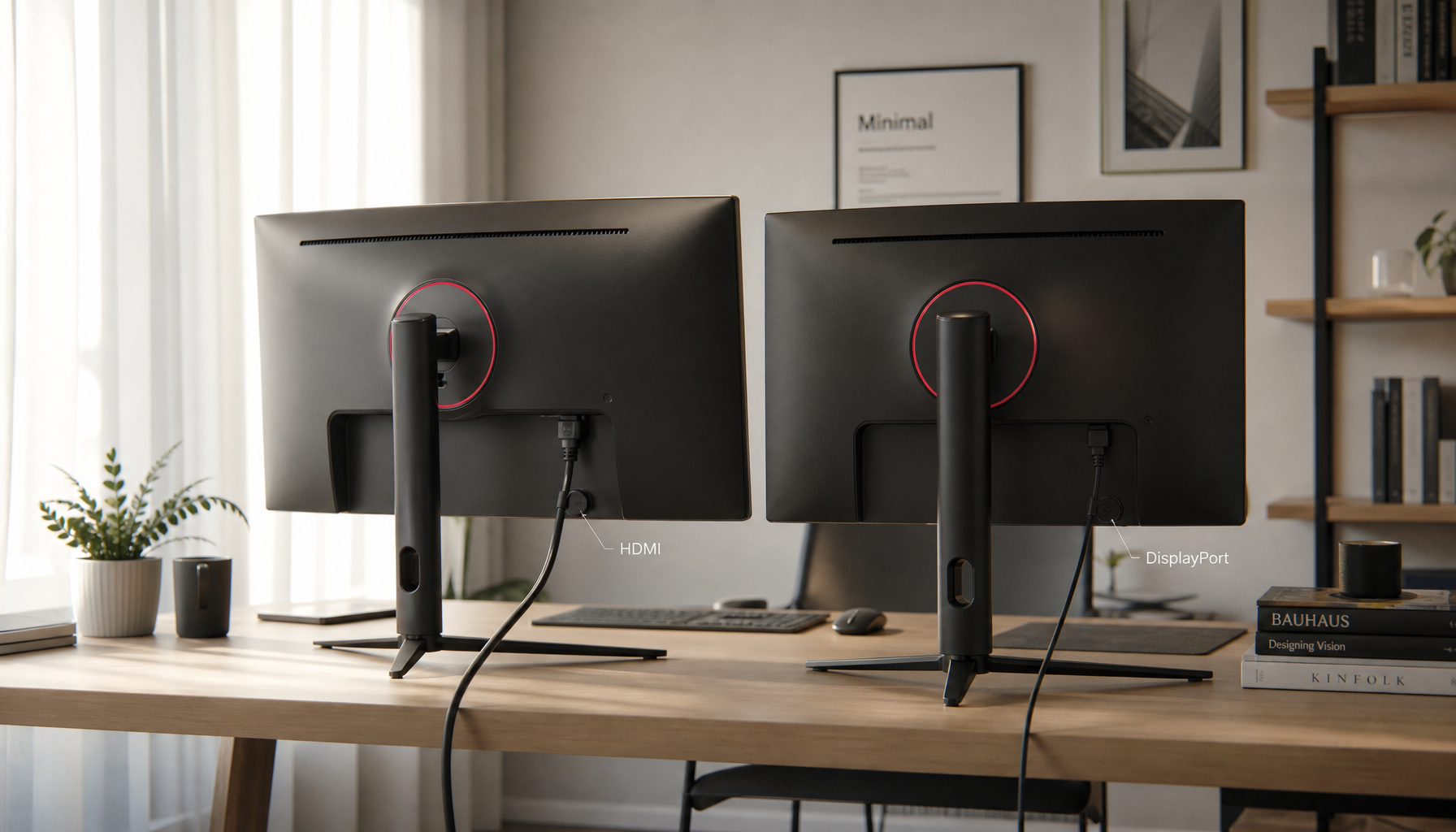
Connect your console directly to the monitor over HDMI, not through an audio extractor, capture card, soundbar, or dock unless you know it supports low-latency passthrough. Every extra device can add processing, handshake issues, or audio/video sync correction.

Set the console to the monitor’s native resolution and highest supported refresh rate. A 120 Hz signal gives the display more frequent frame updates than 60 Hz, and higher refresh rates can reduce perceived delay because the screen updates more often, as explained in this refresh rate comparison.
If your monitor supports VRR, enable it on both the console and monitor. VRR helps the display match the console’s frame output, reducing tearing and stutter without relying on heavy visual processing.
Put the monitor in its lowest-lag mode
Turn on Game Mode, Instant Mode, or Low Input Lag mode in the monitor’s on-screen menu. Input lag is the delay between an action and the result appearing onscreen, and even small delays matter in fast games, especially shooters, fighters, and rhythm titles, according to this input lag explanation.

Then disable image enhancements that make the monitor process the frame before displaying it. Motion smoothing, noise reduction, dynamic contrast, edge enhancement, and aggressive local dimming can all add delay or make timing feel inconsistent.
- Enable Game Mode or Instant Mode.
- Disable motion smoothing and noise reduction.
- Use native resolution, not monitor-side upscaling.
- Turn on VRR if the console and monitor support it.
- Keep firmware updated when updates are available.
Keep built-in speaker audio simple
For the lowest-friction setup, send audio over the same HDMI cable and select the monitor as the console’s audio output. Built-in speakers are convenient because they avoid wireless audio pairing delay and keep the desk clean.
Use stereo PCM when available. Surround virtualization, 3D audio, night mode, dialogue boost, EQ presets, and spatial effects can add audio processing, even if they do not directly increase visual input lag.
Also check the monitor’s audio menu. Some displays include sound modes such as Cinema, Surround, or Voice; choose Standard, Game, or Off for enhancements. The goal is not audiophile sound; it is tight timing between the button press, screen response, and sound cue.
If the game feels delayed but the image responds quickly, you may be hearing audio latency rather than true input lag.
Fix controller and console-side delay
Use a wired controller connection for competitive play when possible. Wireless controllers are good now, but low battery, interference, or weak pairing can still make timing feel soft.

On console, select Performance Mode in games that offer it. A 60 FPS mode produces a new frame every 16.7 ms, while 120 FPS cuts that to about 8.3 ms before the monitor even enters the equation.
For online games, use Ethernet instead of a wireless network. Network lag is separate from display input lag, but your hands do not care which delay source caused the missed shot.
The best low-lag built-in speaker setup
The ideal setup is straightforward: console to monitor by HDMI, monitor speakers set to plain stereo, Game Mode enabled, 120 Hz and VRR active, and controller connected by USB for serious matches.

That gives you the cleanest value-oriented path: no extra speakers, no receiver delay, no overprocessed image, and a console monitor tuned for fast response instead of showroom effects.