A firmware update can increase monitor input lag by changing signal processing, sync behavior, or default settings. In most cases, the panel is not the problem; the delay comes from a new processing path, a reset option, or a compatibility change.
A monitor can suddenly feel heavy, delayed, or just slightly off right after an update even when frame rate still looks normal. That change can be large enough to matter because a single display setting may add noticeable delay, while moving from 30 FPS to 144 FPS cuts each frame from about 33.3 ms to about 6.9 ms. The goal is to determine whether the lag comes from the monitor, the PC, the cable path, or the update’s new defaults.
Why a Firmware Update Can Change Input Lag
At the hardware level, embedded device code controls how a device starts up, communicates, and handles core functions. On a monitor, that includes signal detection, overdrive behavior, scaling, variable refresh logic, HDR handling, USB hub behavior, and the internal timing of image processing. When that code changes, the monitor can behave differently even if the screen, cable, and PC stay the same.
The most common reason input lag jumps after an update is that the monitor starts doing more work before showing the image. A new firmware version may improve tone mapping, compatibility, or flicker control, but the tradeoff can be extra processing time. That matters because the full delay between your action and the image appearing is not the same as pixel transition speed.
This is where many buyers get tripped up by marketing. A monitor can still advertise 1 ms GtG and yet feel slower after an update because response time and input lag describe different problems. Response time affects ghosting and blur, while input lag is the control delay you feel in mouse movement, keypress timing, or pen input.
The Settings That Often Reset After an Update
In many setups, the simplest cause is a setting reset. Firmware updates can quietly switch off Game Mode, lower the refresh rate, re-enable image enhancements, or change how the monitor handles scaling. monitor responsiveness depends on more than one spec, and a display tuned for cleaner image processing can lose some of the immediacy competitive users expect.
A common example is when a 240 Hz gaming monitor returns from an update at 60 Hz or 120 Hz. That does not just change smoothness. It also increases frame interval, which directly affects how quickly new visual information can appear. The same logic explains why 30 FPS costs about 33.3 ms per frame while 144 FPS drops that to about 6.9 ms, making controls feel tighter and more immediate.

Another common trigger is sync behavior. Standard vertical sync can add lag because it buffers frames to prevent tearing, while adaptive sync is usually the better balance for fast play. If a firmware update changes how variable refresh or frame pacing works, the monitor may feel slower even though the picture looks cleaner. That tradeoff mirrors the broader smoothness-versus-delay tension described in player-experience latency, even though network lag and local display lag are separate issues.
When the Update Is Not Broken but Still Feels Worse
Not every lag increase means the firmware is defective. Sometimes an update improves compatibility for more users by choosing safer timings or more conservative processing. That can help stability, reduce flicker, or fix black-screen issues while still making the display feel less direct.
One useful example comes from an OLED monitor owner who reported that rolling back to older firmware restored stability during alt-tabbing and signal switching, while newer versions improved HDR tone mapping and anti-flicker behavior. The lesson is not that every rollback is correct, but that monitor firmware can create a real tradeoff between features and responsiveness, especially when changes to product performance alter how the display processes the signal.
The same pattern appears in enterprise display management. A description of traditional monitor firmware updates emphasizes performance, compatibility, and reliability, but those gains do not guarantee identical latency behavior in every mode. An update can be successful and still make the monitor feel slower.
How to Tell Whether the Monitor Is the Cause
The fastest way to diagnose this is to compare before-and-after behavior in a controlled setup. Use the same game, refresh rate, cable, GPU port, and display mode. If possible, test a direct wired path with no dock, adapter, capture device, or KVM in between. Then check whether the lag appears on the desktop, in offline games, and in menus, not only in online matches.

If the delay also shows up offline, you are probably dealing with local input lag rather than internet latency. That distinction matters because online latency affects server response, while monitor input lag is local display delay. Many users blame their router when the real problem is that the monitor switched into a slower picture mode.
The table below is a useful shorthand for what usually changed.
Symptom after update |
Likely cause |
What to check first |
Aim feels floaty in every game |
Game Mode turned off or processing turned on |
Monitor OSD picture mode and low-latency mode |
Desktop mouse feels slightly delayed |
Refresh rate reset lower |
Operating system or GPU refresh setting |
HDR games feel slower than SDR |
New HDR processing path |
HDR toggle, local dimming, tone mapping options |
Tearing is gone but controls feel heavier |
Vertical sync or buffering behavior changed |
In-game sync settings and variable refresh status |
Lag appears only with one source |
Compatibility path changed |
Try another cable, GPU port, or console or PC input |
The Most Effective Fixes
Start in the monitor’s on-screen menu and check Game Mode, Instant Mode, low-latency mode, refresh rate status, adaptive sync, local dimming, and any image enhancement features. The broad rule from monitor responsiveness testing is simple: the more image processing you ask the monitor to do, the more likely it is to add delay.

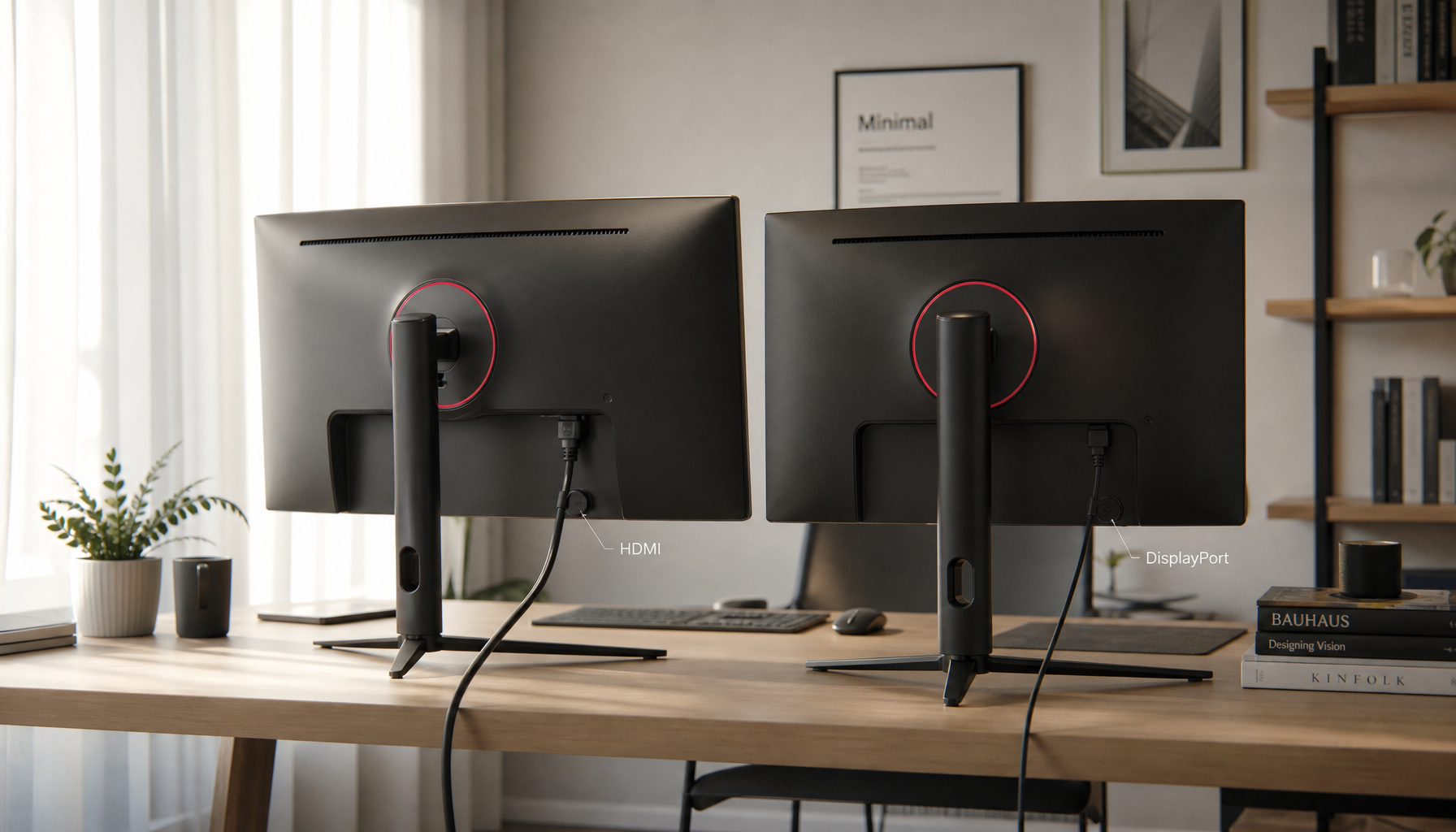
Then verify the signal path. Use a direct cable run instead of a hub or dock, and confirm that the monitor is actually receiving the expected refresh rate and resolution. If you use a wireless display path, replace it with a wired one because wired connections are less complex and less likely to add hidden latency through extra processing and transport steps.

If the lag began immediately after the update and nothing else explains it, check whether the manufacturer offers a newer patch or a rollback path. This is not always available, and it carries risk, but real cases show that reverting firmware can restore prior behavior when a release changes signal handling. The downside is that you may lose fixes or features from the newer version. The upside is getting back the snappy feel that matters most on a performance display.
Why It Matters for Both Gaming and Work
Competitive players usually notice lag first, but office and creative users are not imagining it when a screen suddenly feels less precise. Cursor movement, pen input, fast scrolling, and window snapping can all feel less immediate when the monitor adds even a small amount of extra delay. On a gaming monitor, that is frustrating. On a productivity display, it is tiring.
That is why a firmware update should be treated like any other performance change: worth doing, but also worth validating. Updates can improve reliability, compatibility, and security, yet they can also alter the feel of a display in ways that matter more than a spec sheet suggests.
A fast monitor is not just about high refresh or a 1 ms badge. It is about keeping the whole signal path lean, consistent, and under control after every update. If lag appears the same day the firmware changes, trust the timing, test methodically, and tune the monitor like a performance tool, not just a screen.