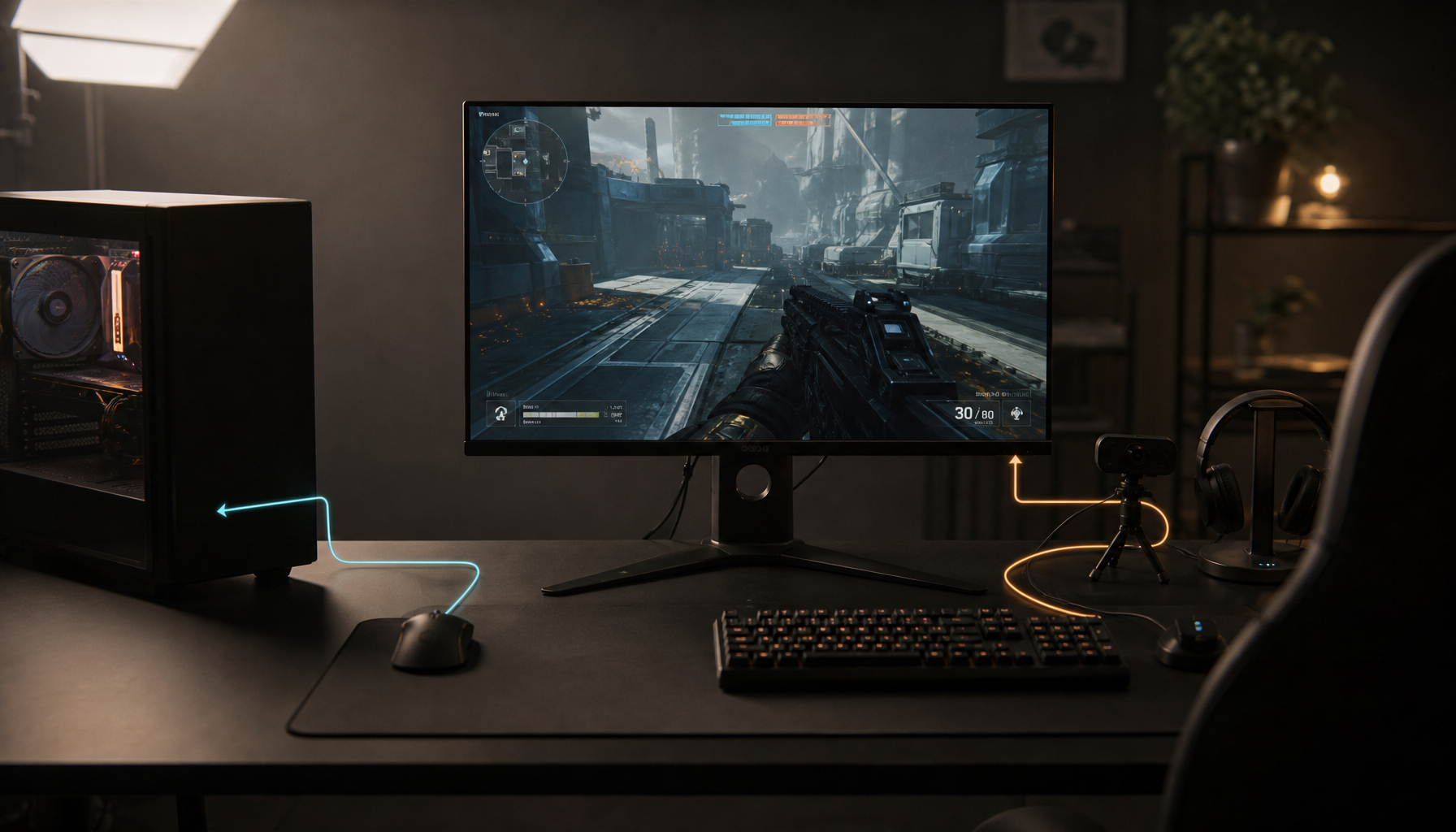
Yes. High humidity, condensation, wet fingers, or water droplets can reduce touch accuracy because many modern touchscreens read tiny electrical changes, and moisture can distort those signals.
Why Moisture Confuses Touch Input
Most gaming monitors with touch overlays, office kiosks, portable smart screens, tablets, and car displays use capacitive or projected capacitive touch. These panels detect a finger by sensing changes in an electric field near the glass.
Water becomes a problem because everyday moisture is not perfectly pure. Rain, sweat, tap water, and drink residue often contain minerals or salts, so a wet surface can behave like a weak conductor. That is why a wet screen can produce false touches, missed taps, jittery swipes, or stuck gestures.

A few droplets may cause small accuracy errors. A thin film of water is worse because it can spread across multiple sensing points, making the controller read a wide, messy touch area instead of a fingertip.
What You’ll Notice on a Humid Screen
Moisture-related touch issues usually show up before the display itself looks damaged. In a high-humidity office, gym, warehouse, kitchen, or patio setup, you may see taps land slightly off target, drag gestures break mid-motion, or the screen wake up from phantom input.

Other common symptoms include ghost touches when no one is touching the panel, dead zones or delayed response after condensation forms, cursor drift on touch-enabled productivity displays, missed taps from wet fingers or oily residue, and erratic behavior after cleaning spray or rain exposure.
For precision workflows, this matters. A designer selecting a small UI handle, a gamer using a portable touch screen for quick controls, or a retail operator tapping tiny checkout buttons all need stable recognition, not a screen guessing through moisture noise.
Humidity Is Also a Long-Term Reliability Issue
Short-term wet-screen behavior is frustrating. Long-term humidity exposure can be more expensive.
Moisture can enter through bezels, edge seals, cable areas, ports, and small enclosure gaps. In harsh environments, wet dust can become partially conductive, and dust mixed with moisture can trigger ghost touches, coordinate drift, or morning-only failures caused by overnight condensation.
Over time, excess moisture can corrode connectors, weaken adhesives, cloud the display stack, and increase the risk of internal shorts. Automotive and outdoor screens are especially vulnerable when heat joins the problem; cabin temperatures can climb to 120°F–140°F, and that heat can accelerate adhesive breakdown while humidity attacks the display layers.
Water resistance helps protect hardware, but it does not always guarantee accurate touch input while the screen surface is wet.
Capacitive vs. Resistive: Which Handles Moisture Better?
Capacitive touch feels fast, smooth, and premium, which is why it dominates modern consumer displays. It is ideal for clean desks, gaming setups, conference rooms, and portable smart screens where users expect light-touch gestures.
In wet or dirty spaces, resistive touch can be more predictable because it responds to physical pressure rather than only electrical-field changes. Some industrial and restaurant environments still favor resistive panels because they can remain usable when moisture is present, while resistive touchscreens generally tolerate frequent wet interaction better than standard capacitive designs.

That does not make capacitive a bad choice. It means the right model should match the environment: sealed glass, water-rejection firmware, optical bonding, hydrophobic coatings, and an appropriate IP rating matter more when moisture is routine.
How to Keep Touch Accuracy High
For everyday users, the fastest fix is simple: keep the touch surface dry and clean. Use a soft, lint-free cloth, avoid spraying liquid directly onto the panel, and dry your fingers before tapping small controls.

For display buyers and IT teams, choose screens based on the actual room or deployment site. A humid warehouse, food-service station, marine console, or outdoor kiosk needs more protection than a desk monitor in an air-conditioned office.
Key buying and care checks:
- Look for a published operating humidity range.
- Choose sealed edges for wet or dusty locations.
- Prefer optical bonding where condensation is likely.
- Use hydrophobic coatings for splash-prone screens.
- Keep room humidity stable when possible.
For high-performance setups, moisture control is not a minor comfort detail. It protects input precision, display clarity, and the long-term reliability of the screen you rely on every day.