Your home office has different light, desk depth, screen distance, and multitasking demands than a corporate desk, so your monitor should be tuned for your room, workflow, and eyes.
Home Lighting Changes Everything
Office monitors usually sit under predictable ceiling lights. At home, your screen may face a window in the morning, a dim lamp at night, or mixed lighting all day.
Brightness should match the room because a screen that is too bright in a dark space can feel harsh, while a dim screen in daylight makes text harder to read. Home office setup advice consistently flags poor lighting as a cause of eyestrain and headaches.
Start with a practical baseline: lower brightness in the evening, raise it near daylight, and avoid working with the monitor as the only bright object in the room. Bias lighting behind the display can also reduce the contrast shock between the screen and wall.

Your Desk Distance Is Probably Different
In an office, monitor arms, deep desks, and matched furniture often control viewing distance. At home, your monitor may sit on a compact desk, kitchen table, or laptop riser.
That matters because screen size and resolution only feel sharp when your eyes are at the right distance. A 27-inch screen is excellent for productivity, but it needs enough space so you are not scanning with your neck instead of your eyes.
Keep the top of the screen at or slightly below eye level. For most home setups, an arm’s-length position around 20 to 30 inches works well, then adjust based on text comfort and screen size.

Quick home-office reset:
- Set resolution to the monitor’s native option.
- Increase scaling if text feels small.
- Align the screen top near eye level.
- Tilt the monitor slightly back to reduce glare.
- Move lamps or screens until reflections disappear.
Productivity Settings Beat Default Office Defaults
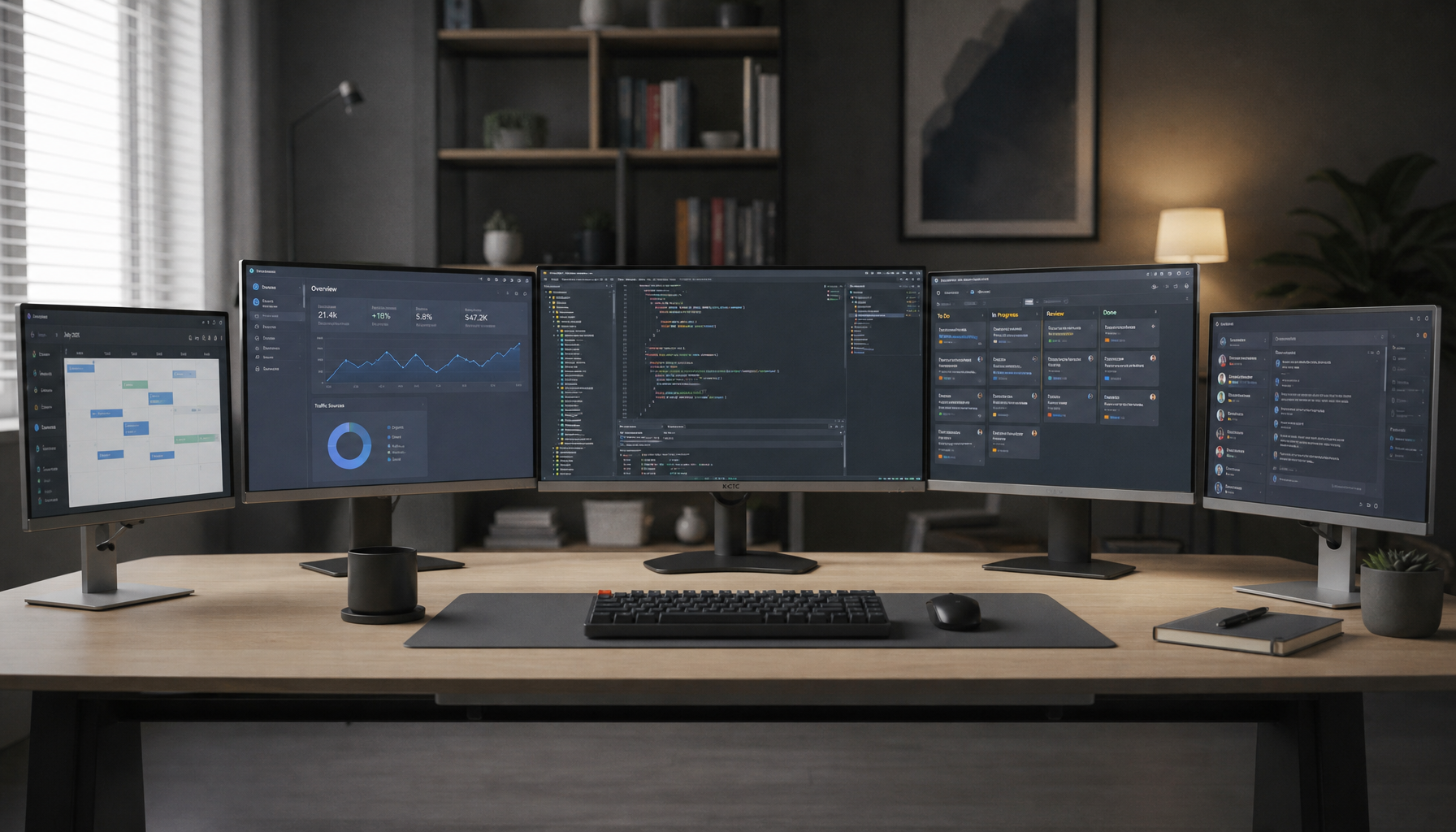
The office monitor may have been tuned for good-enough shared use. Your home display should be tuned for your actual workload: spreadsheets, writing, design, coding, video calls, or gaming after hours.
Your operating system lets you choose the exact display before changing scale, resolution, and layout, which matters if you use a laptop plus external monitor or dual screens. For sharp text, keep the recommended resolution whenever possible.
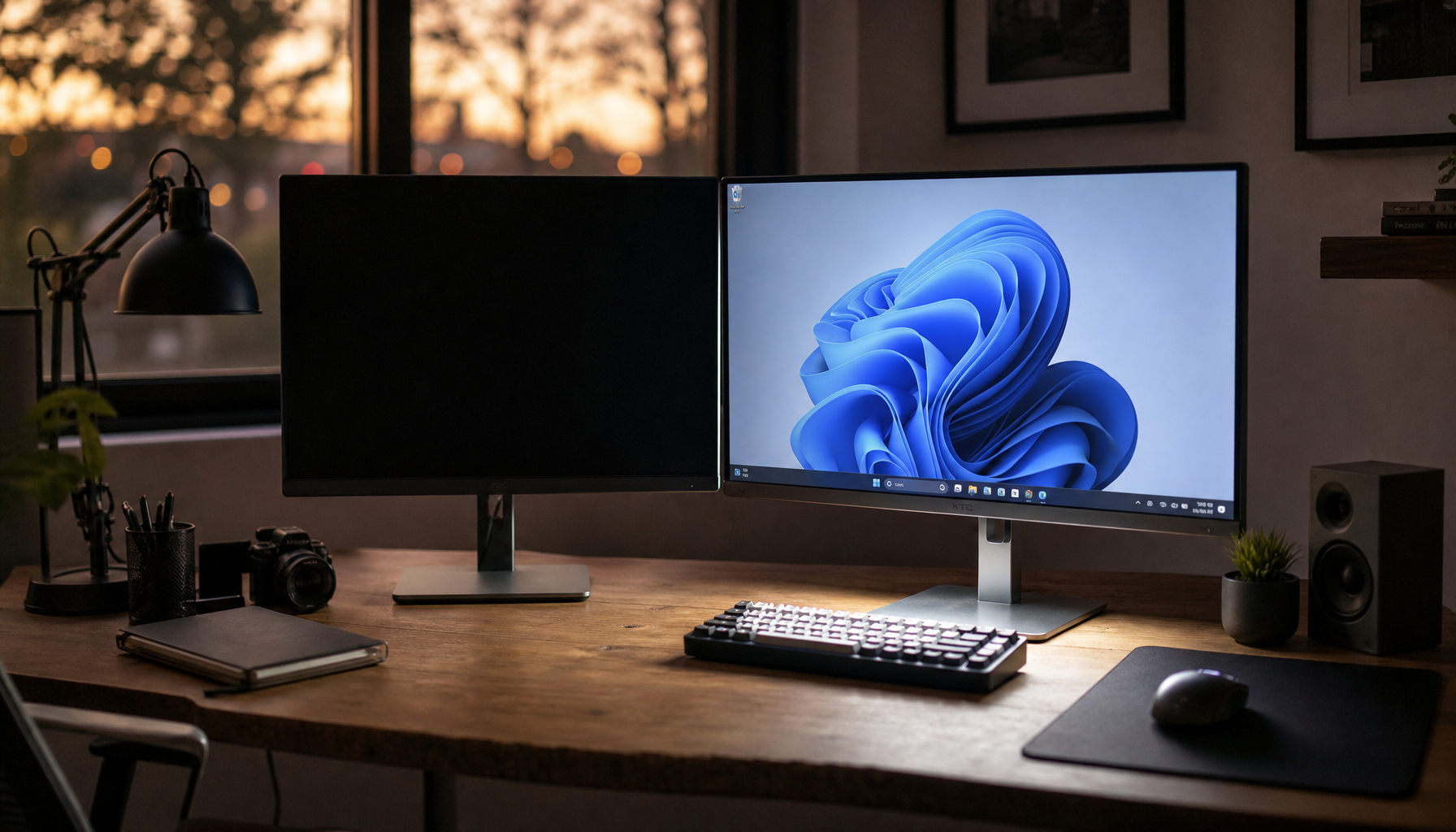
If you use two displays, choose Extend instead of Duplicate for real workspace. Then drag the display icons so the digital layout matches your physical desk; otherwise, moving your cursor between screens feels broken even when the hardware is fine.

For 4K monitors, scaling is not a weakness. It is how you get the benefit of high pixel density without tiny menus. A 150% scale setting can make a 27-inch or 32-inch 4K display feel crisp and usable instead of impressive but exhausting.
Comfort Modes Need a Schedule
At home, your monitor often handles more than work: early emails, late edits, streaming, gaming, and weekend projects. One static picture mode cannot serve all of that well.
Use a neutral daylight color temperature for daytime work and color-sensitive tasks. In the evening, warmer tones or Night Light can make long sessions feel less sharp-edged, especially after 7:00 PM.

Gaming and productivity also pull settings in different directions. Competitive gaming benefits from high refresh rates, fast response modes, and adaptive sync, while office work benefits more from text clarity, moderate brightness, and comfortable scaling. A monitor’s highest supported refresh rate can improve motion, but aggressive overdrive may create visual artifacts, so test it instead of assuming the fastest setting is best.
Build a Home Profile, Not a Copy
Treat your home monitor like performance gear. The goal is not maximum brightness, maximum sharpness, or showroom color; it is a stable screen environment that keeps you focused.
Create two or three saved profiles if your monitor supports them: Work, Evening, and Gaming. Work should prioritize readable text and balanced brightness. Evening should be warmer and dimmer. Gaming can push refresh rate, response time, and contrast without compromising your workday comfort.
Copying another person’s calibration values is unreliable because even identical monitor models can vary. Use defaults as a starting point, then tune by room, task, and comfort.