Yes, a display cable can limit a gaming monitor, but only when the entire connection path cannot carry the mode you want. In many cases, the real limit is the monitor port, the graphics output, an adapter, or one wrong setting.
Bought a 144 Hz or 165 Hz gaming monitor and still seeing 60 Hz in the menu? That mismatch is common because 1080p at 144 Hz, 1440p at 144 Hz, and 4K at 120 Hz do not place the same load on the connection. This guide will help you tell whether the cable standard is truly the bottleneck, when another display connection makes more sense, and how to troubleshoot the problem without guessing.

When the Display Connection Is the Bottleneck, and When It Is Not
The usable refresh rate depends on the graphics output, not just the gaming monitor’s advertised maximum. A 240 Hz panel does nothing for you if the source device only exposes 60 Hz over its video port, or if the graphics hardware cannot sustain the frame rate you are targeting. That is why monitor buyers need to evaluate the whole chain: source device, cable class, monitor input version, and active settings.
The official connection overview makes the bigger point clear: higher resolutions, higher refresh rates, and richer signal formats require more bandwidth. In practice, a cable only becomes the bottleneck when it is the weak link in that chain. If the monitor’s video input is older than the cable, or the laptop’s video output is limited, replacing the cable alone will not unlock higher refresh.
Why Resolution, Refresh Rate, HDR, and Color Format Change the Answer
The signal demand rises quickly as you move up in resolution and refresh. A useful rough set of figures for uncompressed 10-bit 4:4:4 video is about 10.00 Gbit/s for 1080p at 144 Hz, 14.49 Gbit/s for 1440p at 120 Hz, 17.60 Gbit/s for 1440p at 144 Hz, 15.68 Gbit/s for 4K at 60 Hz, and 32.27 Gbit/s for 4K at 120 Hz. That is why a setup that feels effortless at 1080p can suddenly fail when you move to 4K high refresh.
The same connection reference data also shows why HDR and fuller color formats complicate the picture. A 10-bit HDR signal increases bandwidth demand over standard 8-bit output, and full 4:4:4 color keeps more data intact than subsampled formats. For a gaming monitor, that can mean one connection path supports 4K at 120 Hz only after dropping HDR, lowering color depth, or changing color format.
The connection specification overview helps translate that into buying language. A high-bandwidth cable class is what newer 48 Gbit/s setups rely on, which is where 4K at 120 Hz and similar high-refresh monitor modes become realistic. Older connection paths can still be excellent for many gaming monitors, but they leave less headroom once you stack high refresh, high resolution, HDR, and full color together.
Gaming monitor target |
Approx. signal demand* |
What it usually means |
1080p at 144 Hz |
10.00 Gbit/s |
Usually easy for a modern gaming monitor path; settings are often the real issue |
1440p at 120 Hz |
14.49 Gbit/s |
Still manageable, but older connection paths lose headroom fast |
1440p at 144 Hz |
17.60 Gbit/s |
Near the ceiling of many older connection setups |
4K at 60 Hz |
15.68 Gbit/s |
Common limit point for mid-bandwidth monitor use |
4K at 120 Hz |
32.27 Gbit/s |
Typically calls for a newer high-bandwidth path or another high-bandwidth option |

*Approximate figures based on uncompressed 10-bit 4:4:4 examples summarized in the connection data table on a reference site.
What Different Gaming Monitor Setups Need
A 1080p or 1440p gaming monitor can benefit strongly from 120 Hz, 144 Hz, 240 Hz, or even 360 Hz, but those refresh tiers are not equally demanding. For many desktop monitors, 1080p at 144 Hz is well within reach over a decent connection path. 1440p at 144 Hz is where the margin gets tighter, especially on laptops, older graphics hardware, and monitors whose one video input is less capable than another display input.
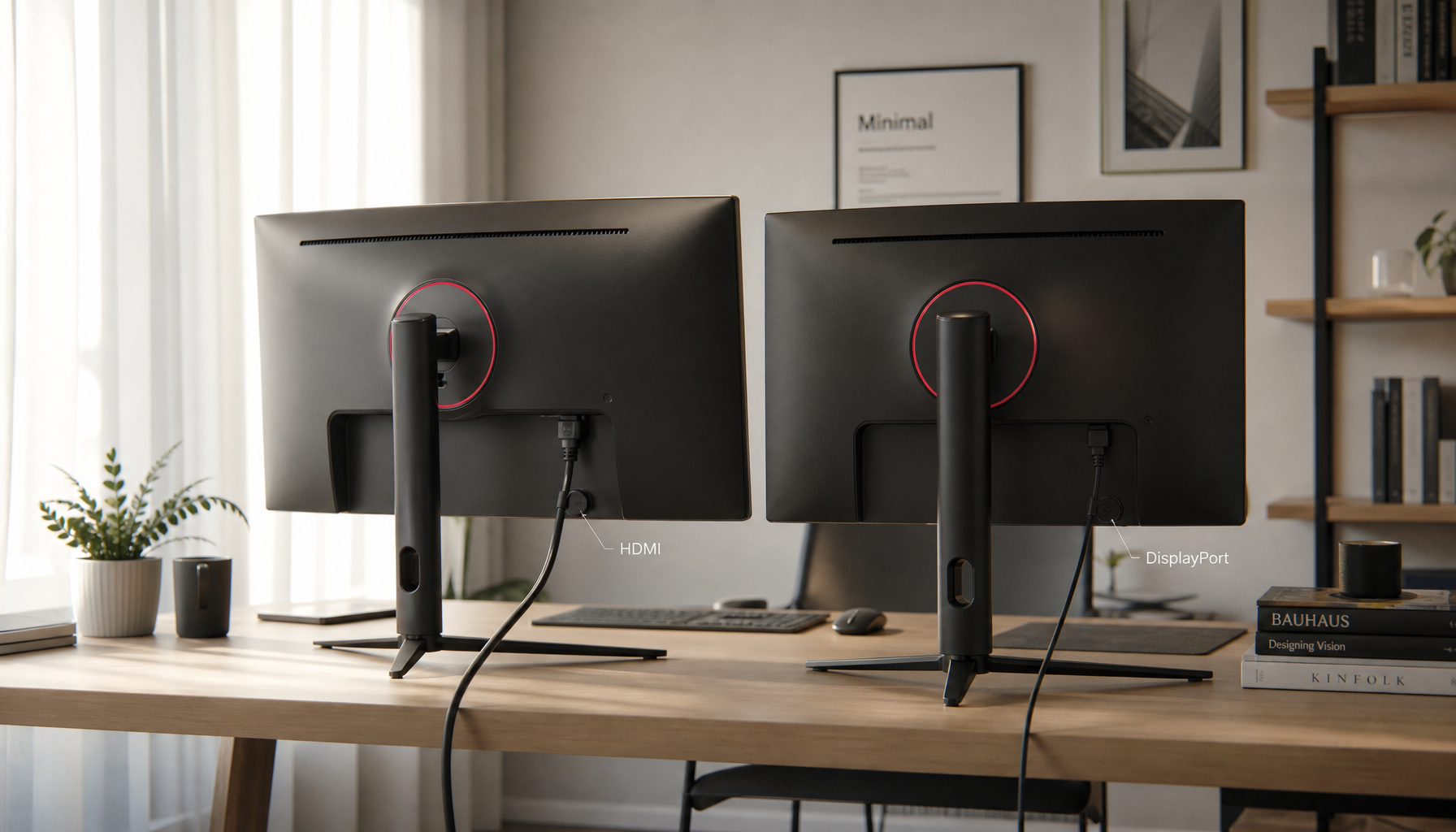
A monitor support case shows the classic 4K-era problem. The monitor could run up to 165 Hz from a PC over one display input, but a console over another display input stayed capped at 60 Hz. That is the exact pattern monitor shoppers should watch for when comparing ports: one display can have a high panel refresh rate yet still offer lower performance on one specific input.
An ultrawide example shows why 34-inch and 49-inch displays deserve extra scrutiny. In that case, a 3,440 x 1,440 monitor was paired with a laptop whose video connection path and device specs limited the usable modes well below the panel’s headline capability. Portable monitors raise a similar caution: a portable 4K high-refresh discussion pointed out how many USB-based portable display paths top out around 4K at 60 Hz, so buyers should verify the actual input standard instead of assuming the cable is the only question.
Why So Many Monitors Get Stuck at 60 Hz
A real-world 144 Hz troubleshooting thread shows how misleading this problem can be. The user saw online tests reporting 60 Hz, yet the monitor’s own on-screen display later reported about 143 Hz. That is a practical lesson for gaming monitor owners: the fastest sanity check is often the monitor OSD, not just a browser test or one OS menu.

The same thread also highlights settings that get overlooked. Refresh options were available in both the OS and the graphics control panel, and changing VSync behavior affected the user’s experience more than expected. If your monitor looks stuck, confirm the active refresh rate in the graphics control panel, then verify the input rate on the display itself before blaming the cable.
A hardware support case adds another useful warning for monitor buyers: even when a laptop and monitor both appear to support 1440p at 144 Hz over a mid-bandwidth connection version, the system may still expose only 60 Hz or 120 Hz because of firmware, driver, EDID, or interface constraints. That is why “my monitor supports 144 Hz” and “my setup will run 144 Hz over this connection” are not the same statement.
When the Display Connection Is Fine and When Another Display Connection Makes More Sense
For many gaming monitors, the common cable-based connection is completely adequate at mainstream targets like 1080p high refresh or 4K at 60 Hz. If your monitor and graphics hardware are matched correctly, that connection can deliver smooth gaming without drama. It is often the simplest choice for consoles, secondary PCs, and many mid-range displays.
The tradeoff appears when you push into 4K at 120 Hz or other high-bandwidth monitor modes. That is the point where another display connection may be the safer option on some monitors, especially if an alternate input offers better support on the same panel. For ultrawide monitors, esports-grade refresh rates, or portable displays with mixed USB-based and other video-input behavior, the smarter buying move is to verify each input separately instead of shopping by panel spec alone.
Practical Next Steps
The best monitor decision process starts with your games, your hardware, and the resolution-refresh balance you actually want. If you are shopping for a gaming monitor, do not ask only whether the panel is 144 Hz, 165 Hz, or 240 Hz. Ask which input reaches that rate, at what resolution, and with what feature tradeoffs.
A practical bandwidth-check mindset saves time and money. If a mode fails, reduce one variable at a time: refresh rate, then HDR, then color depth, then any adapter or dock in the path. That approach tells you much faster whether the problem is bandwidth, software, or port capability.
Action Checklist
- Check the exact video input version or cable class on both the monitor input and the source device output.
- Set the target refresh rate in both the OS and the graphics control panel, then verify it on the monitor’s OSD.
- Remove adapters, docks, and converters before testing the cable directly.
- If you are targeting 4K at 120 Hz or a similar high-refresh mode, use a cable class meant for that bandwidth tier.
- If the monitor still caps at 60 Hz, test without HDR or reduced color settings to see whether bandwidth is the limiter.
- For ultrawide and portable monitors, verify each input separately because one port may support far less than another.

FAQ
Q: Can an expensive display cable make my gaming monitor faster?
A: Not by itself. If your current cable already supports the required signal, paying more will not increase refresh rate. You only gain something when the existing cable or cable class is below the bandwidth your monitor mode needs.
Q: Why does my 144 Hz monitor show only 60 Hz over this connection?
A: The most common reasons are a limited video port on the monitor or source device, a setting that was never changed in the graphics control panel, an adapter in the path, or a feature combination like 1440p high refresh plus HDR that exceeds available headroom.
Q: Is one display connection or another better for a high-refresh gaming monitor?
A: A common cable-based connection is often fine for mainstream gaming monitor use, but another connection can be the safer choice for 4K at 120 Hz, some ultrawide modes, or displays where one monitor input is more capable than another.
References
- How to Evaluate the Best Hz for Gaming Monitor for Different Needs | a company
- Specification Technology Overview | a standards organization
- Display stuck at 60Hz on my 144Hz Monitor | a support community
- 144hz monitor stuck at 60hz | a gaming community forum
- Display connection reference article | a reference site
- Ultra wide 3440x1440 external display lower resolution/refresh rate | a community forum
- A way to know the limits of my display connection? | a discussion platform
- limited refresh rate on external monitor | a support community
- Portable 4k monitor with high refresh rate | a Q&A platform