Your console flickers or drops signal because the display is renegotiating HDMI settings such as HDR metadata, refresh rate, color depth, VRR, HDCP, and low-latency Game Mode. A brief black screen is often a handshake reset, while repeated dropouts usually point to bandwidth, settings, cable, or display-processing conflicts.
Why Game Mode and HDR Trigger a New Handshake
Game Mode is not just a picture preset. On most TVs and gaming monitors, it changes processing behavior to reduce input lag, often disabling motion smoothing, dynamic contrast, or extra image enhancement.
HDR adds another layer. A true HDR signal uses a higher brightness range, wider color, and metadata that tells the screen how to map highlights and shadows. Good HDR also depends on the source and display both supporting the format correctly, not just showing an HDR badge. That is why HDR support alone does not guarantee a stable or good-looking image.
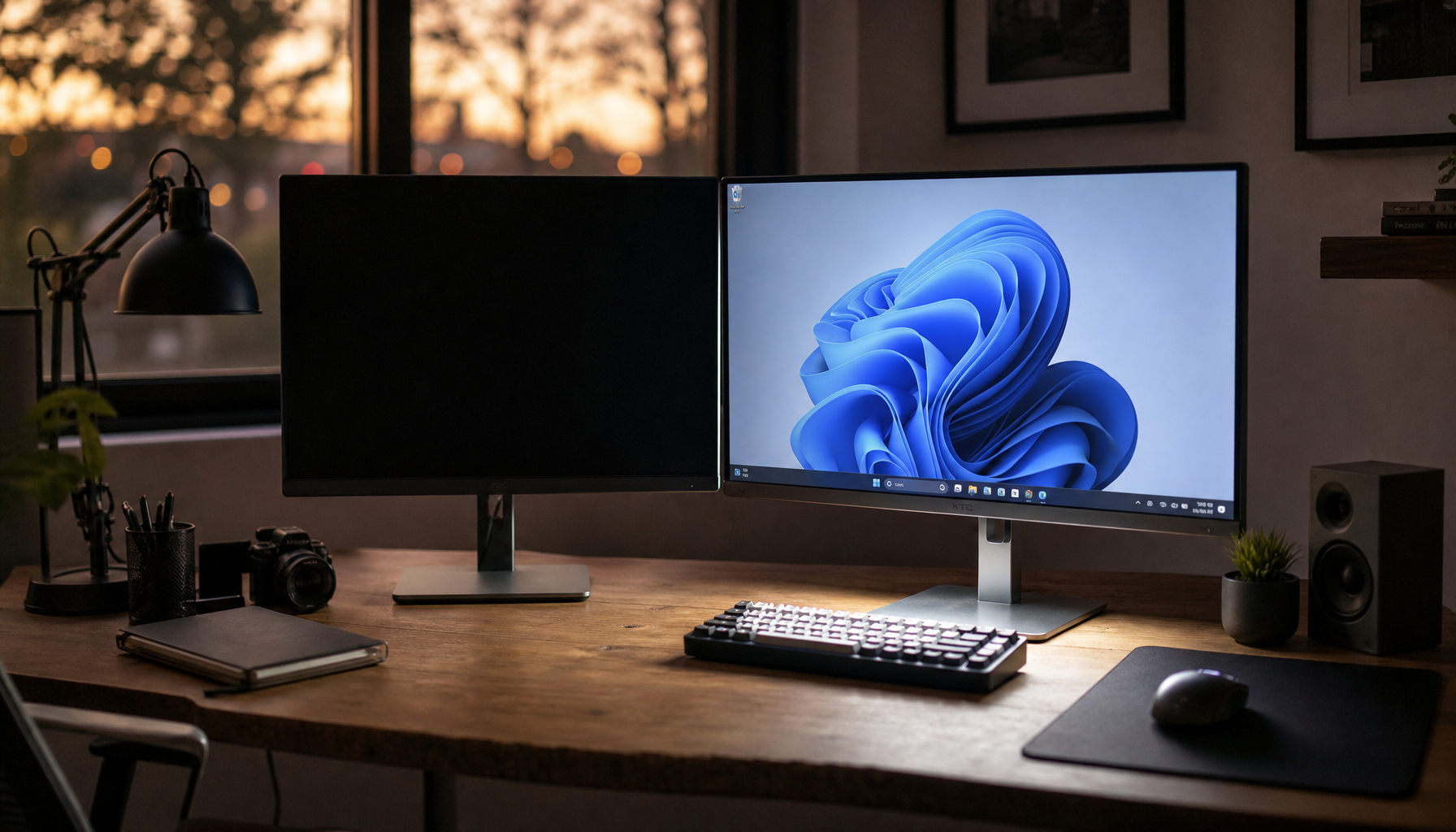
When a console or dock changes from SDR menu output to HDR gameplay, the display may briefly blank while it confirms the new mode. A one-second blink can be normal. A loop of black screens, flashing, or “No Signal” is not.
HDMI Bandwidth and Cable Quality
Switching into HDR can push more data through the same cable. Higher resolution, 120Hz, 10-bit color, VRR, and HDR together demand far more bandwidth than 4K SDR at 60Hz.
If the cable is marginal, the console may work on the dashboard but fail when a game launches in HDR or 120Hz mode. This is why a “working” cable can still be the weak link.
Check these first:
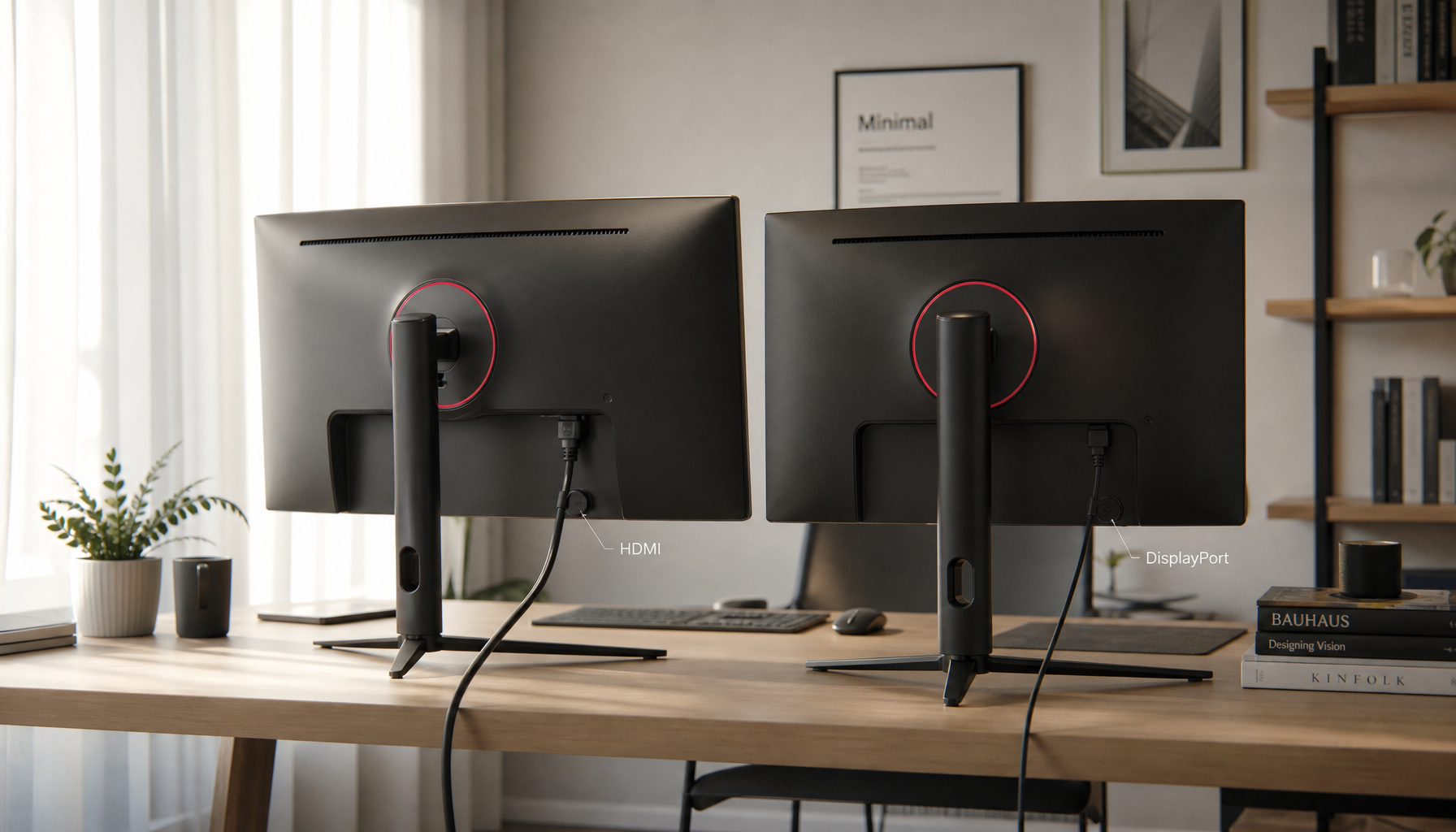
- Use a certified Ultra High Speed HDMI cable for 4K 120Hz HDR.
- Plug the console directly into the display, bypassing receivers or switches.
- Reseat both HDMI ends and test a different HDMI port.
- Disable 120Hz temporarily to see if HDR becomes stable.
- Avoid sharp cable bends behind wall-mounted screens.

For high-refresh displays, cable bandwidth matters. Older HDMI standards can be insufficient for modern refresh and HDR combinations, while newer certified cables reduce signal margin problems.
VRR Can Add Brightness Flicker, Especially in Dark Scenes
Variable Refresh Rate is built for smoother gaming, but it can introduce visible brightness changes when frame rate swings. This is different from a full signal dropout: the image stays connected, but dark scenes may pulse or shimmer.

The issue is most noticeable on high-contrast panel types because small brightness shifts are easier to see. VRR brightness flickering can also appear around loading screens, menus, or games that bounce near the lower VRR range.
For example, if a game hovers around 48 FPS on a 48–120Hz VRR display, Low Framerate Compensation may kick in and multiply refresh behavior. That fast shift can look like flicker even though the HDMI signal itself has not failed.
If this happens, cap the game’s frame rate, lower visual settings for steadier FPS, or test with VRR off for that title.
HDR Settings, Tone Mapping, and Auto Features Can Clash
HDR mode changes brightness and color mapping. Game Mode changes processing. Add auto HDR, dynamic contrast, local dimming, black frame insertion, or energy-saving brightness controls, and the display may overcorrect.
Some monitors also make SDR content look dim or washed out when HDR is left on globally. For console interfaces, SDR menus may not benefit from HDR, while HDR games do. High Dynamic Range performance depends heavily on contrast, local dimming, brightness, and how quickly the display responds to changing scenes.

A useful rule: enable HDR for games and movies that support it, but avoid forcing HDR-like modes on content mastered for SDR. Simulated HDR can add punch, but it can also crush shadows, lift blacks, or make exposure unstable.
Fast Fixes Before Blaming the Console
Start with the lowest-cost checks before replacing hardware.
- Update the console, TV or monitor firmware, and display firmware if applicable.
- Set the console to automatic HDR, then test “HDR off” and “120Hz off” separately.
- Turn off VRR for one problem game and compare stability.
- Disable dynamic contrast, eco brightness, and motion enhancement.
- Try a direct HDMI connection with a certified cable.
If flicker appears across multiple consoles and cables, the display’s HDMI board or panel processing may be the limit. If it happens only with one game, the likely cause is that game’s HDR, VRR, or frame pacing behavior rather than a failing screen.