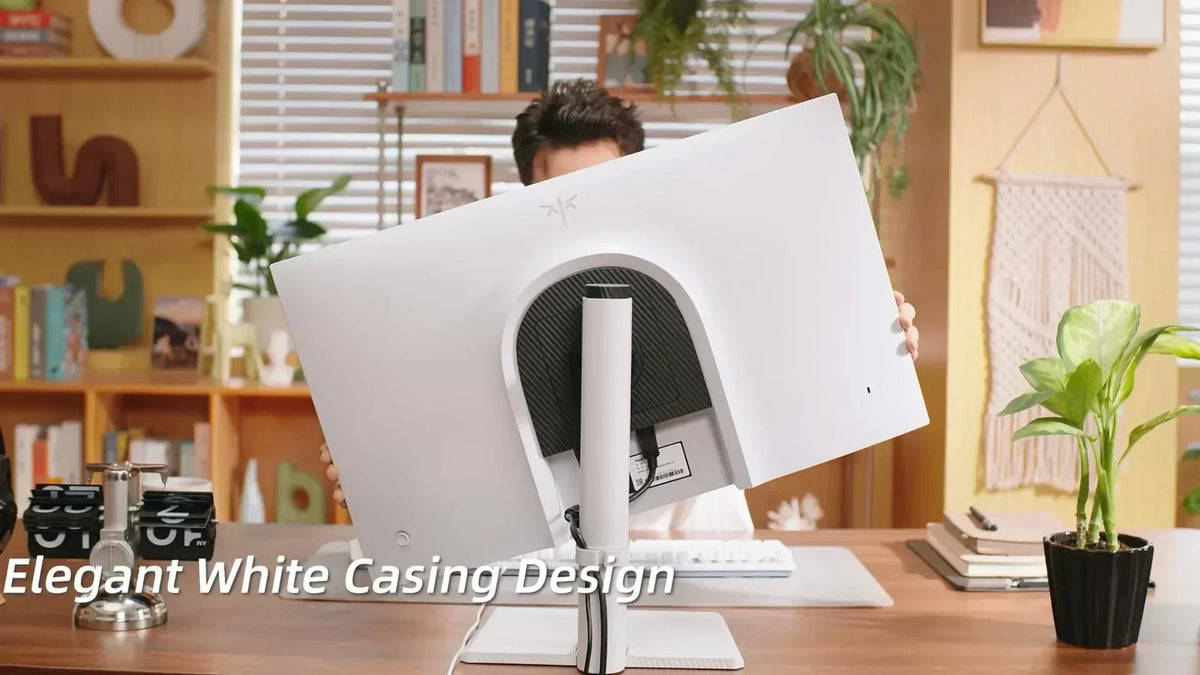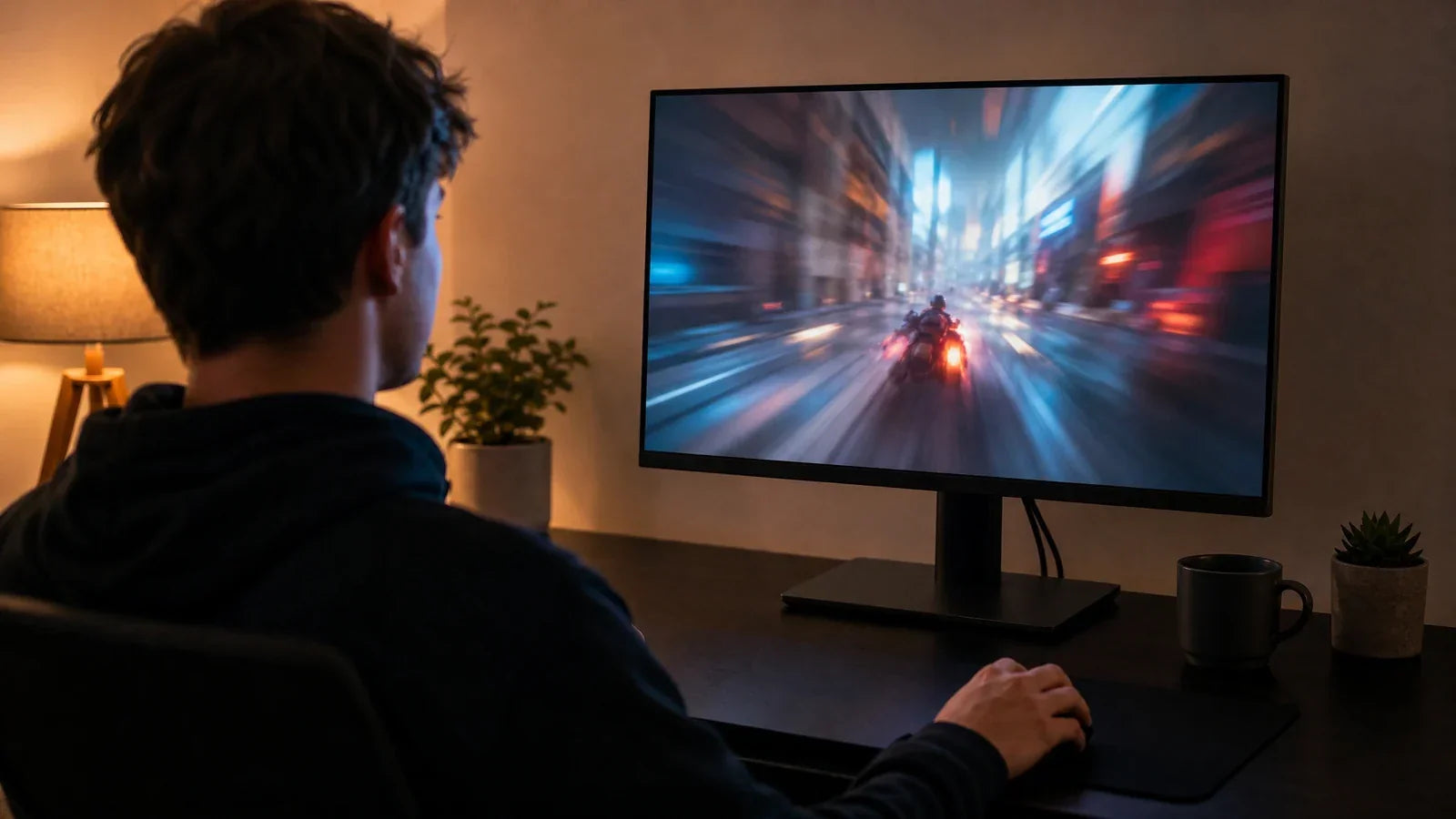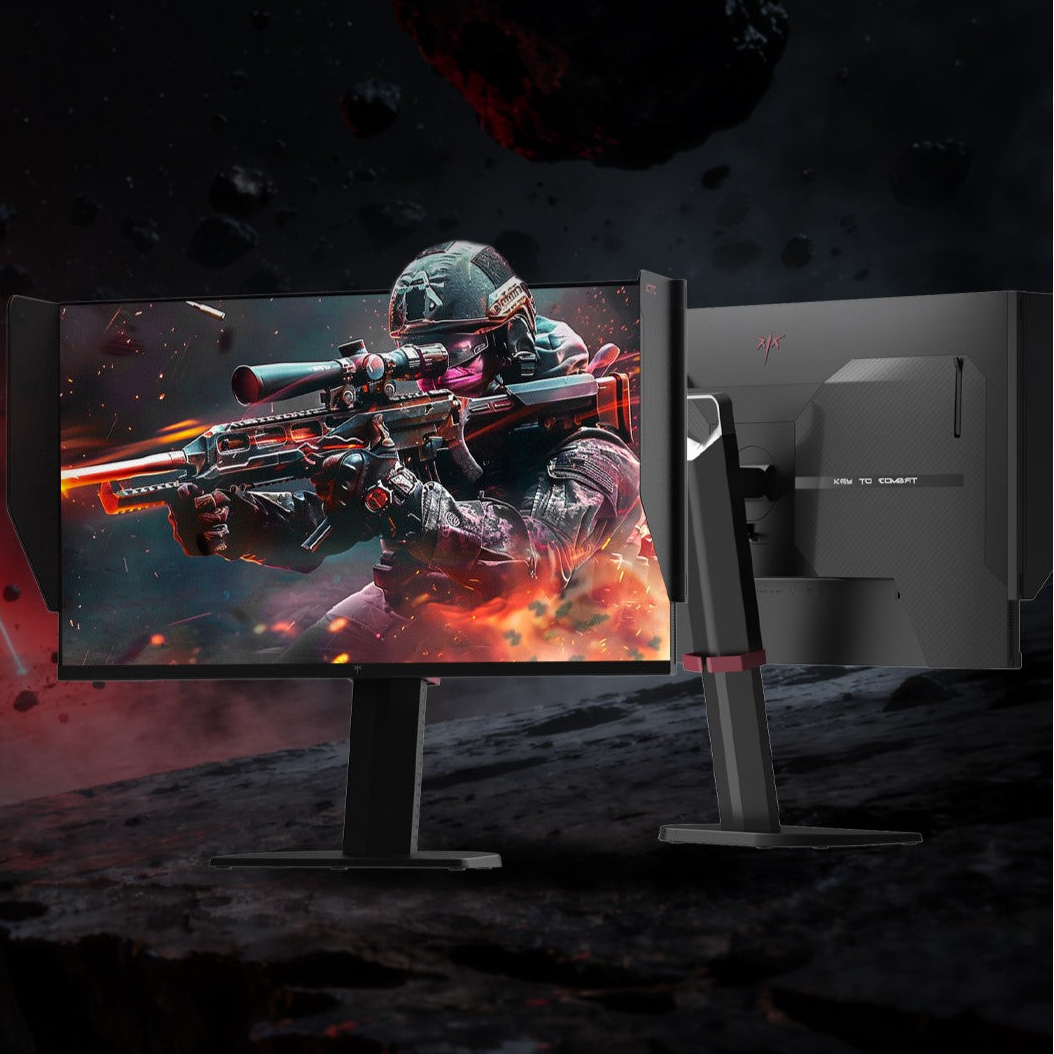
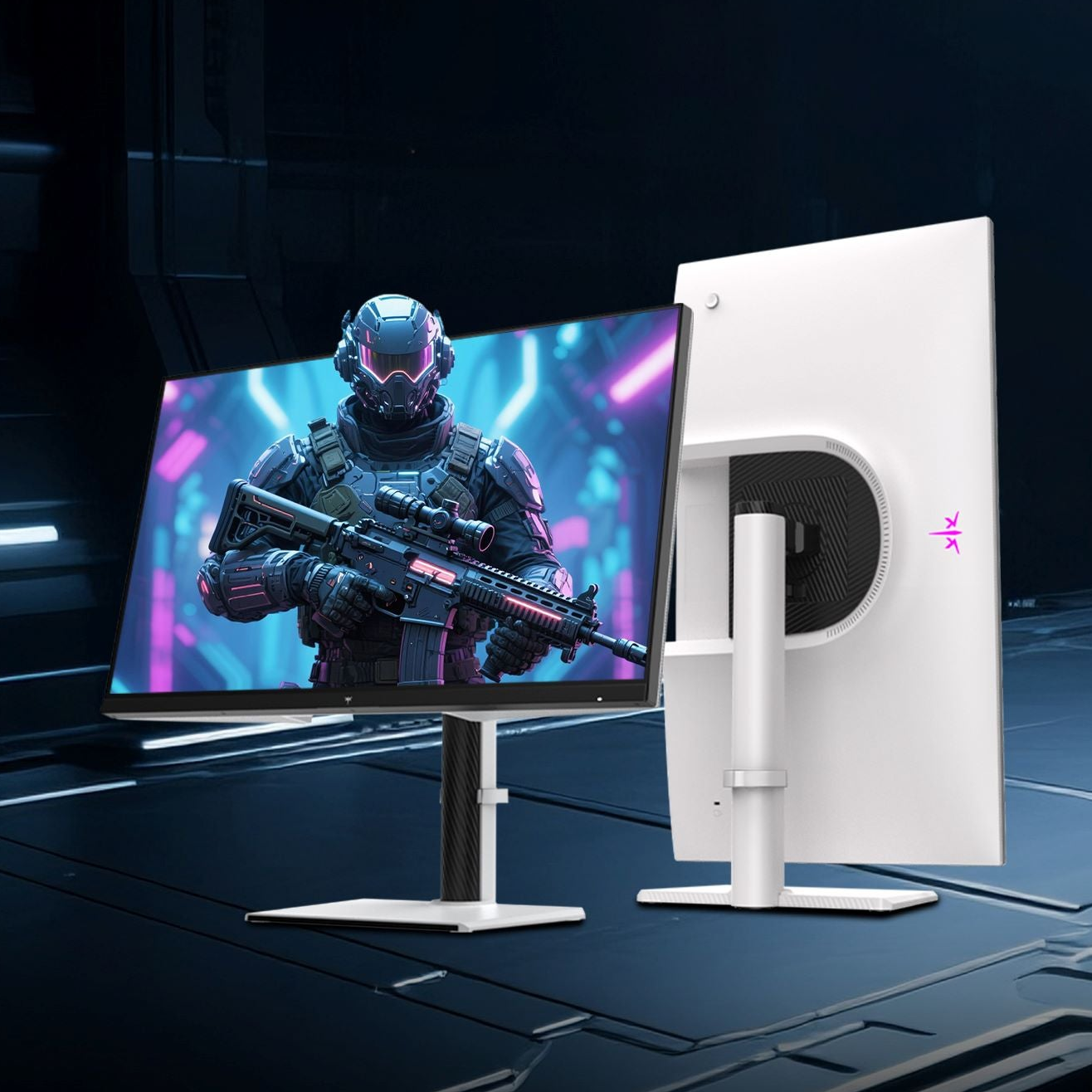
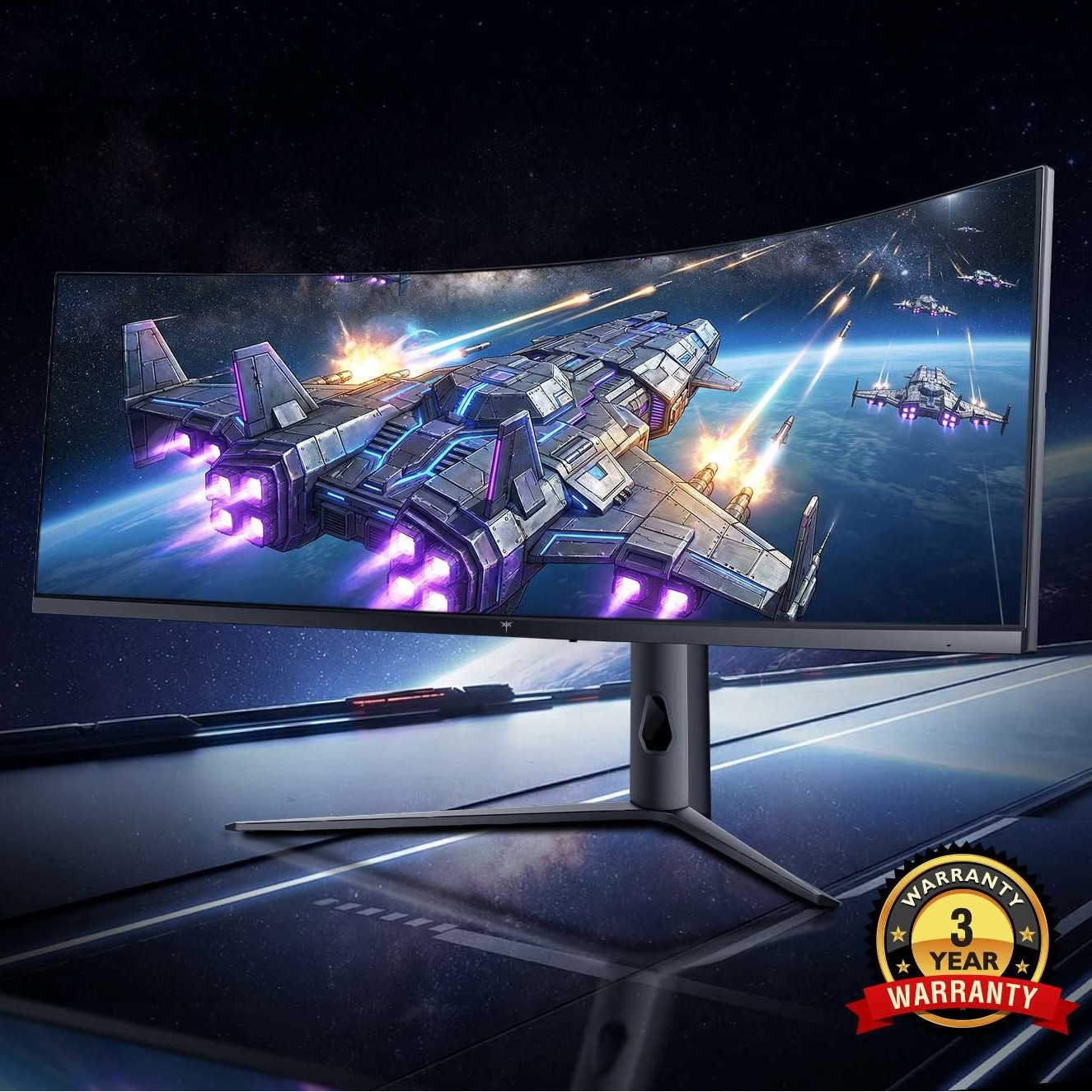



High Dynamic Range (HDR) is designed to provide a wider range of colors and higher contrast compared to Standard Dynamic Range (SDR). However, many users discover that enabling this feature on their HDR monitor results in a grey, desaturated, or "washed-out" image. This phenomenon is particularly common on a PC where software settings often conflict with hardware capabilities. This guide analyzes the technical reasons behind this visual degradation and provides actionable solutions on how to fix HDR color for a more immersive viewing experience.

Analyze the Causes of a Washed-Out Image
The "washed-out" look occurs when there is a mismatch between the HDR signal being sent by the computer and the way the display interprets that signal. On an HDR-washed-out monitor, the blacks often appear dark grey, and the vibrant colors lose their saturation, making the desktop look worse than it did in SDR mode.
Software Metadata Misalignment
HDR relies on metadata—instructions sent along with the video signal—to tell the monitor exactly how bright or dark each pixel should be. If Windows or your graphics driver fails to send this metadata correctly, the HDR computer monitor may default to a generic brightness curve. This results in the "clipping" of highlights or the lifting of black levels, which creates that hazy, foggy appearance on your screen.
Signal Processing and Bit Depth Issues
To display HDR correctly, the system usually requires a 10-bit color depth. Many entry-level HDR desktop monitor models use 8-bit panels with "Frame Rate Control" (FRC) to simulate 10-bit color. If the connection bandwidth—limited by an old HDMI or DisplayPort cable—is insufficient, the graphics card may compress the color signal using "chroma subsampling" (such as 4:2:2 or 4:2:0). This compression directly leads to a loss in color clarity and a generally duller image.
Standard Dynamic Range Content Mapping
Windows often struggles to map standard SDR elements (like your desktop icons and taskbar) into an HDR container. When HDR is toggled "On," Windows tries to stretch the limited color range of the desktop to fit the massive HDR workspace. Without proper calibration, the system over-brightens the mid-tones, which makes everything on your HDR desktop monitor look greyish and flat.

Determine if the Hardware Meets HDR Standards
Not every screen labeled as an HDR monitor is capable of producing a true HDR experience. Many manufacturers use the "HDR Ready" label as a marketing tool, even if the panel lacks the necessary brightness and contrast to show a difference.
Evaluate Peak Brightness and Nits
A true HDR experience requires a high peak brightness, measured in nits. The VESA DisplayHDR 400 certification is the most common entry-level standard, but it often leads to an HDR-washed-out monitor experience because 400 nits is barely brighter than a standard office screen. For HDR to look "impactful" rather than "washed out," a display typically needs to reach at least 600 to 1,000 nits. If the monitor is too dim, it cannot create the separation between light and dark that HDR requires.
Understand Local Dimming and Contrast
Contrast is the most important factor for HDR. Standard IPS and TN panels found in a typical HDR computer monitor have a low native contrast ratio (usually 1000:1). Without "Local Dimming"—the ability to turn off specific parts of the backlight—the monitor must keep the entire backlight on to show a bright highlight. This "global dimming" forces the black areas of the screen to glow, which is a primary reason why HDR looks washed out and lacks depth on cheaper displays.
Check Panel Technology: OLED vs. LCD
OLED panels are the gold standard for HDR because each pixel produces its own light, allowing for "infinite" contrast and perfect blacks. Conversely, most LCD monitors use a single backlight. If you are using a budget LCD HDR computer monitor, it will likely always look somewhat washed out in dark scenes compared to an OLED or a high-end Mini-LED display with hundreds of dimming zones.
Manage HDR Settings for Constant or Manual Use
One of the biggest mistakes users make is leaving HDR enabled in the Windows settings at all times. Because most internet content and productivity apps are designed for SDR, forcing them into HDR mode often ruins the color balance.
For the best visual results, only enable HDR when you are about to play a compatible game or watch an HDR-encoded movie. Leaving it on during web browsing or spreadsheet work often leads to inaccurate colors and eye fatigue. Many modern monitors feature a "Peak Brightness" setting that only activates when an HDR signal is detected; using the Windows shortcut (Win + Alt + B) allows you to toggle the mode quickly without digging through menus.
If you prefer to keep HDR on, you must use the "SDR Content Brightness" slider located in the Windows Display settings. This slider controls how bright non-HDR elements appear. If this is set too high, your desktop will look overexposed and washed out. Setting this to a lower value (usually between 20 and 40) helps SDR content look more natural while the HDR computer monitor remains ready for high-intensity highlights.

Fix Washed-Out HDR Color in Windows
If your screen still looks dull after checking the hardware, the issue likely lies in the Windows color profile. Learning how to fix HDR color through official calibration tools is the most effective way to improve performance.
Microsoft released a dedicated "Windows HDR Calibration" app (available on the Microsoft Store) specifically to address the HDR-washed-out monitor issue. This tool guides you through three patterns to determine the minimum and maximum visible brightness of your panel. By creating a custom color profile, the app tells Windows exactly where your monitor’s limits are, which prevents the system from sending a signal that is "too bright" for your panel to handle.
Open your Nvidia, AMD, or Intel control panel and verify the output color format. Ensure that the "Output Color Depth" is set to the highest possible value (10-bit or 12-bit) and that the "Output Dynamic Range" is set to "Full" rather than "Limited." If the dynamic range is set to "Limited," the graphics card will not send the full range of black and white values, making every HDR desktop monitor look grey and faded.
Optimize HDR Calibration in Video Games
Even if your desktop looks perfect, a specific game might still appear washed out. This is often because the game’s internal engine is fighting with the Windows system settings.
Adjust In-Game HDR Sliders
Almost every HDR-compatible game has its own calibration menu. Do not assume the default settings are correct. You must manually set the "Peak Brightness" to match your monitor’s actual nit rating. If you set a game to 1,000 nits on a display that only supports 400 nits, the game will look extremely washed out as the monitor tries to compress the highlights. Proper in-game tuning is a vital part of fixing HDR color.
Understand HGiG vs. Tone Mapping
Many gaming monitors offer a setting called HGiG (HDR Gaming Interest Group). When HGiG is enabled, the monitor turns off its own internal "tone mapping" and lets the game or console handle the brightness curves. This prevents "double tone mapping," which is a frequent cause of a flat, washed-out image. If your HDR monitor supports HGiG, enable it and then run the Windows HDR Calibration app for the most accurate results.
Compare HDR Movie Performance vs. Gaming
You may notice that a movie on Netflix looks stunning in HDR, but a game looks terrible on the same HDR computer monitor. This discrepancy is due to how the content is produced.
Static vs. Dynamic Metadata
Movies often use Dolby Vision or HDR10+, which feature dynamic metadata that adjusts the brightness frame-by-frame. Most PC games use standard HDR10, which uses static metadata for the entire experience. This makes games much more sensitive to incorrect system settings. If your movie looks better than your game, it is usually because the movie app is bypassing Windows color management more effectively than the game engine.
Post-Production Mastering
Movies are mastered on professional-grade displays worth tens of thousands of dollars. The colorists ensure that the HDR signal is perfectly balanced. Games, however, are rendered in real-time, and the HDR implementation can vary wildly between developers. If a specific game looks washed out while others look great, the fault may lie with the game's artistic design or a poor HDR implementation by the studio.
Switch to SDR for Better Consistency
In some cases, the best solution for an HDR-washed-out monitor is to simply turn the feature off. Depending on your hardware, SDR might actually offer a more pleasing and accurate image.
If you own an entry-level HDR desktop monitor without local dimming and with a peak brightness under 400 nits, you are likely not seeing "real" HDR. On these displays, enabling HDR often increases input lag and ruins color accuracy without providing any meaningful contrast benefit. In these scenarios, using a high-quality SDR calibration will result in a punchier, more vibrant image than a struggling HDR mode.
For professional photo editing, coding, or office work, HDR is generally unnecessary. The constant shifting of brightness levels can be distracting, and the risk of a washed-out interface makes text harder to read. Save HDR for high-end cinematic experiences and use the reliable consistency of SDR for everything else.
Fix Washed-Out HDR Colors
Fixing a washed-out image on your HDR monitor requires a combination of hardware awareness and software calibration. By using the Windows HDR Calibration app, ensuring your graphics drivers are set to "Full" dynamic range, and matching in-game sliders to your monitor's nits, you can significantly improve visual quality. While budget displays may always struggle with deep blacks, these steps provide the best possible path on how to fix HDR color and maximize your investment in an HDR desktop monitor.
FAQs about HDR display issues
Does HDR always make the screen look better?
No. On entry-level monitors with low peak brightness and no local dimming, HDR can actually make the image look worse by greying out the blacks and desaturating the colors. HDR is only a significant upgrade on displays with high contrast and high nit ratings.
Can a bad cable cause washed-out HDR?
Yes. If you use an older HDMI or DisplayPort cable that does not support the necessary bandwidth for 10-bit color at high refresh rates, your system may revert to compressed color settings or lower bit depths, leading to a duller and less accurate image.
Is Windows Auto HDR good for all games?
Yes and no. Windows Auto HDR is an excellent feature that adds a simulated HDR effect to older SDR games. However, it can sometimes produce inaccurate colors or over-brighten certain scenes. It is best to test it on a game-by-game basis.
Should I turn on HDR for my desktop?
No, it is generally recommended to keep HDR off for standard desktop use. Most apps and websites are designed for SDR, and forcing them into an HDR container often results in a washed-out look and inaccurate color reproduction.
Why are my whites too bright in HDR?
This is usually caused by an incorrect "SDR Content Brightness" setting in Windows or a "Paper White" setting in a game's HDR menu. Lowering these sliders will bring the brightness of white backgrounds and UI elements back to a comfortable level without affecting the HDR highlights.